


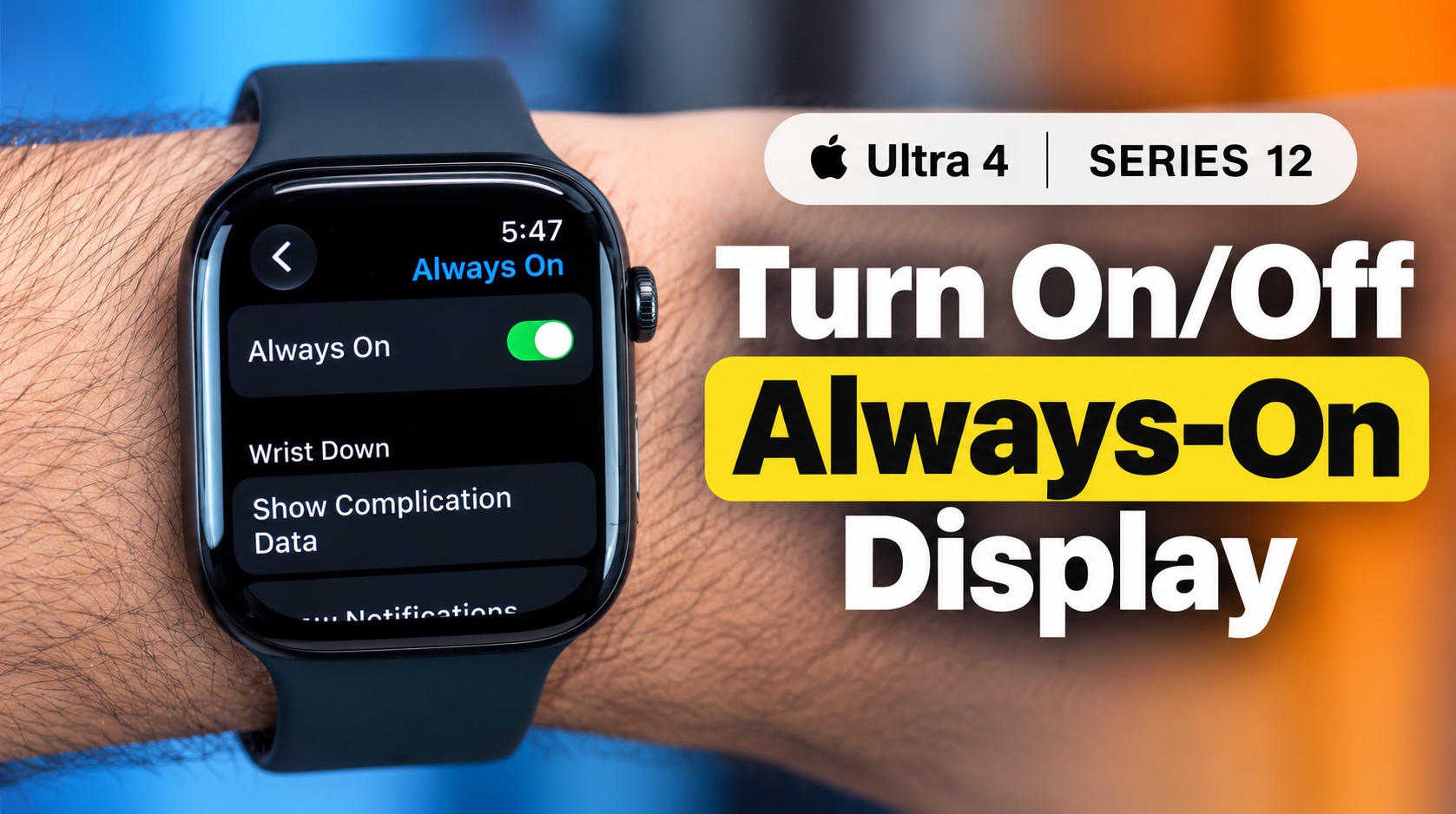
The Always On display is a useful Apple Watch feature that lets you see useful information like time and complications on your Watch face without having to raise your wrist or tap the screen.
If you want to turn off the Always On display feature of your Apple Watch Series 12 or Ultra 4 for privacy reasons, because you find it distracting, or want to maximize its battery life, then this guide is for you.
Enable or Disable Always On Display
- First of all, wake up your Apple Watch and press the Digital Crown button.
- Swipe up on the App Screen to access the Home Screen.
- Open the Settings app and tap on Display & Brightness.
- Tap on the Always On option.
- If the Always On toggle is on, turn it off by tapping on it.
- If it’s off and you want to enable this feature, then turn on the toggle.
Your Apple Watch will now turn its display off when you lower your wrist or stop interacting with it.
If you want to get better battery life, turning Always-On Display off can be useful. And if you prefer being able to glance at your watch without raising your wrist, you can simply leave it enabled.
Disclosure: iOSHacker may receive a commission if you purchase products through our affiliate links. For more visit our privacy policy page.


