


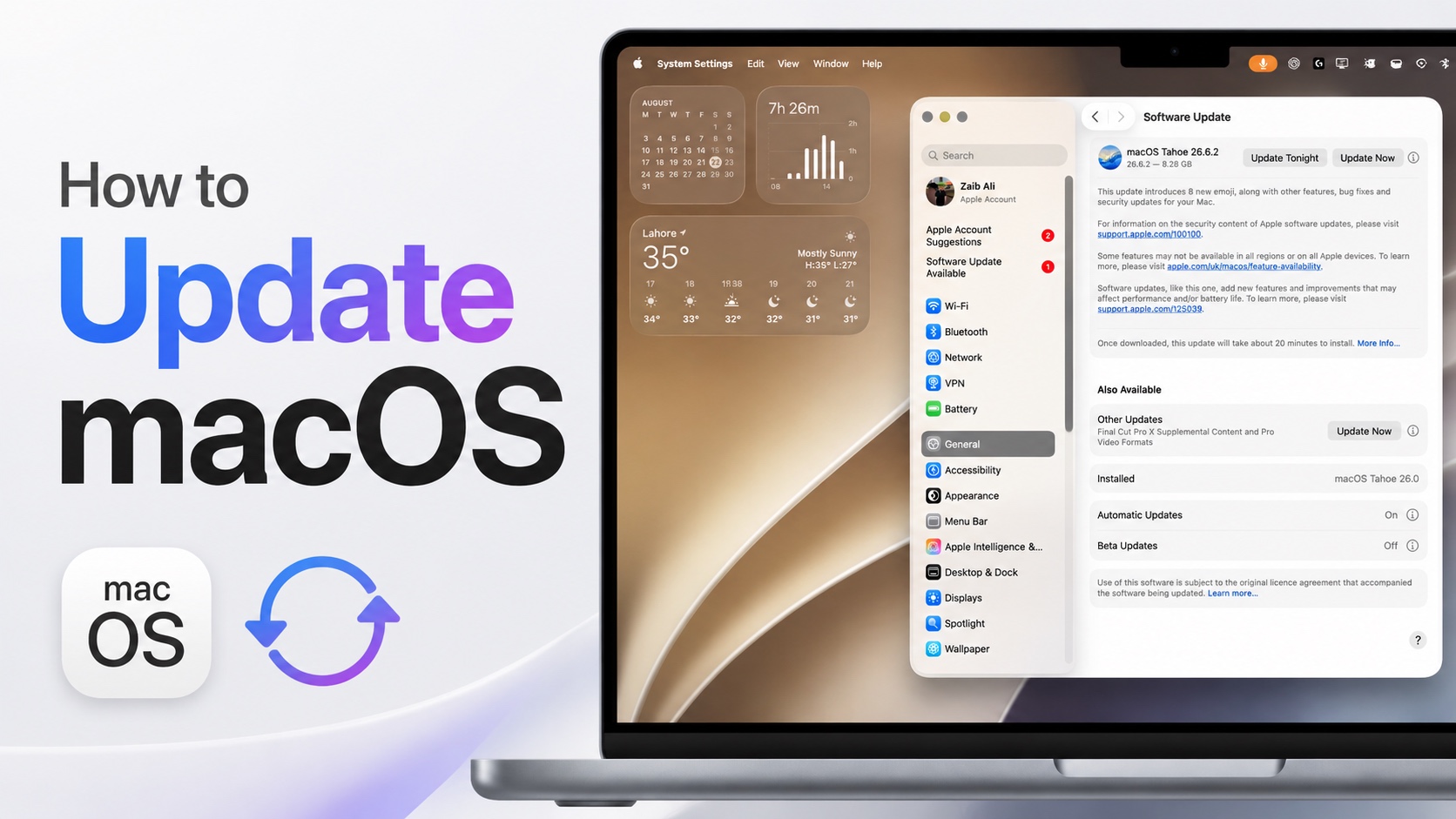
If you want to update your Mac to the latest version of its operating system, then this guide is for you. Whether you want to install macOS Golden Gate or need to install a minor version of macOS like macOS 26.6.2, the steps are the same.
Keeping the Mac running the latest version of macOS is important for a variety of reasons. New macOS versions not only bring new features to the Mac, but they also equip your Mac with security patches and bug fixes that help in running the Mac smoothly and improve its performance.
It is recommended that you create a fresh backup of your Mac in Time Machine before installing the update.
Update macOS on Mac
- Click on the Apple logo in the top-left corner.
- From the dropdown menu, click on System Settings.
- Now, from the side pane, click on General.
- Next, click on Software Update.
- Your Mac will now check for available updates. If a new update is available, click on the Update Now button to download and install the update.
When a macOS update is being installed, your Mac might restart a number of times. Do not interrupt the installation process or unplug your computer. After the software has installed successfully, you will be able to log in and use your Mac.


