


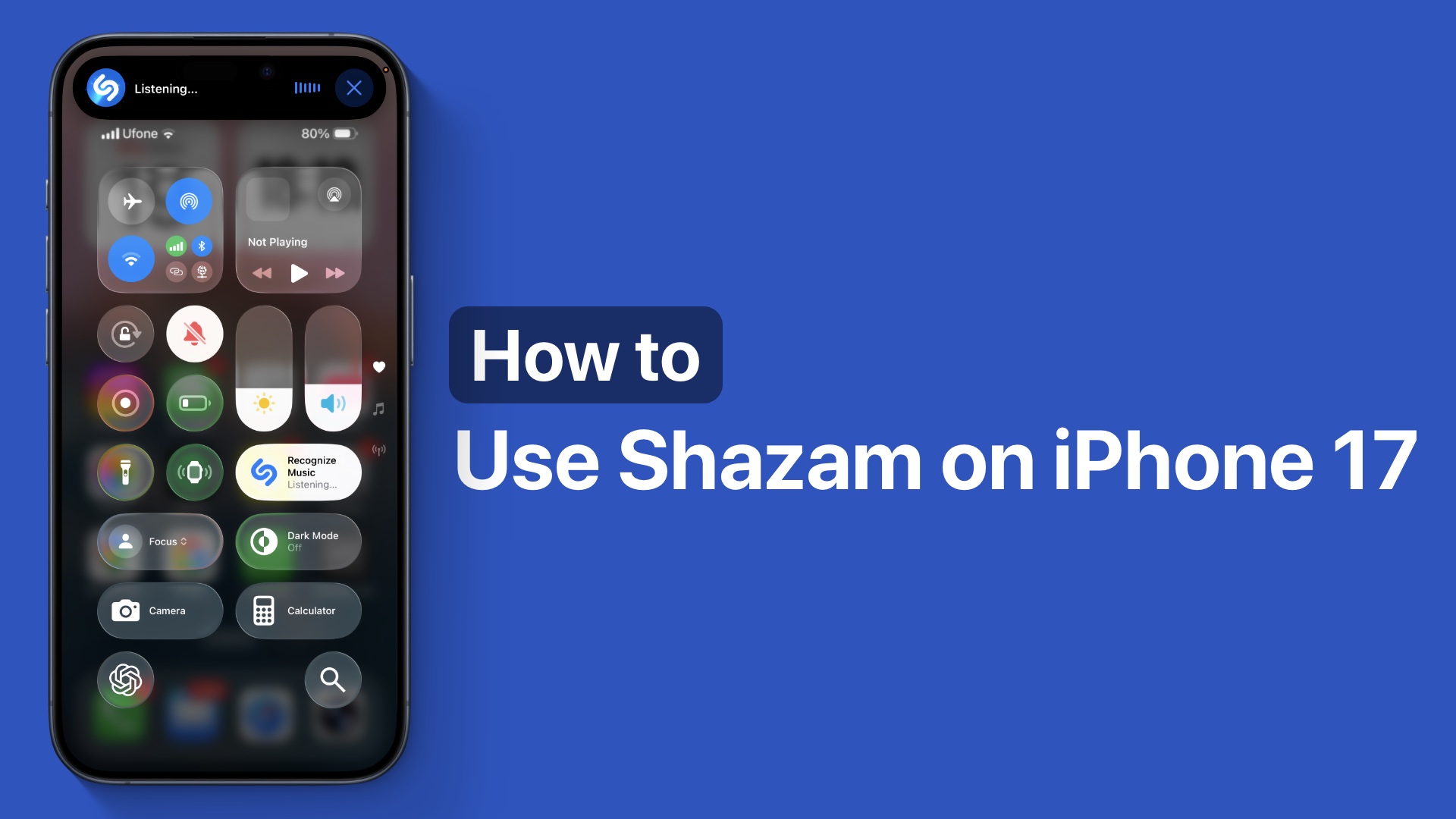
Do you want to use Shazam on your iPhone 17 or iPhone 17 Pro? In this tutorial, we will show you how you can add the built-in Shazam feature to your iPhone and use it to recognize music playing around you.
Here you will also learn how to access Shazam history and find songs that you have previously recognized on your iPhone 17. So without any further ado, let’s get right into it.
Use Shazam on iPhone 17
- Access the Control Center by swiping down from the top left corner.
- Long-press on an empty area on the screen (where there are no buttons).
- Tap on the ‘Add a Control’ option at the bottom.
- Search for and add the Recognize Music button to the Control Center.
- Tap on an empty area again to exit Control Center editing mode.
- Now tap on the Recognize Music button you just added to use Shazam.

View Shazam history on iPhone
You can view your Shazam history and find the songs you have previously recognized with Shazam by accessing the Control Center.
Here, find the Recognize Music button and long-press on it. Then tap on the History option.
Disclosure: iOSHacker may receive a commission if you purchase products through our affiliate links. For more visit our privacy policy page.


