


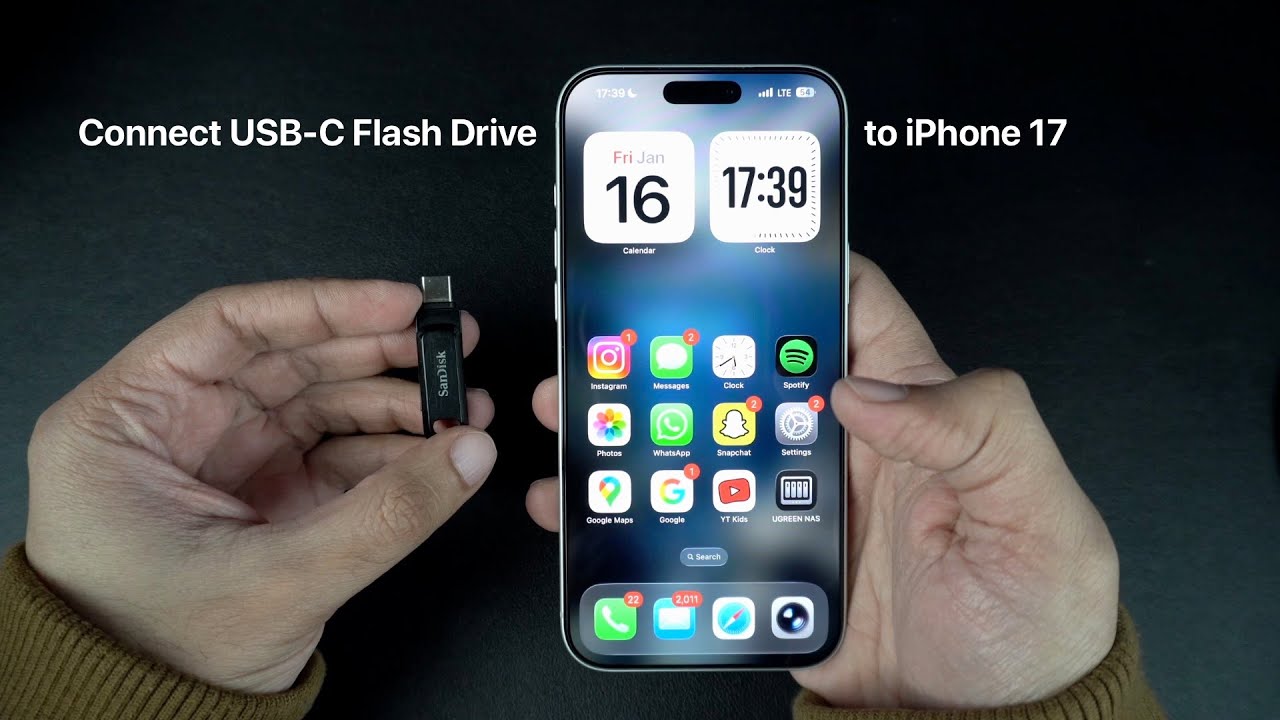
Are you looking for an easy way to transfer photos, videos, documents, and other files from your iPhone to a USB flash drive or vice versa? Then you are in the right place.
In this guide, we have shared a step-by-step guide on how you can connect a USB-C flash drive to your iPhone and transfer your data to your device.
Connect a USB Flash Drive to iPhone 17
Before you begin, here’s what you need:
- An iPhone 17
- A USB-C flash drive
- A USB-A to USB-C Adapter (for USB-A flash drives)
Step 1. Plug your USB-C flash drive directly into your iPhone 17’s charging port. If you have a USB-A flash drive, then plug it into the adapter, and then plug the adapter into your device.
Step 2. Now open the Files app on your iPhone.
Step 3. Tap on the Browse button at the bottom.
Step 4. Under Locations, you will see your USB flash drive list. It’s usually named USB Drive or the brand name. Tap on it.
Now you should be able to browse the contents of your USB flash drive. You can tap on the files stored inside the flash drive to preview them. This includes Photos, Videos, Documents, and other files.
Moving files from iPhone to Flash Drive
If you want to move files from your iPhone to your USB flash drive, then you can follow the steps below.
- In the Files app, tap on the Browse tab.
- Under Locations, go to On My iPhone.
- Find the photos, videos, or files you want to transfer.
- Tap and hold on the file and tap on the Move option.
- Choose your USB flash drive and tap on the Move option again.
Your files will start copying instantly.
Copying files from Flash Drive to iPhone
If you want to move files from your USB flash drive to your iPhone, then you can follow the steps below.
- Open the Files app and tap on the Browse tab.
- Under Locations, tap on your Flash Drive’s name.
- Find the file you want to move to your iPhone and long-press on it.
- Select the Move option.
- Choose the ‘On My iPhone’ option.
- Pick a folder and tap on the Move option.
That’s it, your selected file will now be moved to your iPhone.
After you are done previewing or copying data, you can simply unplug the flash drive from your iPhone. There’s no eject button on iPhone, so make sure no files are transferring before removing the flash drive.
Can’t see the flash drive on iPhone?
If you are unable to see your flash drive on your iPhone, then it could be due to the following reasons.
- Your flash drive does not support iOS
- Try unlocking your iPhone and then plugging the flash drive in
- Unplug and replug the flash drive
- Check if your flash drive needs a companion app from the App Store
- Your flash drive is formatted in a format not supported by iOS (exFAT, FAT32, APFS, and HFS+ (macOS Extended) are supported)


