


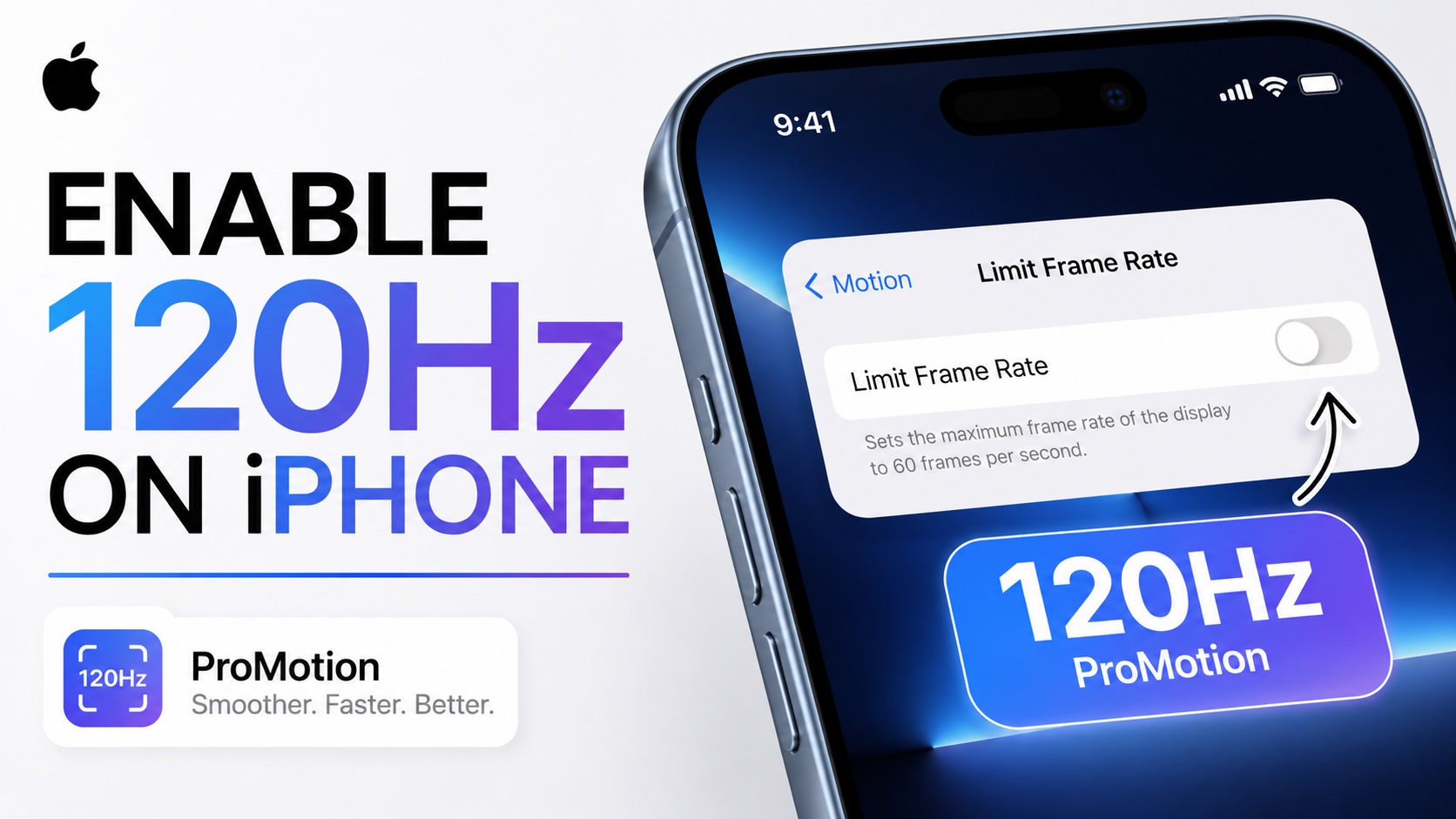
Does your iPhone support 120Hz Refresh Rate but you don’t see it on your device? In this guide, we have shared a simple tip that will enable 120Hz ProMotion Refresh Rate on your device.
A wrong setting could be limiting 120Hz Refresh Rate to just 60Hz, preventing your iPhone’s display from offering smoother scrolling, better animations, and a fluid experience.
Before moving ahead, make sure your iPhone supports 120Hz ProMotion Refresh Rate.
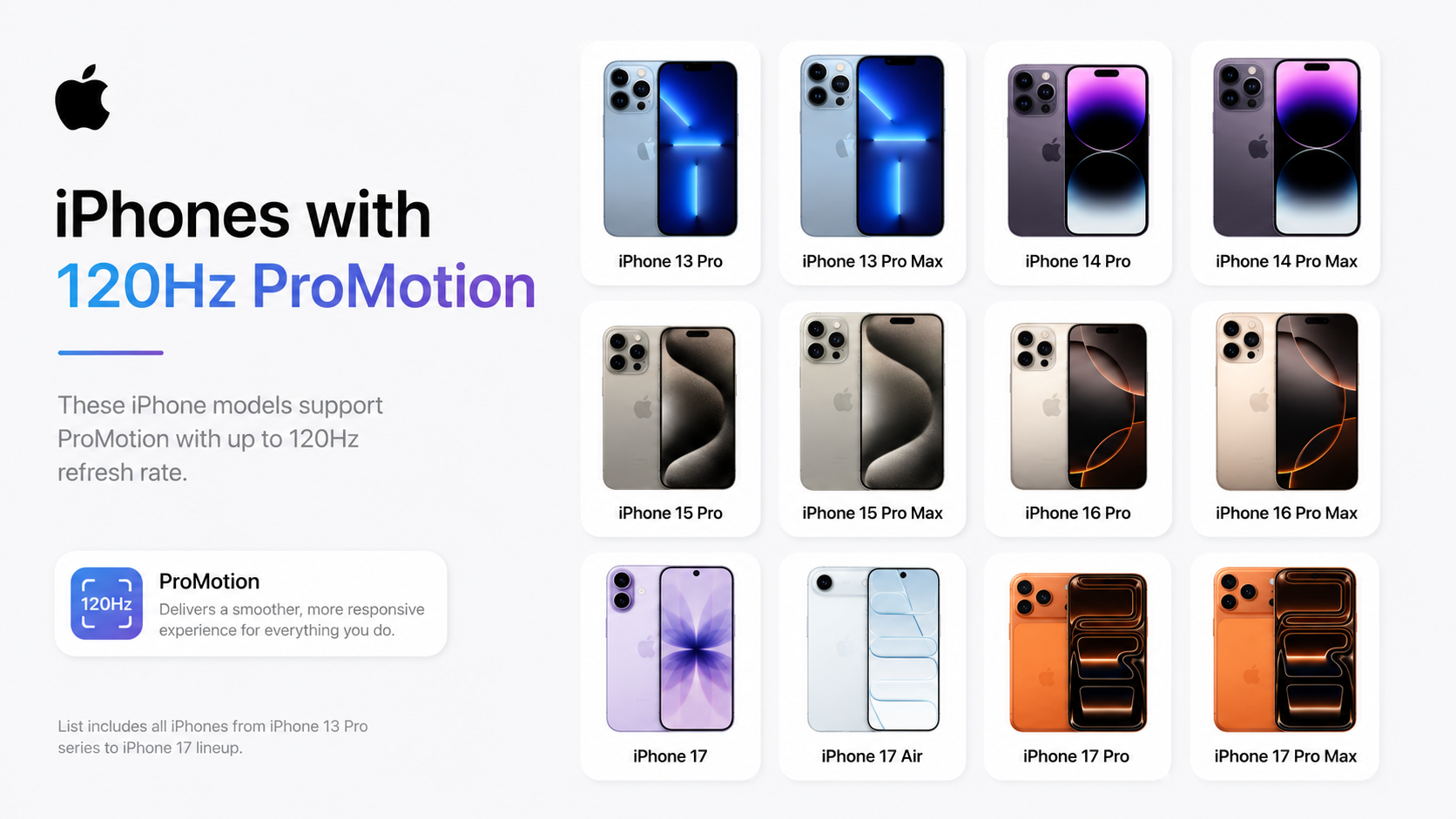
- iPhone 13 Pro
- iPhone 13 Pro Max
- iPhone 14 Pro
- iPhone 14 Pro Max
- iPhone 15 Pro
- iPhone 15 Pro Max
- iPhone 16 Pro
- iPhone 16 Pro Max
- iPhone 17
- iPhone Air
- iPhone 17 Pro
- iPhone 17 Pro Max
Enable 120Hz Refresh Rate on iPhone
If you have one the devices mentioned above, then follow these steps to turn on 120Hz Refresh Rate on your iPhone.
- Open Settings
- Go to Accessibility
- Tap on Motion
- Turn off the toggle for Limit Frame Rate

Low Power Mode also limits refresh rate on your device. Make sure to turn off Low Power Mode by going to Settings -> Battery -> Power Mode -> Low Power Mode -> Off.
Once 120Hz Refresh Rate has been activated you can especially notice the difference when:
- Scrolling through apps and websites
- Playing supported games
- Launching and closing apps and other parts of UI
- Watching high frame rate content


