


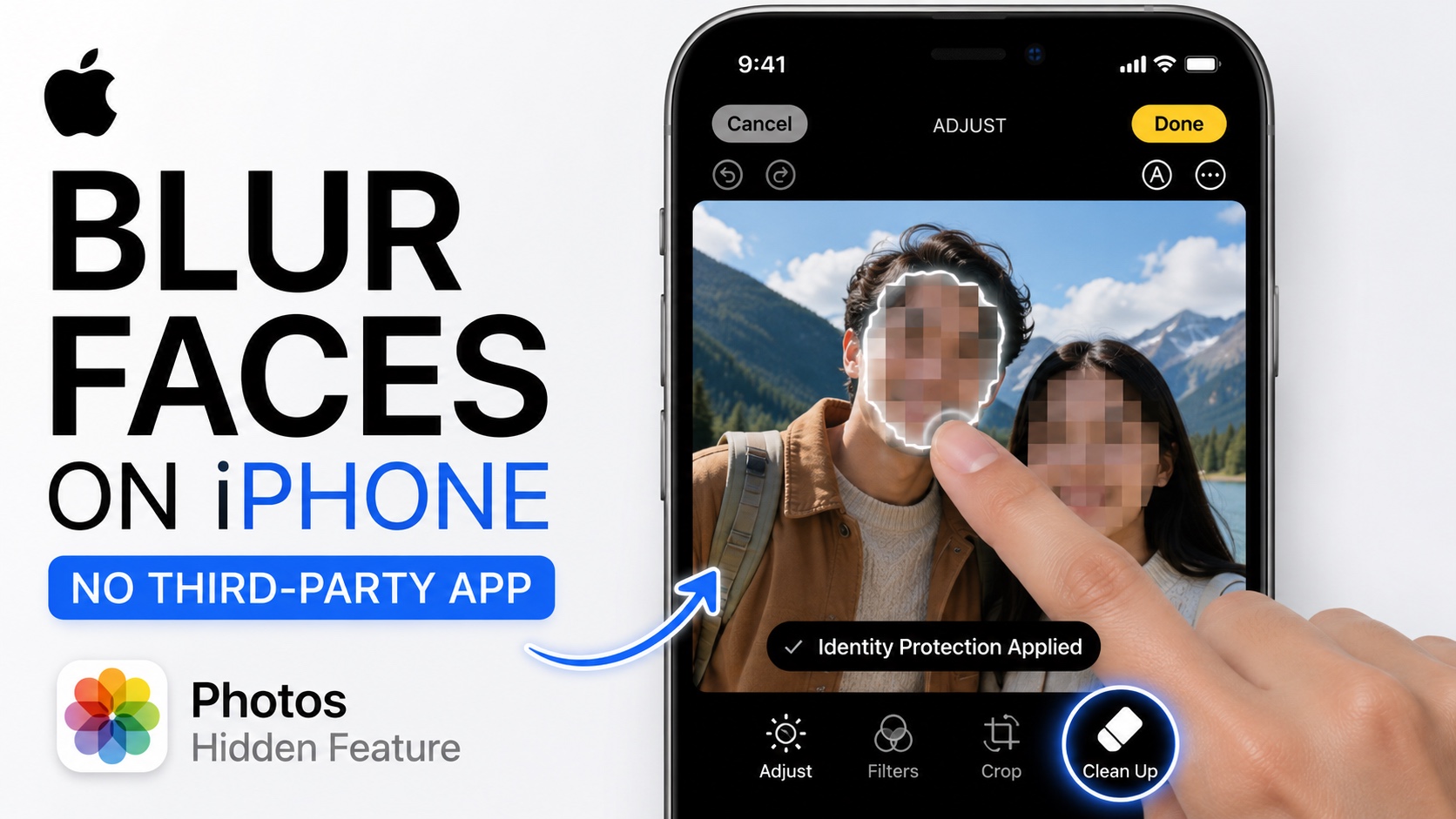
Have you ever wanted to blur a person’s face in a photo. In this guide, we are going to show you a hidden Photos app feature that lets you blur a person’s photos in a neat way without requiring any third-party app.
There are lots of instances when you want to share a photo with someone or on social media, but want to also protect the privacy of people shown in the photo. The solution? Simply blur out there face using the built-in Clean Up tool in iOS 18 or later.
Here’s how to do it.
- Open the Photos app on your iPhone and load up the photo that you want to blur.
- Now tap on the edit button from the bottom toolbar.
- From the same tool bar tap on the Clean Up tool.
- Once you are in the Clean Up mode take your finger and rub it over the person’s face you want to blur. Make sure to encircle it precisely and a couple of times.
- As soon as you lift your finger, You will see the Identify Protection applied text at the bottom. iOS will blur out the face of the person adding a pixelated effect over the face, making it impossible to identify the person.

You can do this on multiple faces if you want to blur out the face of more than one subject in the photo. You can also zoom into the photo to make it easier for you to select the facial area.
You can use the Clean Up tool to blur faces on photos taken on your iPhone and those downloaded from the internet.
That’s it, this is how you can use the Clean Up tool to protect privacy and hide the identity of people featured in your photos before sharing them.


