


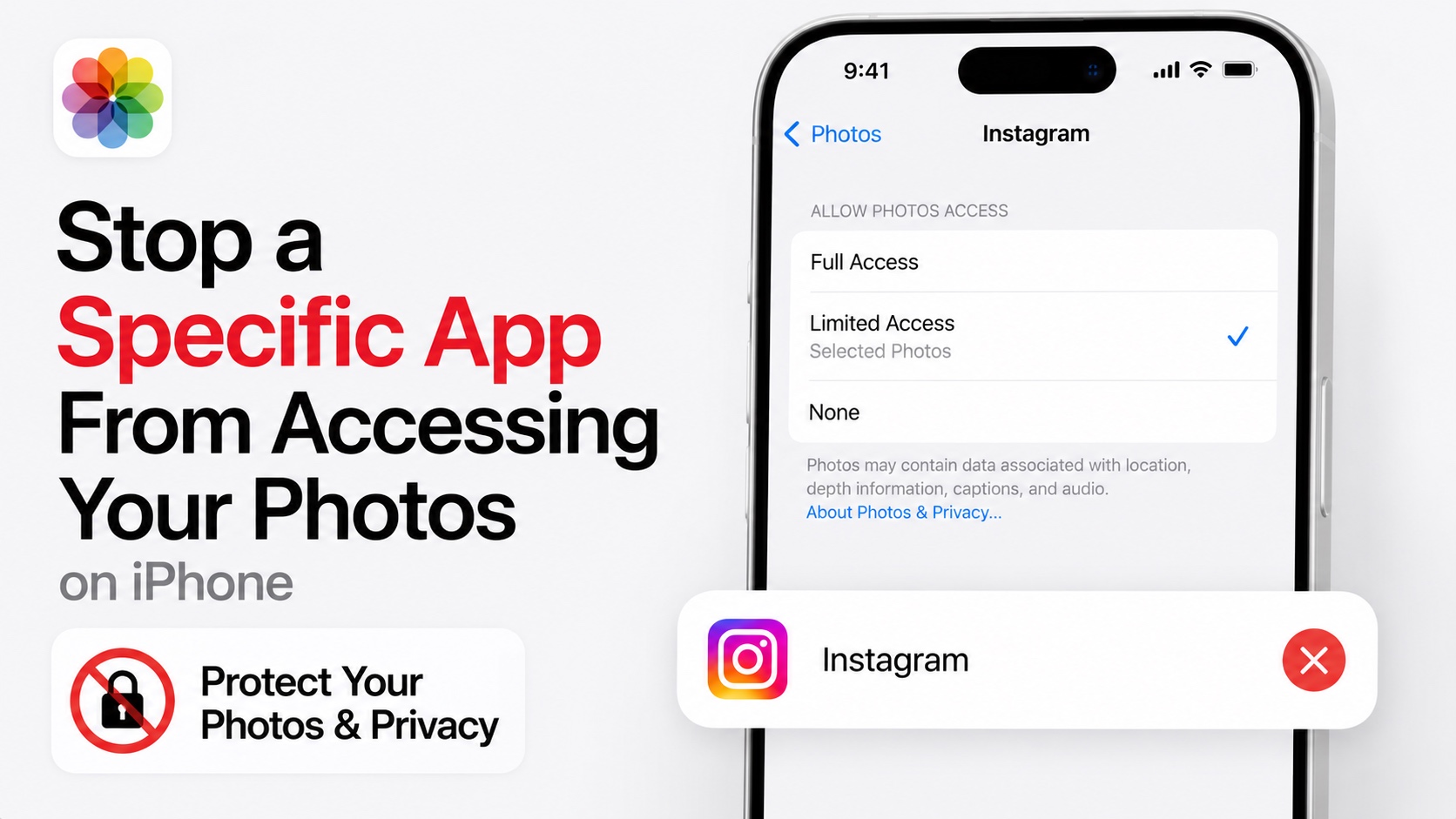
Did you give an app access to your iPhone’s Photos library, but you now want to take the access away? In this guide, you will learn how to stop a specific app from accessing your photos on iPhone after you have previously given it permission to do so.
Here, you will also learn how you can limit any app’s photo library access and only give it permission to access certain photos.
- Open the Settings app.
- Go to Apps.
- Find the app you want to restrict access to.
- Here, tap on the Photos option. If you don’t see the Photos option, then the app does not have access.
- On the Photos option page, choose None.
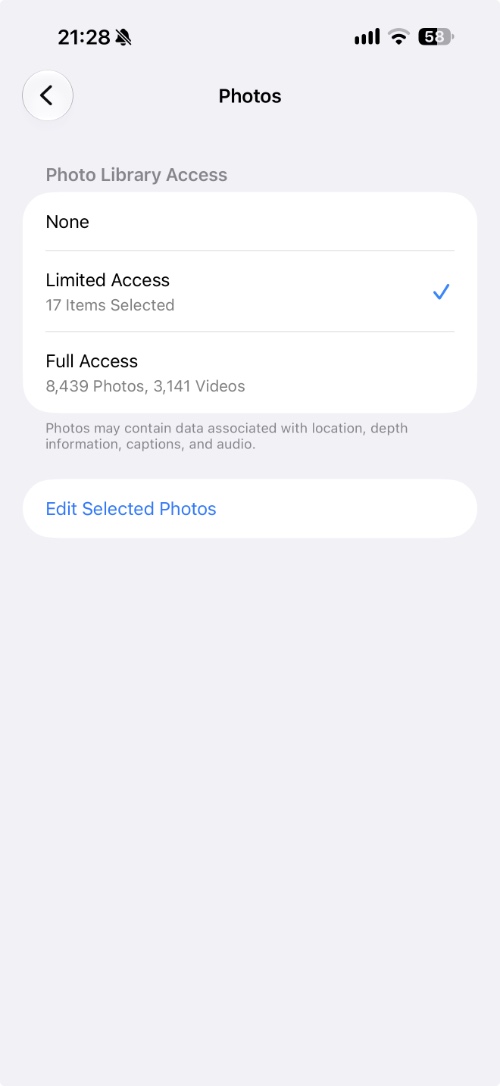
Choosing the ‘None’ option will immediately revoke the app’s permission to access your iPhone’s Photos Library.
You can also select the ‘Limited Access’ option and select specific photos that you want to share with that app.
This is how you can completely block Photos access, allow limited access to selected photos, or give the app broader access if you decide you need it.
In the app’s settings page, you can also review access to things like your Camera, Microphone, Contacts, and Location in addition to Photos. Revoke access to things that the app does not need and boost your privacy.


