


On devices running iOS 26 or later, Apple has finally allowed users to set a custom Snooze duration for their alarms. In this guide, we show you how you can change it.
Believe it or not, in iOS 18 or earlier, users did not have the option to set a custom snooze duration.
However, now that has changed, and you can select between 1 minute all the way up to 15 minutes for alarm snooze levels. You can even set different snooze intervals for each of your alarms, which is great.
Change Alarm Snooze Duration
Changing the Snooze duration of an alarm is very simple. Just follow the steps below.
- Just launch the Clock app and either create a new alarm by tapping on the + button or tap on an existing alarm in order to modify it.
- When you are on the alarm settings page, you can tap on the Snooze Duration option.
- This will let you select from different options. For example, you can select 1 minute, 2 minutes, 3, 4, 5, all the way up to 15 minutes snooze duration.
- After you have selected your desired snooze duration, simply tap on the tick button to save your settings.
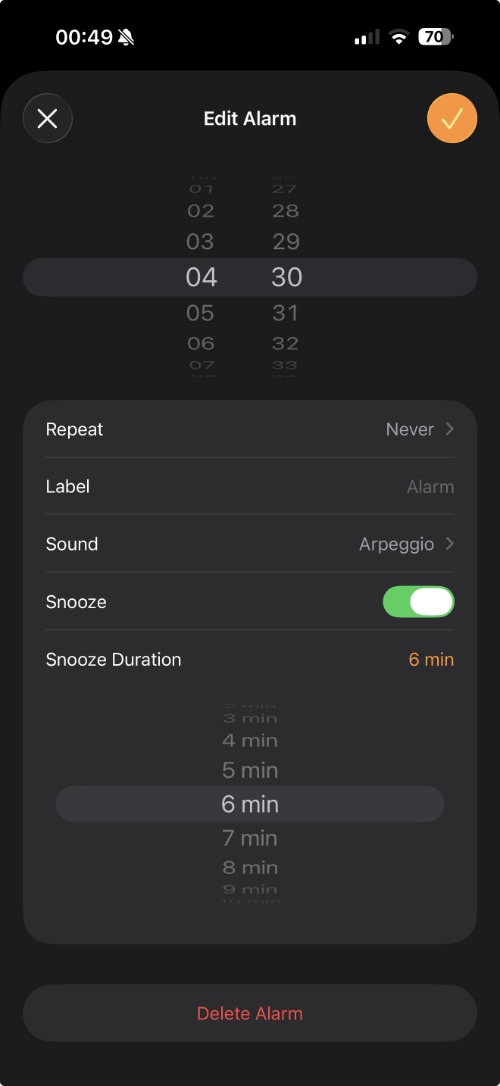
That’s it, this is how you can set a custom alarm snooze duration in the Clock app on devices running iOS 26 or later.
Disclosure: iOSHacker may receive a commission if you purchase products through our affiliate links. For more visit our privacy policy page.


