


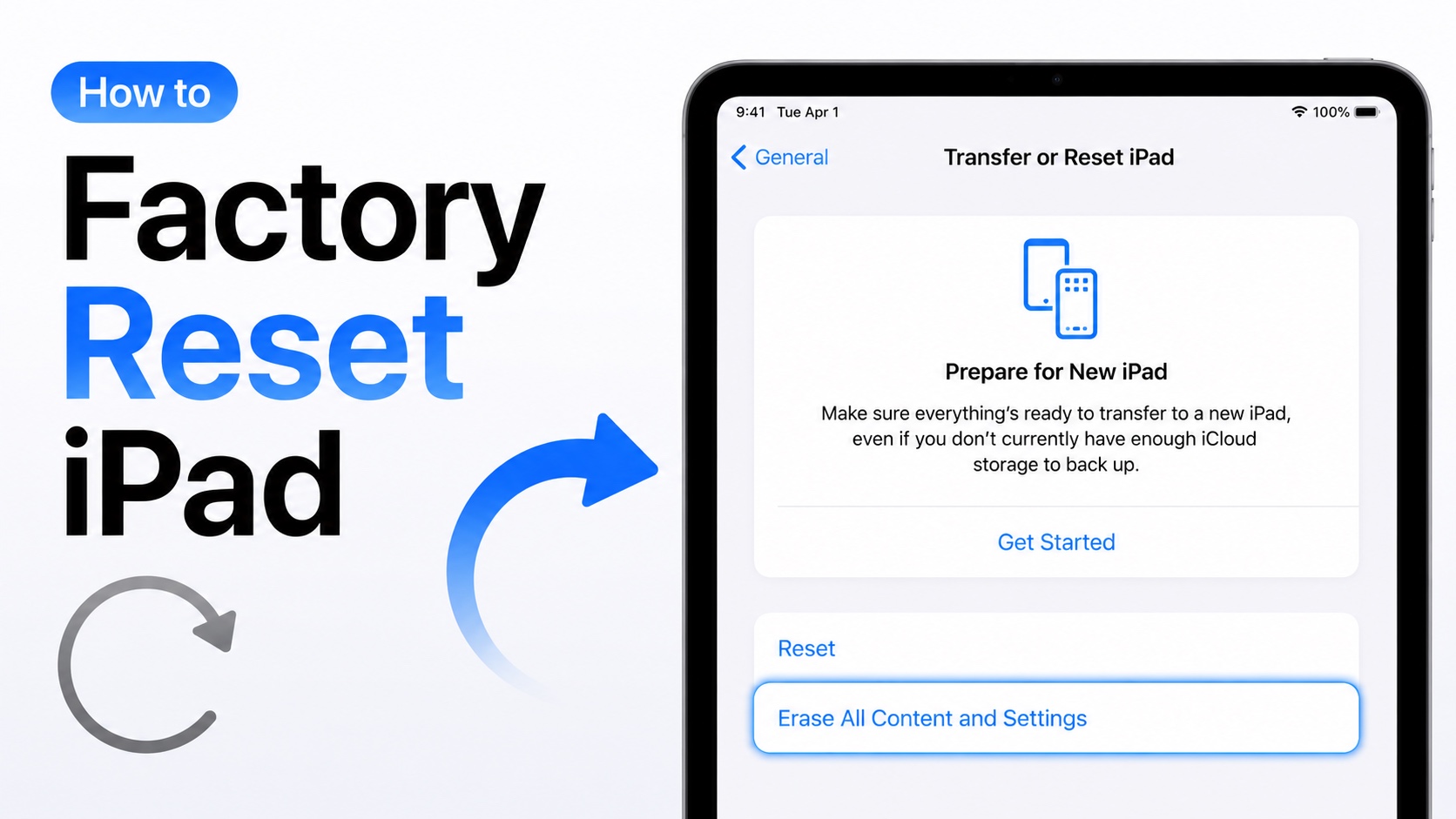
If you are iPad having software troubles with your iPad, its running slow, or you plan on selling or trading it, then performing a factory reset is the best way to protect your data.
In this guide, we will show you how you can factory reset iPad. We will share steps for both a working iPad and an iPad that you are locked out of. So without any further ado, let’s get right into it.
Before you begin:
- Make sure to create a back up of your iPad in iCloud or iTunes/Finder
- Charge your iPad up to 50% or more
- If you plan on giving the iPad away make sure to sign out of your Apple account
- Turn off Activation Lock
Factory Resetting and iPad is a permanent task. You cannot reverse this process. All of your photos, videos, and personal files will be erased and can only be restored after you restore a back up to your device.
Factory Reset iPad from Settings app
You can easily reset any iPad model from the Settings app. Here’s how to do it.
- Open the Settings app.
- Go to General.
- Scroll down and tap on Transfer or Reset iPad.
- Erase All Content and Settings.
- Tap on Continue.
- Enter you iPad’s Passcode when prompted.
- Enter Apple ID password and turn off Find My.
Your iPad will start the process of erasing. It would take several minutes to complete and might take longer if you have a lot of data on your device.
Factory Reset iPad with Computer
You can also use your Windows PC or Mac to Factory Reset your iPad.
On Windows you will use iTunes while on Mac Finder can be used to factory reset the iPad.
- Connect your iPad to the computer using a USB Cable.
- Open Finder/iTunes and select your iPad from the side pane.
- Click on Restore iPad option.
- Confrim your choice and wait for the reset process to complete.
Factory Reset iPad with Recovery Mode
If your iPad is frozen, not working properly or you have forgotten its passcode, then follow these steps to reset iPad. This is useful when your iPad is locked or not working properly.
- Connect iPad to your Mac or PC with a USB cable.
- Press and release Volume Up button.
- Press and release Volume Down button.
- Press and hold top button until Recovery Mode screen appears.
On older iPads you have to press the Power/Top and Home buttons simultaneously until the Recovery Mode screen appears.
Once your device enters recovery mode follow these steps.
- Launch Finder or iTunes.
- When prompted click on Restore.
- Wait for the restore process to finish.
That’s it, this is how you can factory reset an iPad using different methods. We showed you how to factory reset iPad when it is working fine, when it is not working fine and is stuck and using Recovery Mode.


