


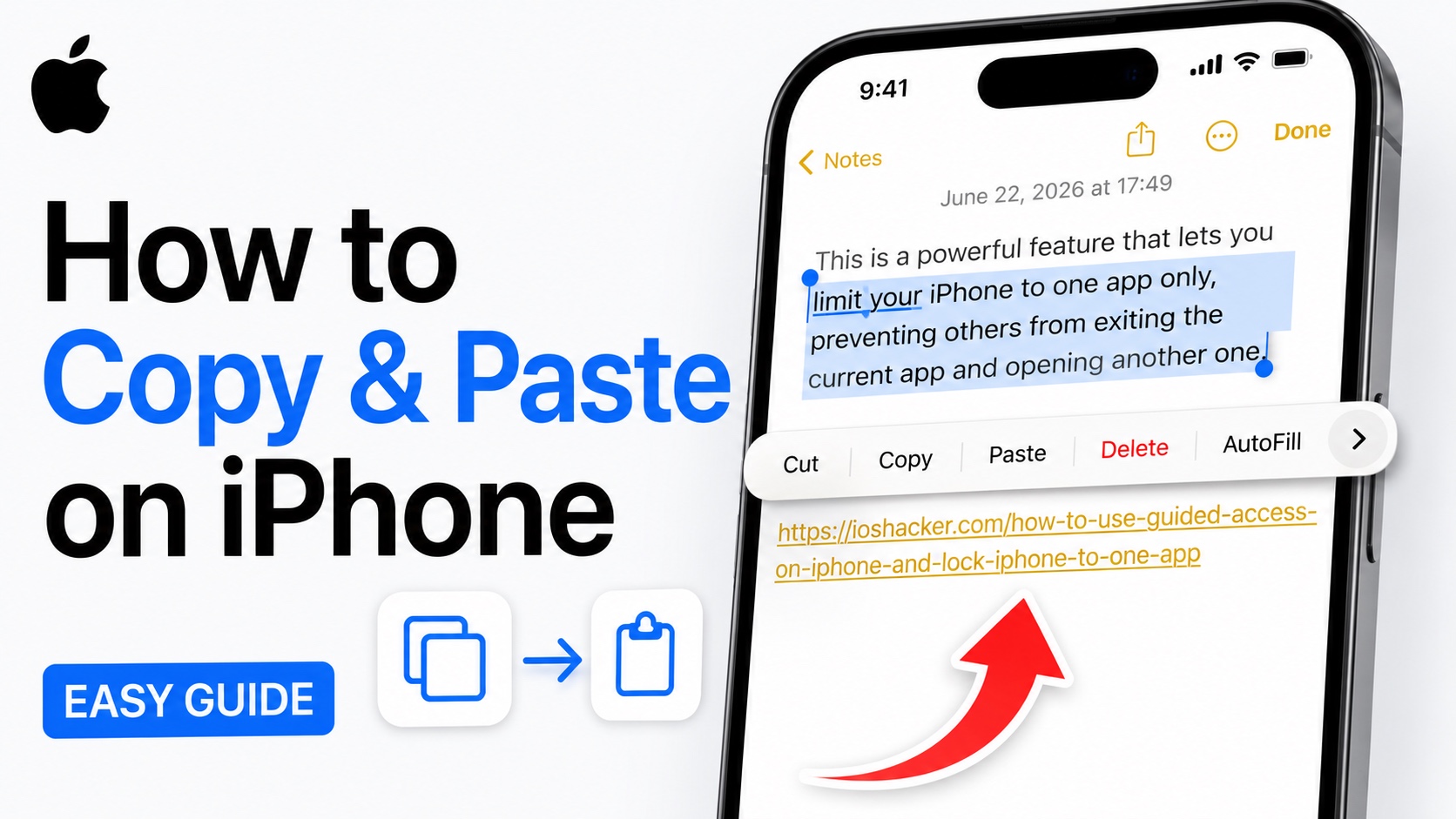
In this guide you will learn how you can copy and paste text, links, and images on your iPhone. Whether you are saving information with friends, sharing a link with a colleague, or want to insert an image into a document, this guide has got you covered.
Copying and pasting text on iPhone is super simple once you know how to do it. Follow the steps below to perform Copy Paste action on your iOS device.
Copy Text on iPhone
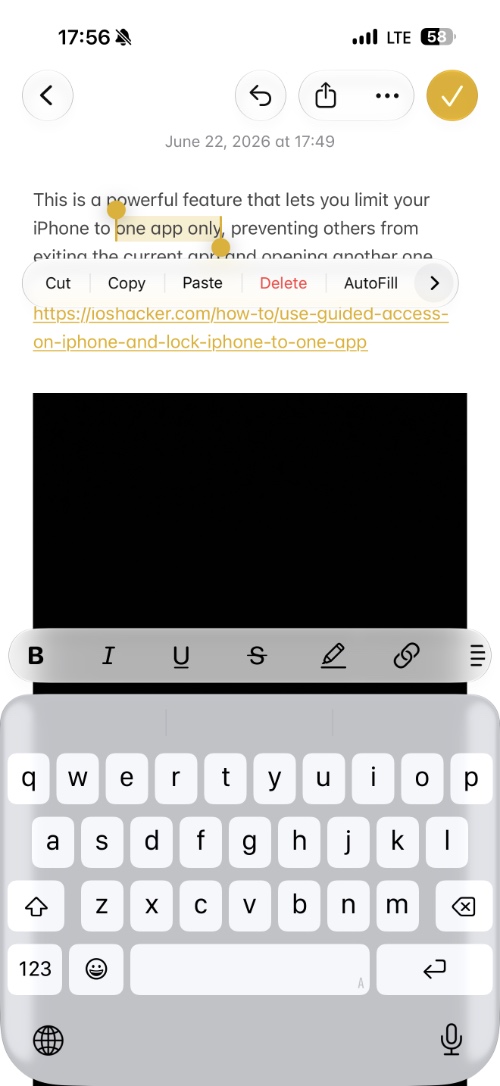
To copy a paragraph of text, a message, or a piece of information follow these steps.
- Open any app that contains text you want to copy. This includes Safari, Notes, Messages, Mail etc.
- Tap and hold on any word until a menu appears.
- Drag the blue selection handles to highlight the text you want to copy.
- Now tap on the Copy button from the menu that appears after text selection.
To paste the copied text follow these steps.
- Open any app you want to paste the text in.
- Tap and hold inside a text field or document.
- Now tap on the Paste when menu appears.
Copy Links on iPhone
To copy links in Safari or any other web browser, follow these steps.
- Open Safari or a browser of your choice.
- Tap on the address bar.
- Tap on the highlighted link to reveal menu.
- Tap on the Copy button.
To paste the links open an app like Messages, Notes, Mail or any other app and long press on a text field. Finally hit Paste from the menu.
Copying and Paste Photos on iPhone
You can also copy photos on your iPhone directly from the Photos app. Here’s how to do it.
- Open the Photos app and find the photo you want to copy.
- Tap on the Share button.
- Next tap on Copy Photo button.
To paste the copied image, simply open any app that supports images like Notes or Messages and long press where you want to paste the image. Then select Paste.


