


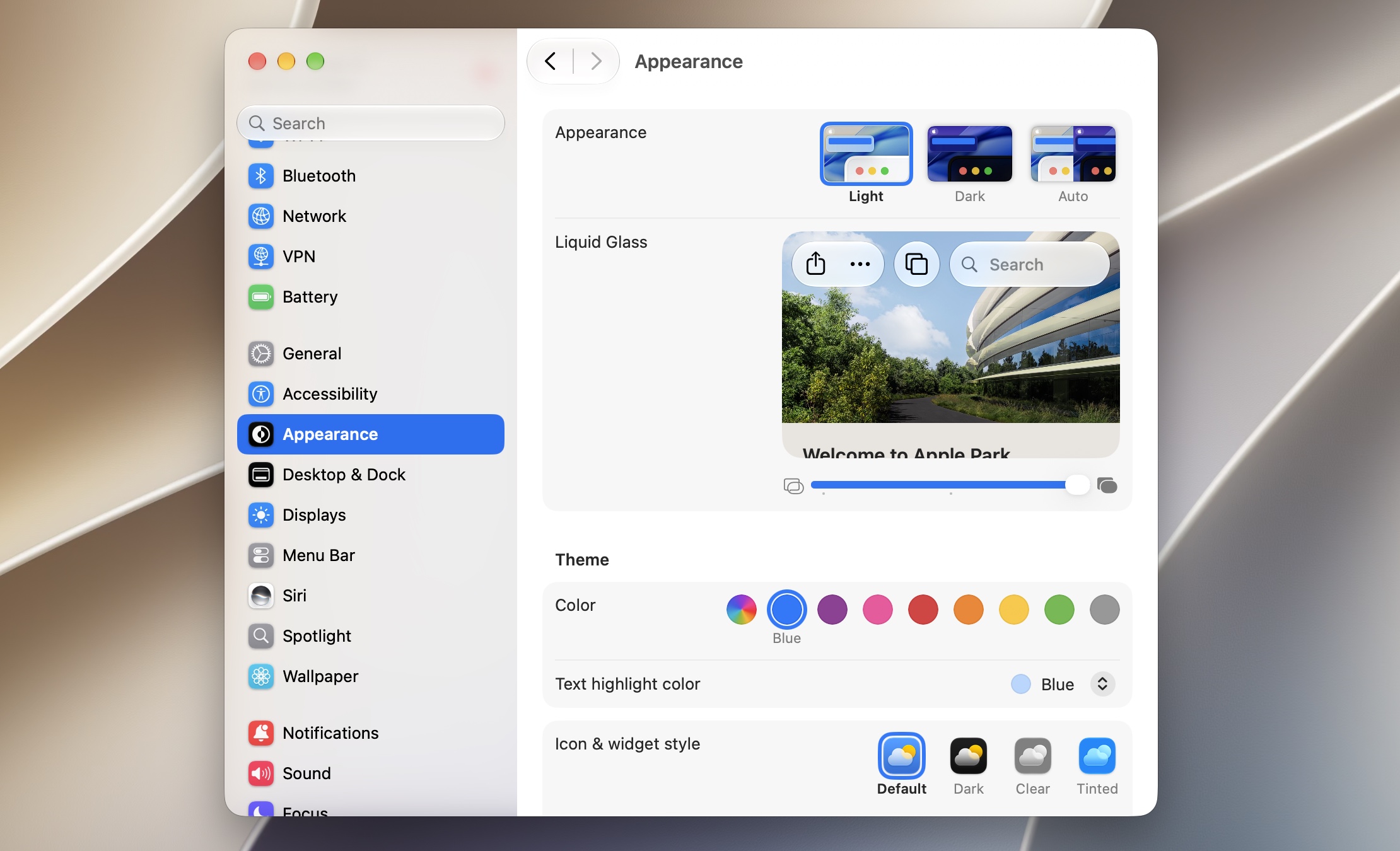
macOS 27 Golden Gate goes heavy on the Liquid Glass UI, adding it to more parts of the operating system. When it comes to the look and feel of the Liquid Glass design, some users love it while others despise it.
No matter which side of the fence you are on, macOS 27 gives you the ability to increase or decrease the Liquid Glass effect on your Mac.
Using a dedicated slider, you can make the UI more Glass-like, or if you like, you can make it more frosted. Here’s how you can customize
- Click on the Apple logo in the top-left corner of the menu bar.
- From the dropdown menu, click on System Settings.
- A System Settings window will open. Scroll down on its side pane and click on Appearance.
- On Appearance page, move the Liquid Glass Slider left to make the interface more Glass-like.
- Move the slider towards the right side to make the interface more frosted.
That’s it, this is how you can customize the look of the Liquid Glass on any Mac that is runnign macOS 27 or later.
When you change the Liquid Glass’s intensivity, the change is instantly reflected on the buttons, widgets, text fields, and other UI elements that use the Liquid Glass design.


