


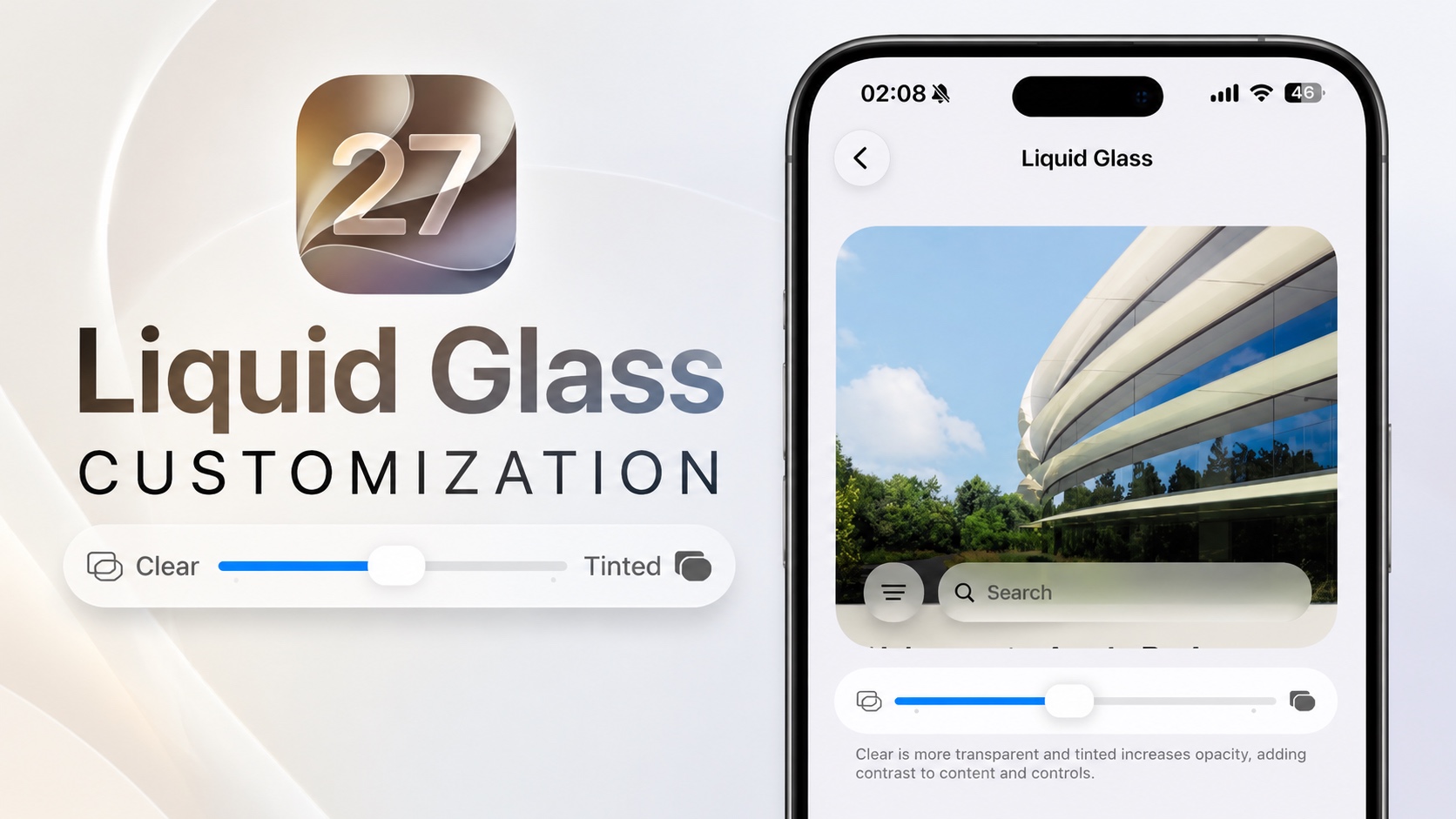
iOS 27 brings a brand new Liquid Glass Customization feature that gives users full control over how Liquid Glass looks on their iPhone.
In this article, we are taking a look at the new Liquid Glass customization slider that lets users change the appearance of the Liquid Glass design system-wide.
To access this setting, open the Settings app and tap on Appearance. Then select Liquid Glass.

When on tap on it, you will find a slider that lets you make the Liquid Glass design more clear or more Tinted.
When the slider is positioned toward the left, the interface becomes more transparent, allowing more of the background content to show through. Apple calls this the Clear appearance.
Moving the slider toward the right increases opacity and contrast, creating a more frosted glass effect. This is known as the Tinted appearance.
When the slider is moved toward the right, interface elements like Safari’s toolbar and menus become more opaque and easier to distinguish from the content behind them. This option is ideal for users who find the default Liquid Glass effect a little too transparent and want a cleaner, more readable interface.
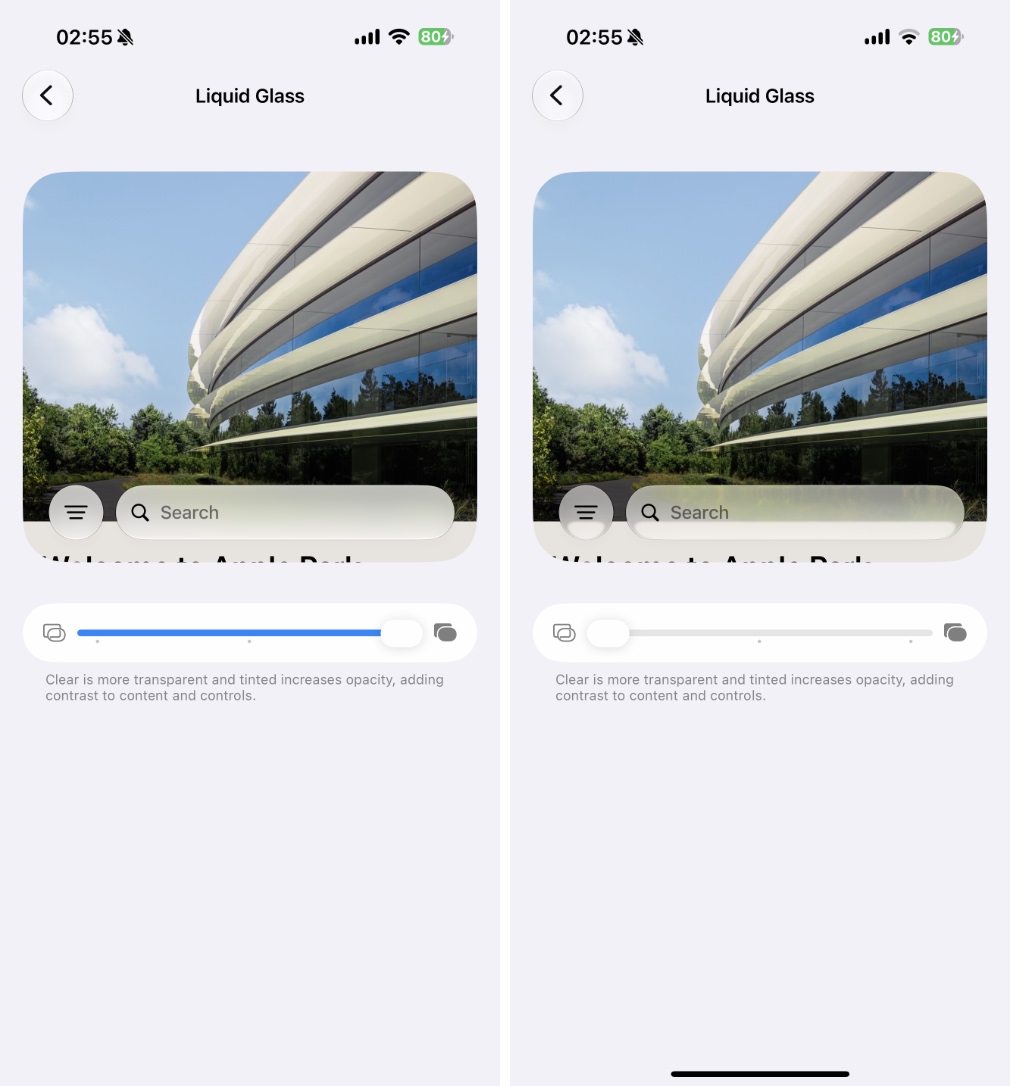
Moving the slider to the left makes the interface more transparent, giving iOS a lighter and more immersive appearance. If you’re a fan of the original Liquid Glass look, you’ll probably prefer this setting.
The best part is that this customization applies system-wide, allowing you to fine-tune the visual style of iOS 27 to match your personal preference.
And that’s it! That’s how you can customize the Liquid Glass design in iOS 27 and make it either clearer or more tinted.


