


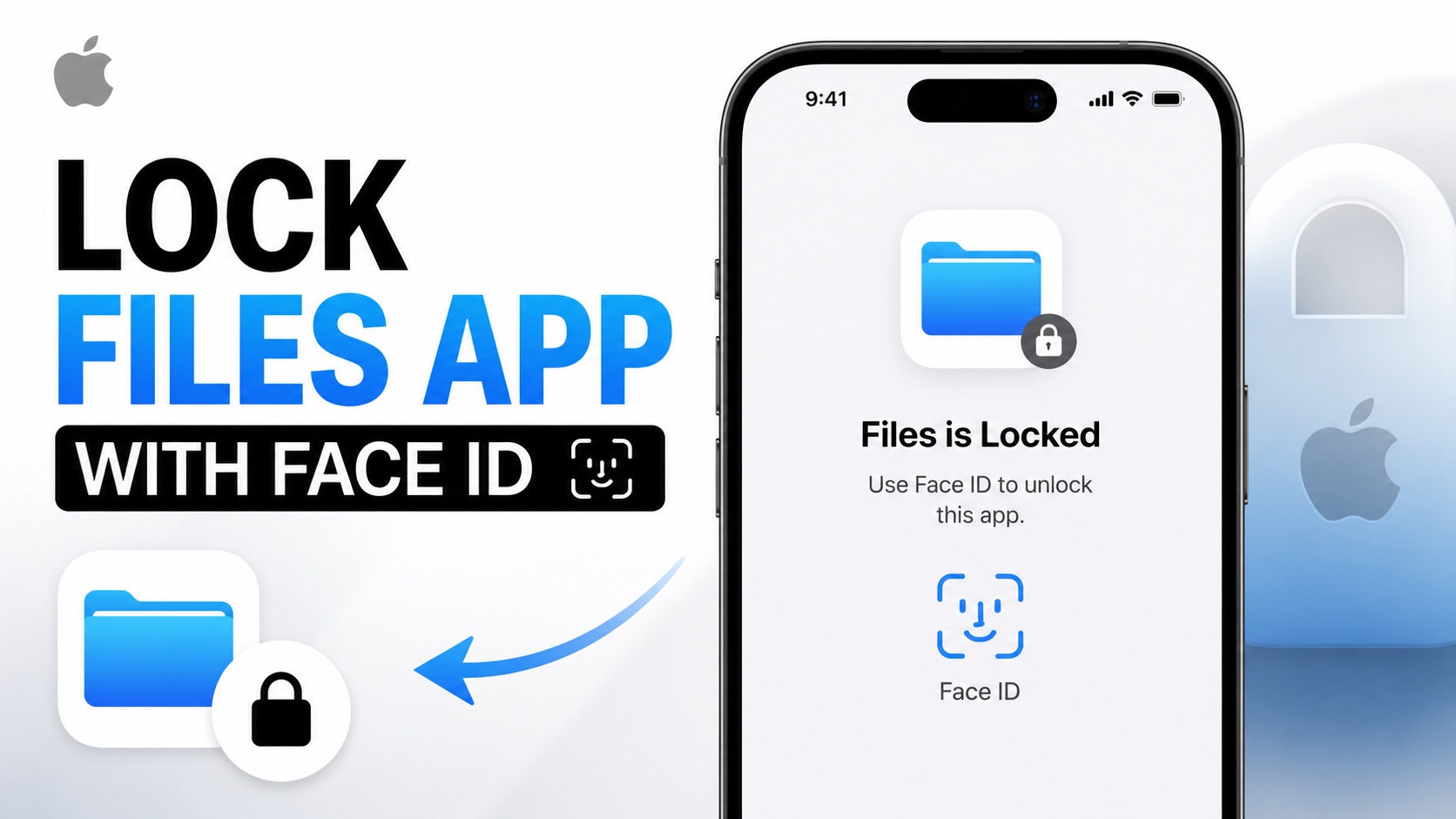
If you are someone who keeps important or sensitive files, documents, pictures, PDFs and other data in your iPhone’s Files app, then this guide is for you.
Here we will show you how you can protect Files app with Face ID, Touch ID or Passcode. We will also tell you whether is it possible to lock Files app folders with Face ID. So without any further ado, let’s get right into it.
Is it possible to lock Files app folders
Unfortunately no, it is now possible to lock Files app folders. Apple does not allow users to lock individual folders within the Files app. However you can lock the entire Files app, so it requires Face ID or Touch ID authentication when someone tries to access folders and files within it.
How to Protect Files app with Face ID
You can follow these steps to protect your iPhone or iPad’s Files app with Face ID or Touch ID depending on your iPhone model.
- Unlock your iPhone and locate the Files app icon on the home screen or App Library.
- Touch and hold on the Files app icon.
- From the menu that appears tap on Require Face ID option.
- Authenticate with Face ID or Touch ID.
The Files app is now protected. From now on whenever anyone tries to access the Files app, they will need to authenticate using Face ID, Touch ID or enter the device’s passcode before they can access your files.
You can quickly turn off Face ID protection by following the same steps as soon above, this time choose Don’t Require Face ID option and authenticate.


