


In this tutorial, we will show you how you can make app icons, text, and other UI elements larger on your iPhone 17 or iPhone 17 Pro using two different methods.
The first method will let you increase the size of icons only, while the second method will allow you to make app icons, text, and other UI elements larger.
Method 1: Increase app icon size only
If you want to increase the size of icons on your iPhone, then you can take advantage of the home screen customization tools.
- To access them, simply long-press on an empty area on the home screen.
- Once you enter the wiggle model, tap on the Edit button in the top left corner.
- From the menu, tap on Customize and then tap on the icon resizing tool located at the top right corner of the customization menu.
As soon as you tap on it, you will notice that the home screen icons will get bigger.

While this looks cool, there’s a drawback to this method that some people might not like. As you can see, it has removed the app labels too, which can make it hard for some people to recognize apps.
But don’t worry, there’s another way of enlarging the icons.
Method 2: Make app icons, text, and UI elements larger
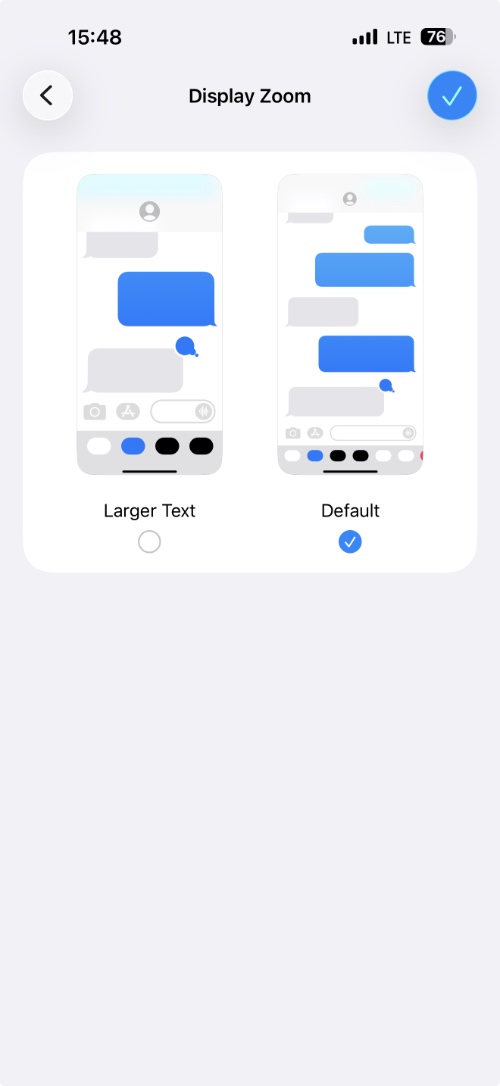
This method will also make the text and other UI elements bigger, without removing app icon labels.
- Open the Settings app and tap on the Display & Brightness option.
- Here, scroll down and under the Display section, tap on the Display Zoom option.
- On the next page, select the Larger text option. This will make the icons, text, and various UI elements larger on your device.
Your iPhone will perform a quick restart to implement the changes, after which you will see a completely different look to your device.
If you don’t like this change, then you can easily return to the default look by selecting the default option.
That’s it, this is how you can increase the size of app icons, text, and other things on your iPhone 17.


