


If you have ever missed a good shot because your iPhone’s camera took too long to open or it was busy saving the previous shot, then you are not alone.
In this guide, we will share easy steps that you can follow to make your iPhone camera faster and never miss another shot again.
Speed up iPhone Camera
Step 1. Launch Camera from Lock Screen
The first step of taking a quick photo or recording an instant video is launching the camera app. iOS has a handy shortcut that lets you open the Camera app right from the lock screen, without even unlocking the device. To do this, you simply have to swipe left on your lock screen.
iOS also provides an easy-to-reach Camera control right on the lock screen, which is located in the bottom-right corner.
Those with newer iPhone models can quickly launch the Camera app by pressing the Camera Control button or assign the Camera shortcut to the Action button.
Step 2. Access Camera from Control Center
You can launch the iPhone camera fast with the help of the Control Center. The best part is, this shortcut is available everywhere. So, no matter if you are using an app or playing a game, you can quickly access Control Center by swiping down from the top right corner and tapping on the Camera control.
If your iPhone’s Control Center does not have a Camera control, then you can add it by accessing the Control Center (swipe down from top-left), long-pressing in a space, and tapping on the Add a Control button.
Step 3. Use the Volume buttons for shooting
You can quickly take photos or start recording video by pressing the Volume buttons while using the Camera app. Press once to take a photo or long-press either of the Volume buttons to start recording a quick video. It feels more natural and lets you shoot without repositioning your hand.
Step 4. Turn on Prioritize Faster Shooting
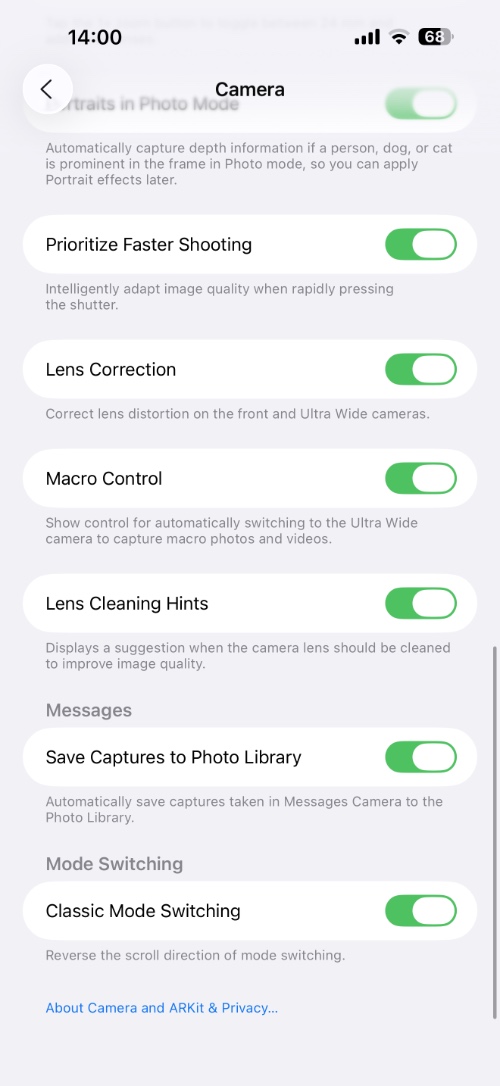
You can make iPhone’s camera faster and improve its efficiency by turning on a toggle in Settings. Just go to Settings and tap on Camera. Then turn on the toggle for Prioritize Faster Shooting toggle.
This will make your iPhone reduce processing delays by delaying this process, and let you take the next photo more quickly.
Step 5. Use Burst Mode
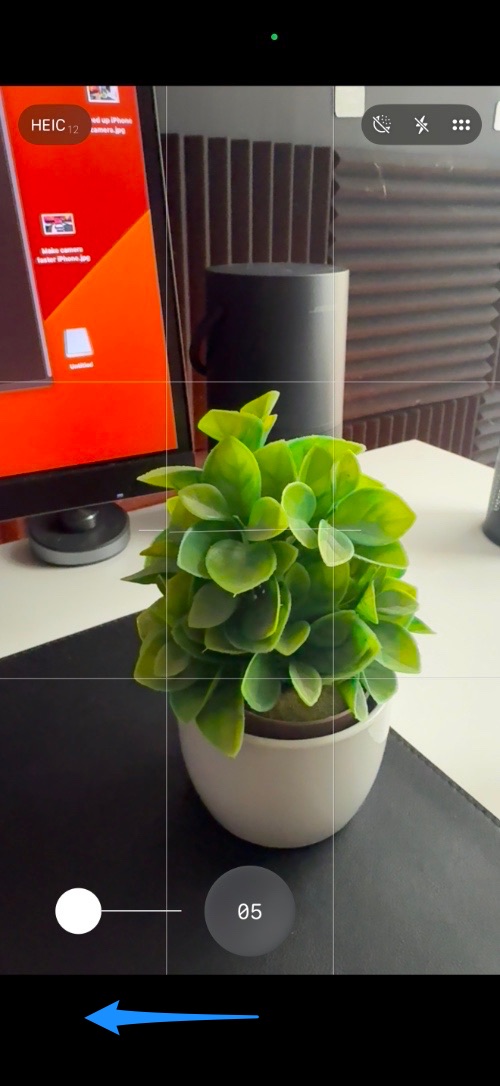
iPhone has a cool burst mode feature that lets you take multiple shots at once. This is great for taking photos of fast-moving subjects, action scenes, or sports.
You can take burst shots with iPhones by tapping on the shutter button and sliding your finger towards the left side. Keep the finger at the same spot without lifting it until you want to take burst shots.
Conclusion
With small steps and behavioral changes, you can make your iPhone camera faster and vastly improve your experience of taking photos and videos with your device. This could help you in taking quick photos and eliminate the chances of you missing a great shot.


