


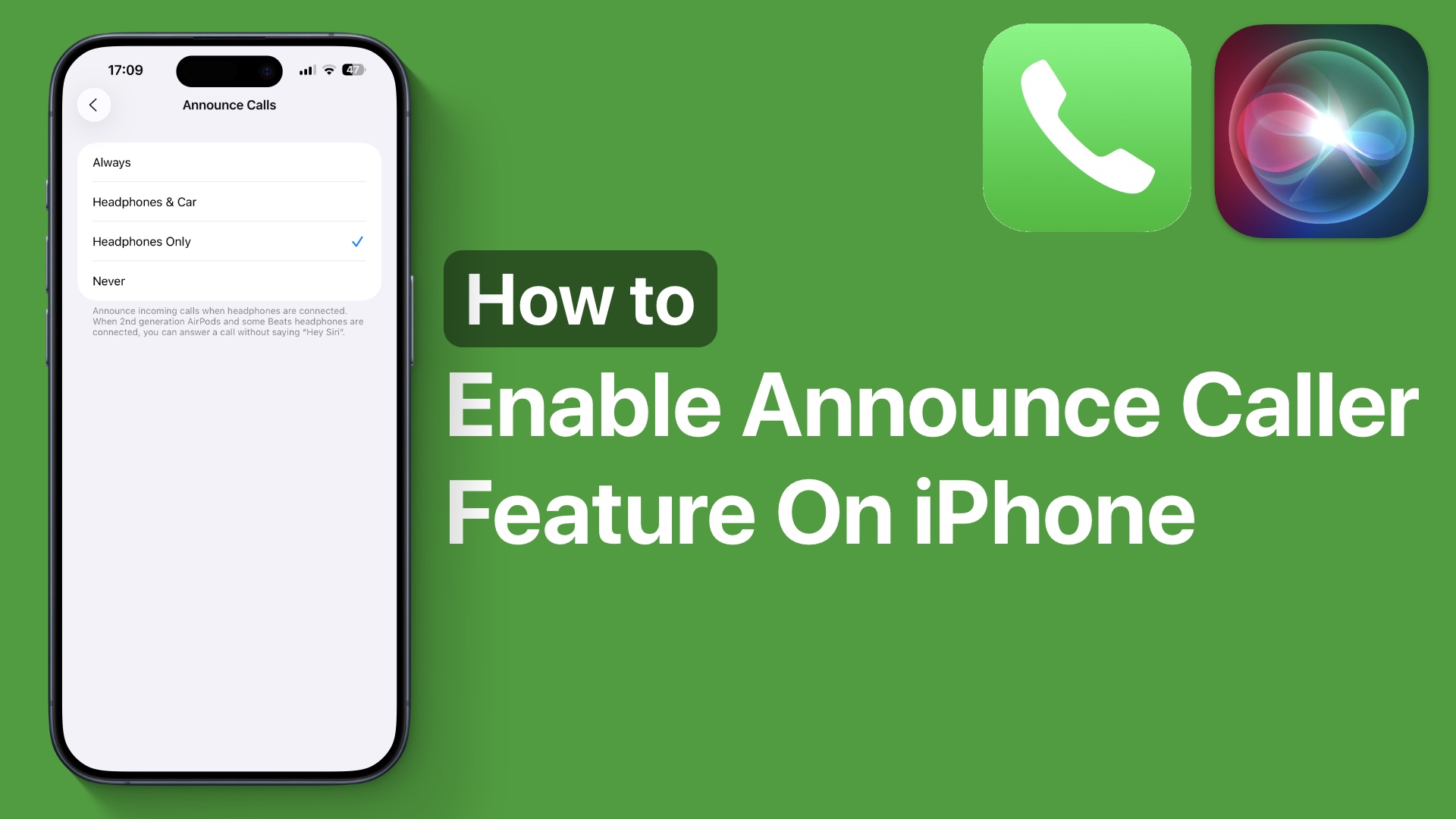
Do you want your iPhone to announce the name of the caller out loud every time you receive a phone call? If yes, then this tutorial is for you.
By default, iPhone’s Announce Call feature announces the name of the person calling you when you are wearing headphones. However, by the end of this guide, we will make it announce the caller’s name through the iPhone’s speaker. This is perfect for when you are driving, cooking, or when your hands are busy.
Turn on Announce Call for everything
- Unlock your iPhone and launch the Settings app.
- Scroll down and tap on Apps, then tap on Phone.
- Here, tap Announce Calls.
- On the next page, you will see three options including Always, Headphones & Car, Headphones Only, and Never.
- Select the Always option and exit the Settings app.
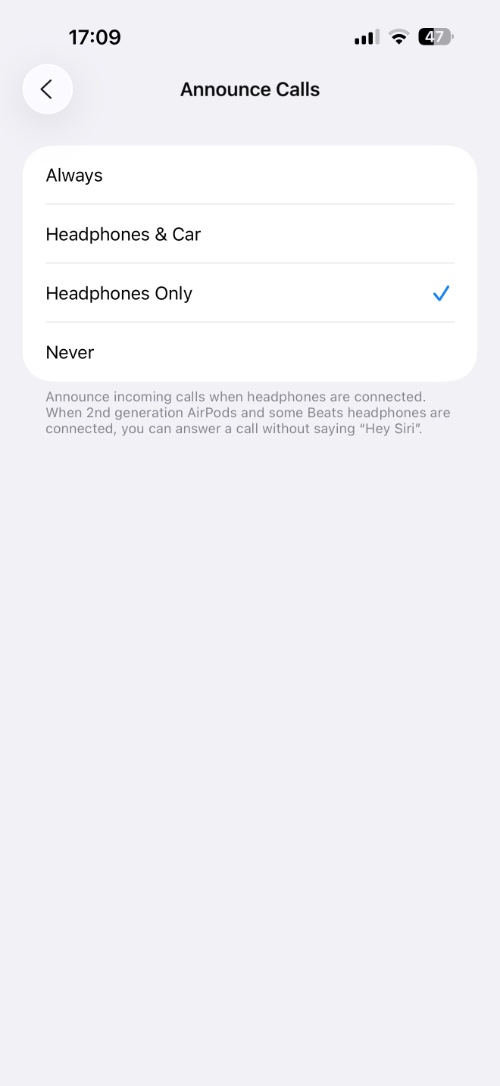
By default headphones only option is selected. However, changing it to Always will make iPhone say the caller’s name even when you are not driving or wearing headphones.
That’s it, this is how you can make iPhone speak out the name of the person calling you through its speakers.
Disclosure: iOSHacker may receive a commission if you purchase products through our affiliate links. For more visit our privacy policy page.


