


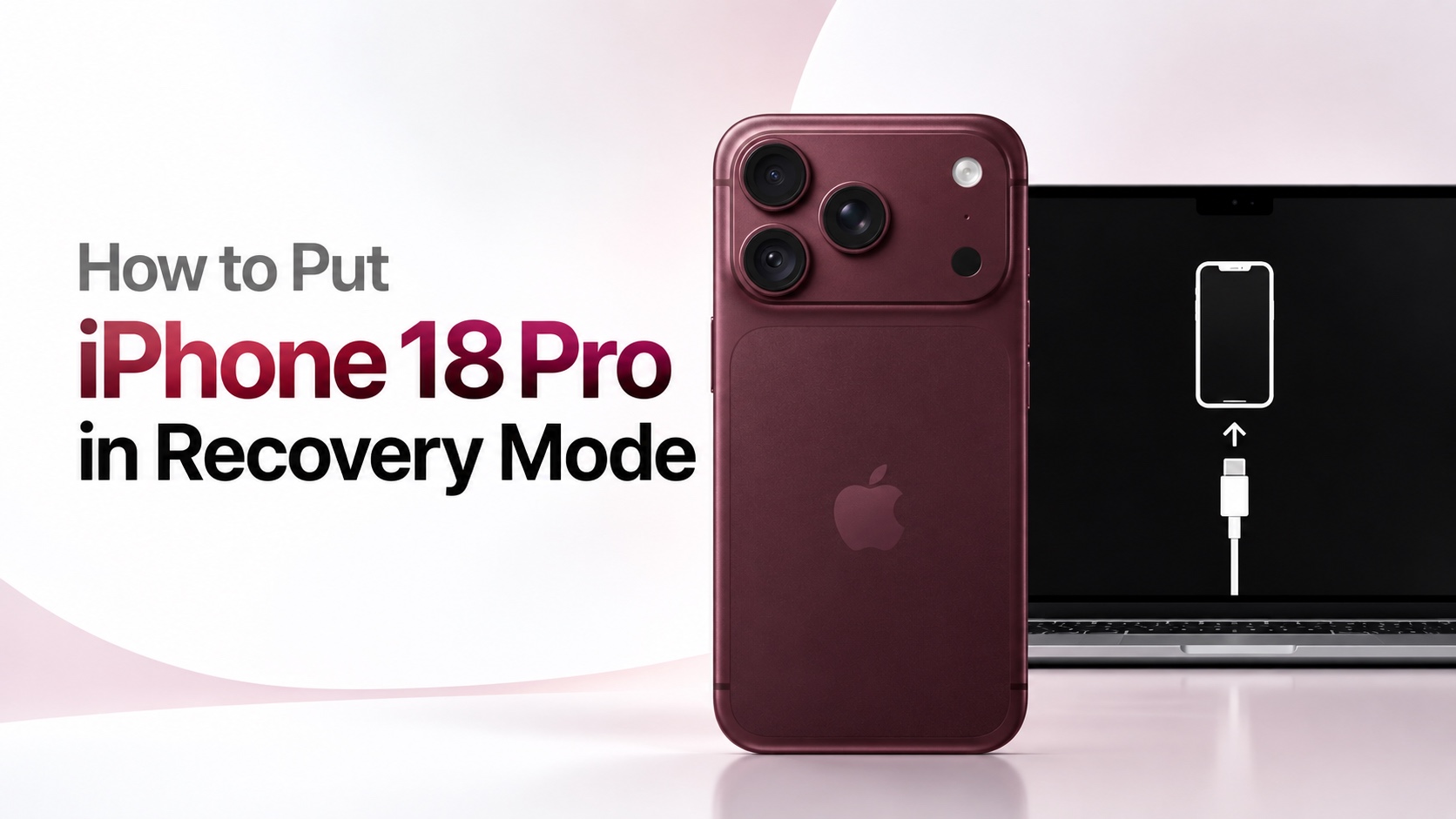
In this guide, we show you step by step how you can put an iPhone 18 Pro in Recovery Mode and solve any software issues you might be facing with your device.
Recovery Mode is a special mode in iOS that lets you perform a fresh install of iOS through Restore. When a Restore is performed in Recovery Mode, data stored on the device is erased and iOS is reinstalled on it. You can also use it to perform an iOS update through your computer without deleting any data.
Recovery Mode is useful when you want to restore your iPhone, reinstall iOS, or fix issues such as an iPhone frozen, an iPhone stuck on the Apple logo, or an iPhone has become unresponsive with a black screen.
You need a computer to perform a Restore or iOS Update through Recovery Mode. On Mac, you can use Finder, or on Windows, you can either use iTunes or Apple Devices software.
Enter Recovery Mode on iPhone 18 Pro
You can put your iPhone in Recovery Mode by following these steps.
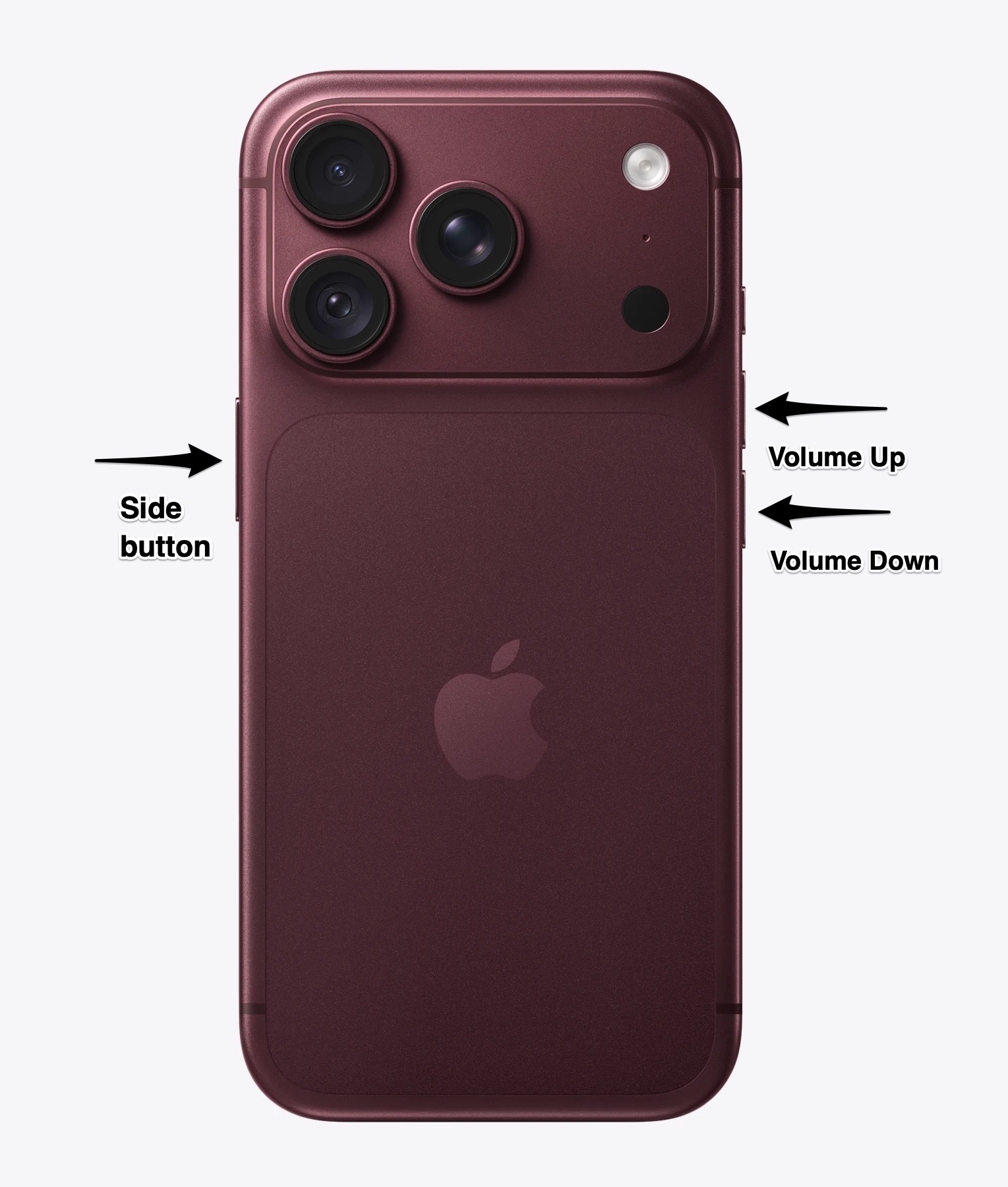
- Connect your iPhone 18 to a computer using a USB cable.
- Now press and quickly release the Volume Up button.
- Press and quickly release the Volume Down button.
- Press and hold the Side button even when you see the Apple logo.
- Let go of the button when the Recovery Mode screen appears on the screen.
When you see the Recovery Mode screen on iPhone (one with Mac and cable), then launch Finder if you are using Mac or iTunes/Apple Devices if you are using Windows PC.
You will see a message that an iPhone has been detected in Recovery Mode.
Here you will get two options.
- Update: This option lets you update iOS to the latest version without deleting iPhone data.
- Restore: This option lets you erase everything on the iPhone and do a fresh install of iOS.
Select the option that suits your needs and follow the on-screen instructions.
Exit Recovery Mode on iPhone 18 Pro
To exit the Recovery Mode without Restoring or Updating iOS, follow these steps.
- Disconnect your iPhone from your computer.
- Press and hold the Side button until the screen goes black.
- Let go of the Side button and then press and hold it once again until the Apple logo appears.
After Apple logo appears, you can let go of the Side button and your device should boot up normally.
You can follow these steps on iPhone 18 Pro and iPhone 18 Pro Max.


