


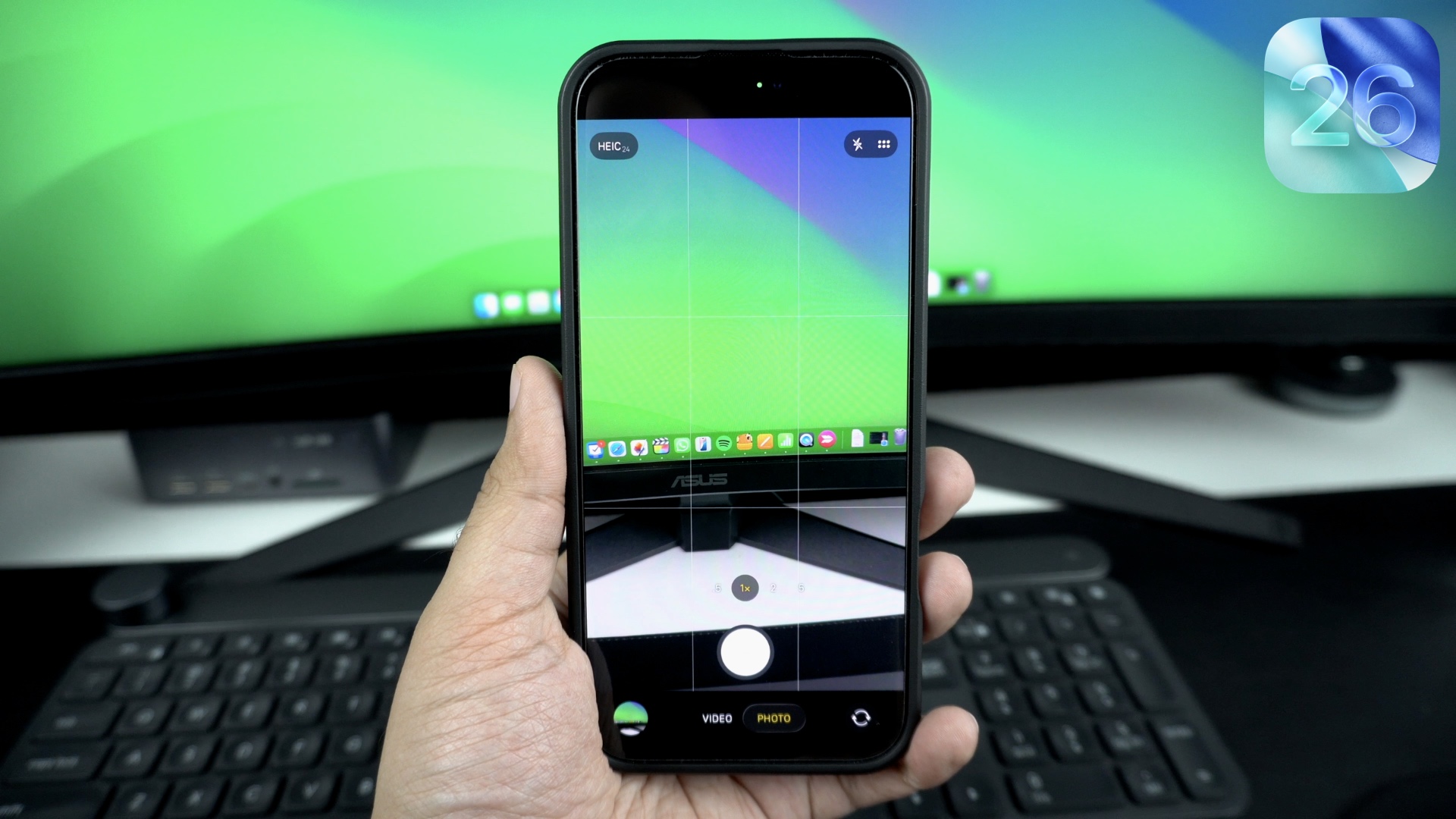
After updating your iPhone to iOS 26, you might have noticed a strange behavior in the stock camera app. Now, when you scroll through the shooting modes with the swipe gesture, the scroll happens in the direction of your swipe.
For example, if you swipe your finger towards the left side, the mode menu will also select the mode on the left side. This is different than the original Camera app behavior and has annoyed many users.
The good news is you can bring the classic mode switching behavior back by enabling a toggle from the Settings app.
Change Mode Switching Direction in Camera app
- To do this, launch the Settings app and tap on the Camera option.
- On the Camera settings page, scroll down and turn on the Classic Mode Switching toggle.
- Now let’s test it out. Return to the Camera app and scroll your finger across the screen.

After turning this toggle on, you will see that the scroll direction now happens in the reverse direction. When you swipe left, the scroll happens in the right direction and vice versa.
This was a simple iOS 26 tip that should help those who did not like this change and want to get the original Camera app behaviour back.


