


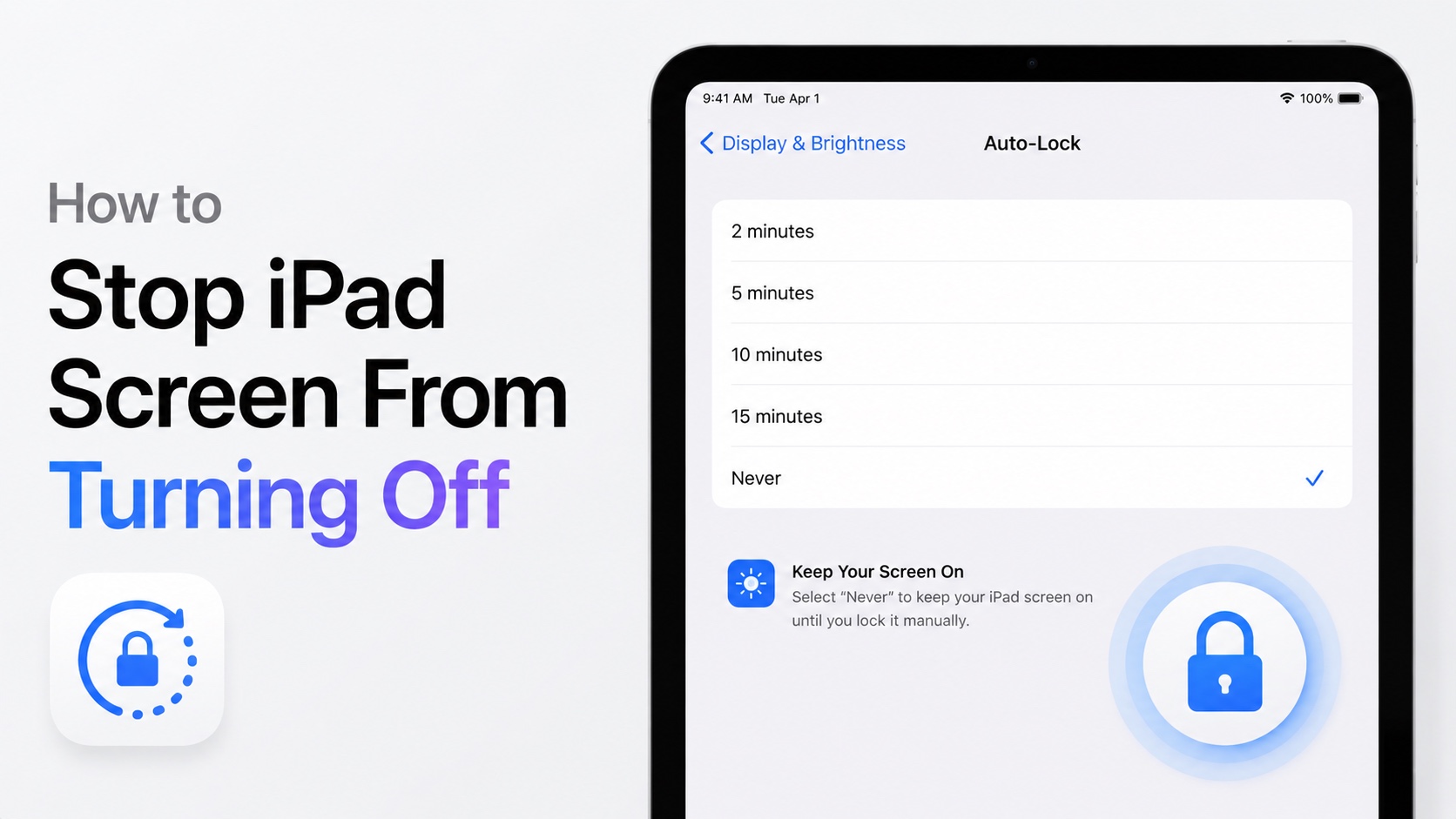
Do you want to prevent the iPad screen from turning off? In this guide, we will show you how to do exactly that by changing a simple setting on your device.
If your iPad screen keeps turning off while you are reading, following a tutorial, or watching something, then you can change the Auto-Lock setting to stop the iPad screen from turning off automatically.
Here’s how you can do it.
- Open the Settings app on your iPad.
- From the side pane, tap on Display & Brightness.
- Here, tap on the Auto-Lock option.
- On the next page, you will find several options, including 2 minutes, 5 minutes, 10 minutes, 15 minutes, or never.
- Choose Never if you don’t want the iPad screen to turn off automatically.
Before selecting Never, keep in mind that your iPad will consume more battery because the display stays on continuously. So if you leave the screen on for a longer period, then the iPad battery will drain completely.
You can lock the device by pressing the Top button.
You can turn Auto-Lock back on by going to Settings -> Display & Brightness -> Auto-Lock -> 2 Minutes.


