


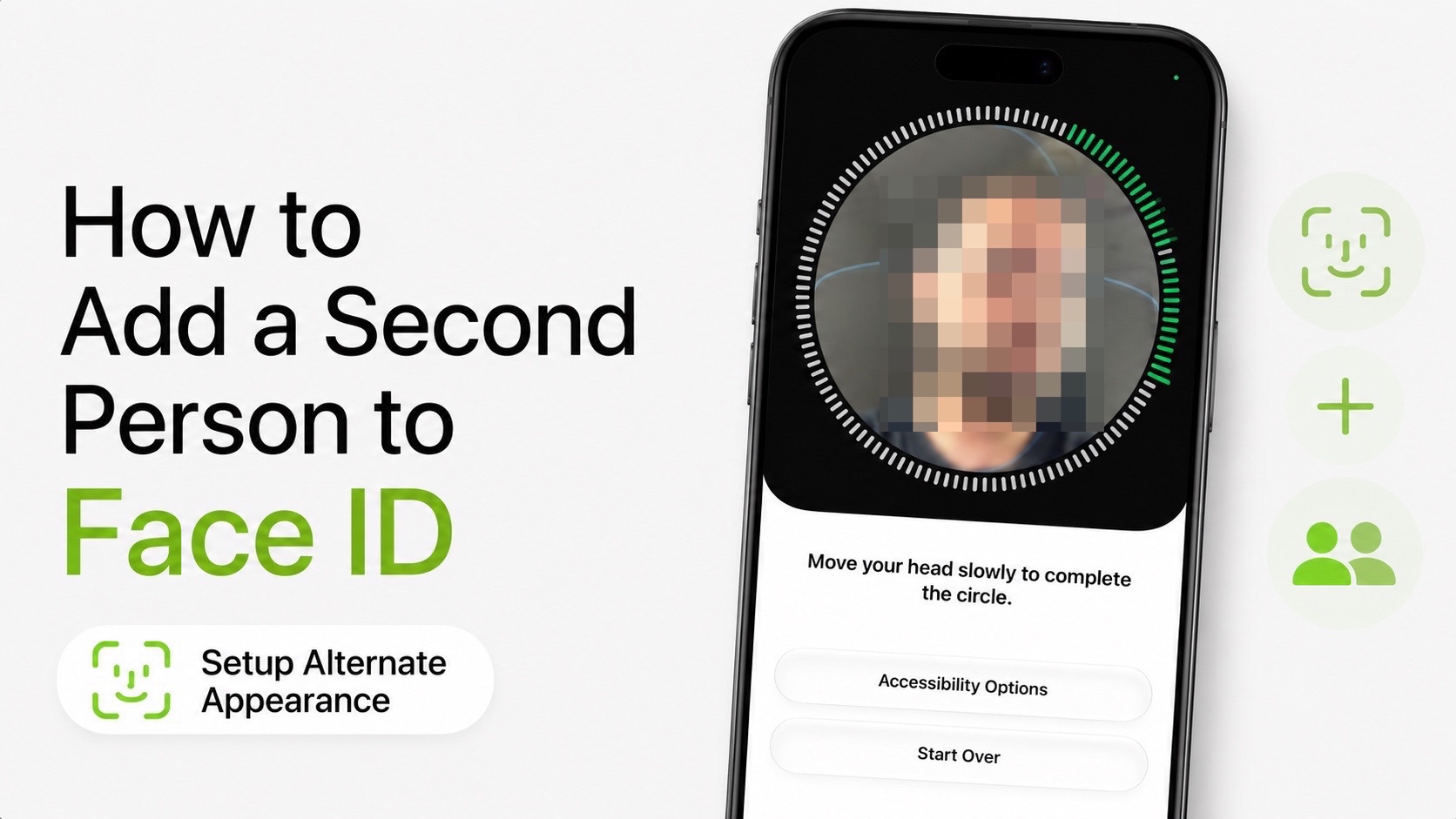
Did you know you can add a second person to your iPhone’s Face ID and authorize them to unlock your iPhone with their facial scan? This is made possible with the feature called Alternate Appearance, and you can set it up in just a few taps.
Before you proceed and add a second person to your iPhone’s Face ID, make sure you absolutely trust this particular individual.
Anyone whose face is added to your iPhone’s Face ID can not only unlock your device but also perform other Face ID-related authentications such as authenticating supported apps and purchases. This includes banking apps and other apps with sensitive information. For example, if you have locked the Files app with Face ID, they will be able to unlock it.
Here’s how to add a second person to Face ID.
- Launch the Settings app.
- Go to Face ID & Passcode.
- Enter your Passcode to proceed.
- On the Face ID settings page, find and tap on the Set Up Alternate Appearance option.
- Now you will see the Face ID setup screen. Hand over the phone to the person whose face you want to add, and make them follow the on-screen instructions. They will be asked to perform one or two Face ID scans.
- Once that’s finished, tap the Continue button.
After adding the second person to your Face ID, test it by locking your iPhone and asking the second person to unlock it.
That’s it, this is how you can add a second person’s face to Face ID on your iPhone. Before following this guide, make sure that you absolutely trust the individual you are adding to your Face ID.
Must-read: How to Fix Face ID Not Working on iPhone


