


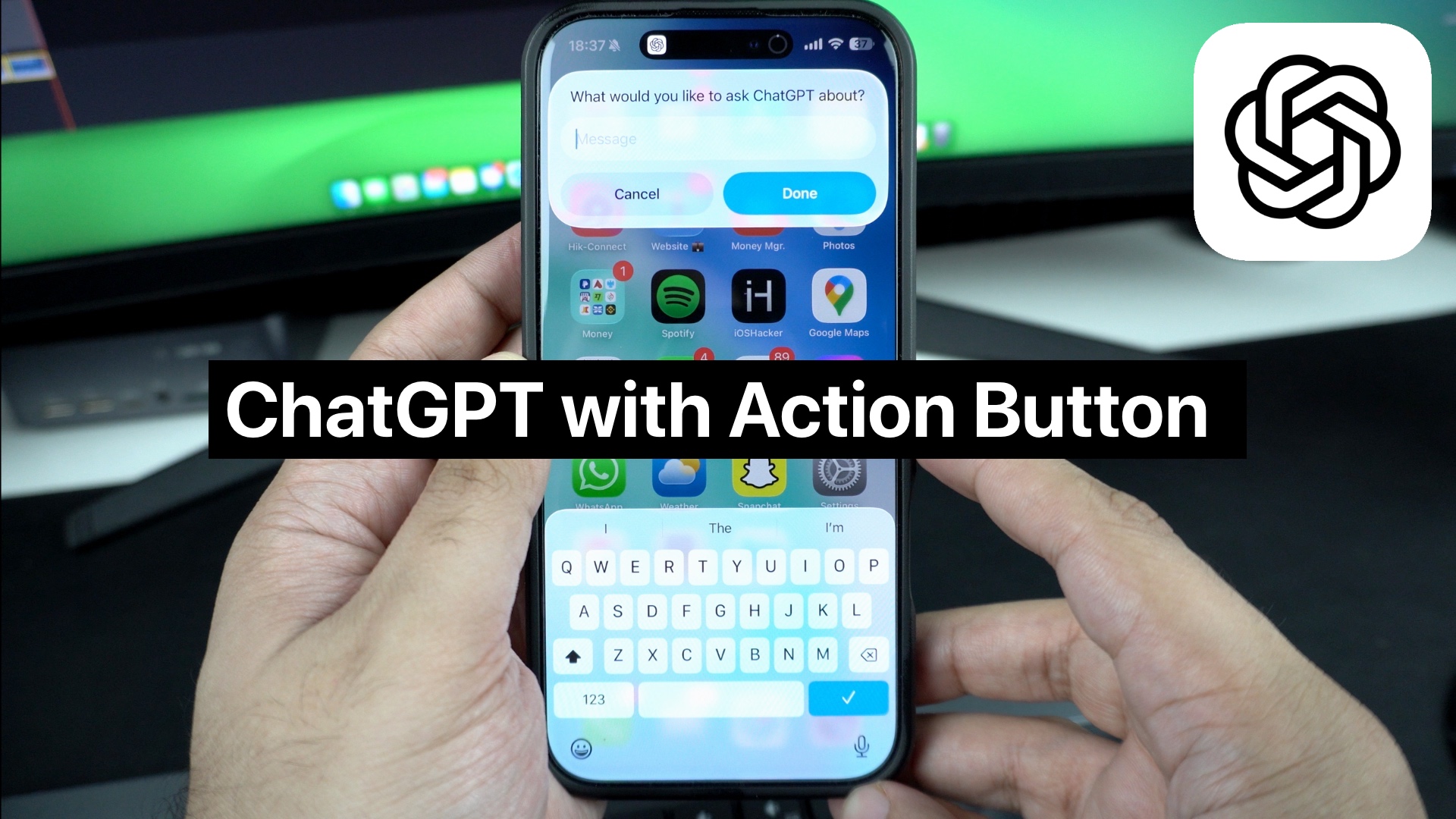
If you want to make it easier to trigger ChatGPT on your iPhone and ask whatever you want without even opening its app, then this guide is for you.
In this tutorial, we will show you how you can quickly access ChatGPT and ask questions from it using your iPhone’s Action button and use it anywhere on iOS.
The Action button is found on all iPhone 16 models and iPhone 15 Pro models. If you have one of these devices, then keep reading.
Access ChatGPT with Action button on iPhone
- First of all, make sure you have downloaded the latest version of the official ChatGPT app on your device.
- After downloading the app, log in with your account.
- Now, launch the Shortcuts app and select the Library tab from the bottom. Then tap on the + button.
- On the new shortcut screen, search for ‘ChatGPT.’ From the list of options, select the Ask ChatGPT option. After adding this action, return to the main shortcuts screen.
- Next, exit the Shortcuts app and launch the Settings app. Here, tap on the Action button option.
- From the Action button settings menu, scroll until you get to the Shortcuts option.
- Here, tap on the ‘Choose a Shortcut’ option. This will bring up the Shortcuts menu.
- From under ‘My Shortcuts’, select the Ask ChatGPT shortcut you just created. Exit the Settings app.
- Now long-press on the Action button. This should bring a dialog box that lets you ask questions to ChatGPT without leaving the app you are using.

You can type in your query, and ChatGPT will process it and answer you in the same interface without launching its own app.
That’s it, this is how you can trigger ChatGPT and ask questions anywhere. With this new shortcut, you can make your device’s Action button more useful and summon ChatGPT without leaving the app you’re currently using.


