


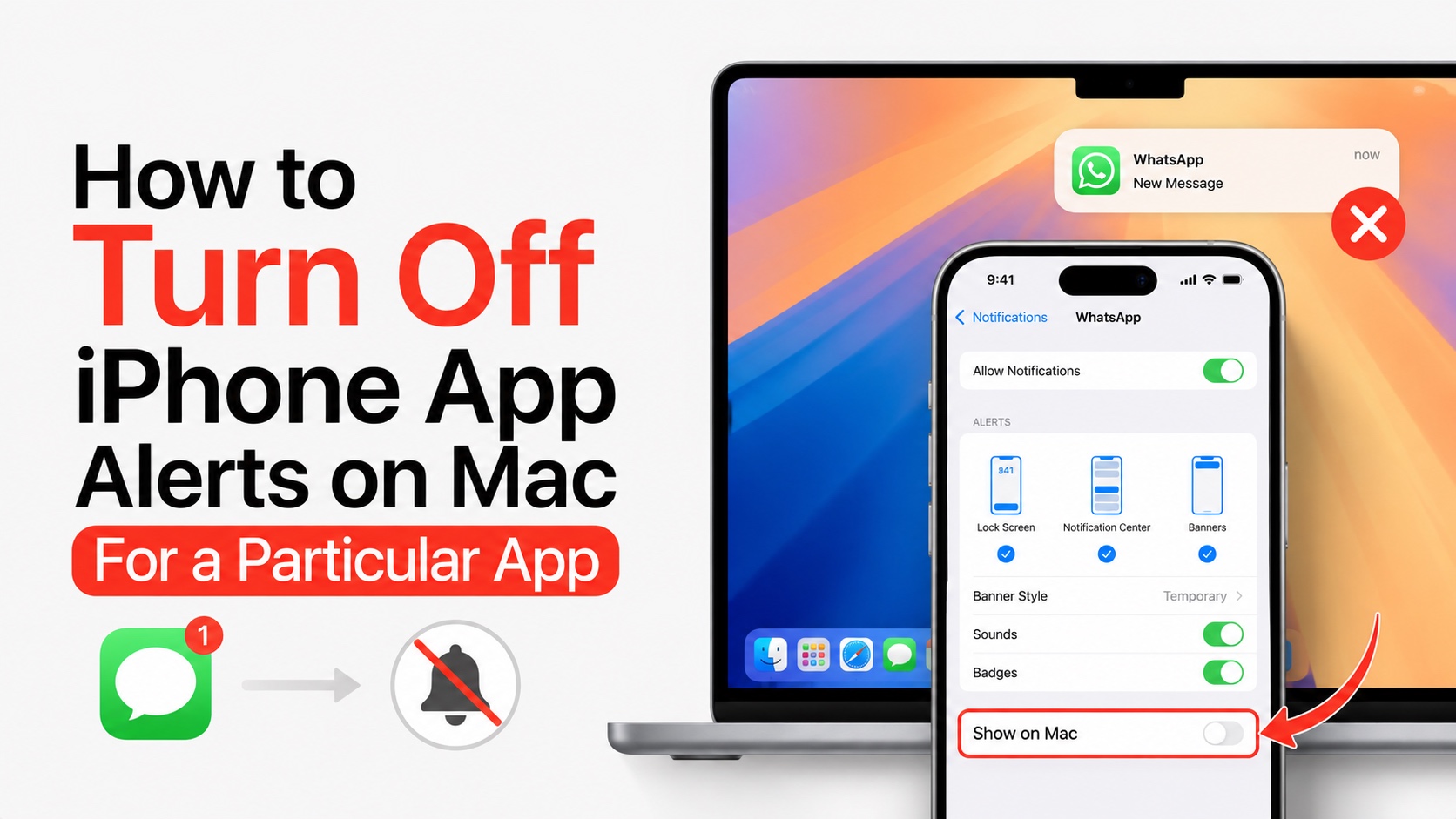
In this tutorial, we show you how you can stop iPhone notifications from specific apps from showing up on your Mac.
You may have noticed that your Mac can mirror your iPhone’s notifications, letting you see what’s going on with your iPhone without even looking at it.
This is useful since you can check alerts on your Mac and switch to iPhone only if you feel an alert deserves your attention.
The iPhone alert mirroring on Mac can also cause privacy issue, especailly if you share a Mac with someone else. Good news is you can stop alerts from particular apps from appear on your Mac. Here’s how.
Note: These steps work on iOS 26 and iOS 27 along with older versions of iOS.
Turn off iPhone alert mirroring for specific apps only
- On your iPhone open the Settings app.
- Go to Notifications settings.
- Here scroll down and find the app you want to turn on Mac notifications for.
- On the app’s notification settings page scroll down until you see the Show on Mac toggle.
- Turn this toggle off.
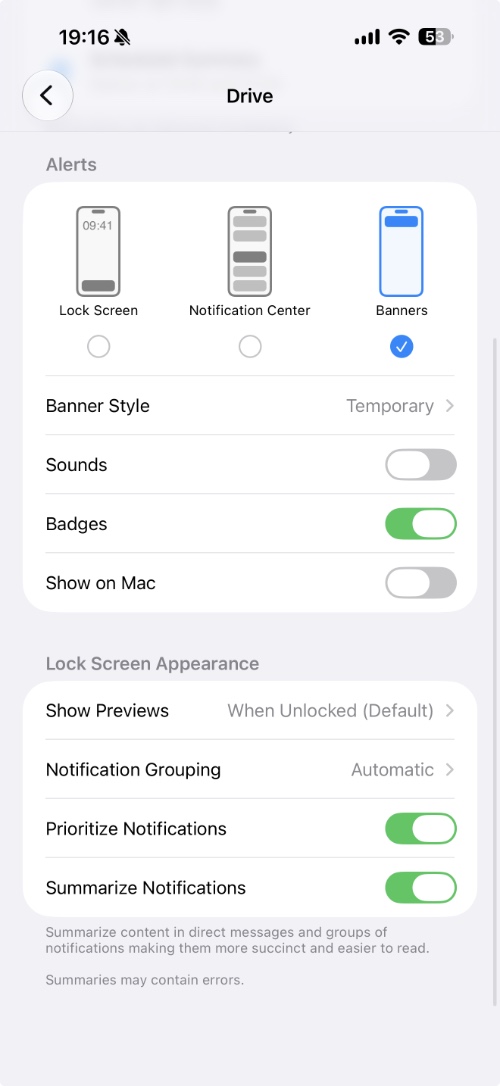
Upon doing so, your Mac will immediately stop mirroring notifications for this particular app, while alerts for all other apps will continue to show up on the Mac.
You can also stop all iPhone notifications from appearing on the Mac. For that follow this guide.


