


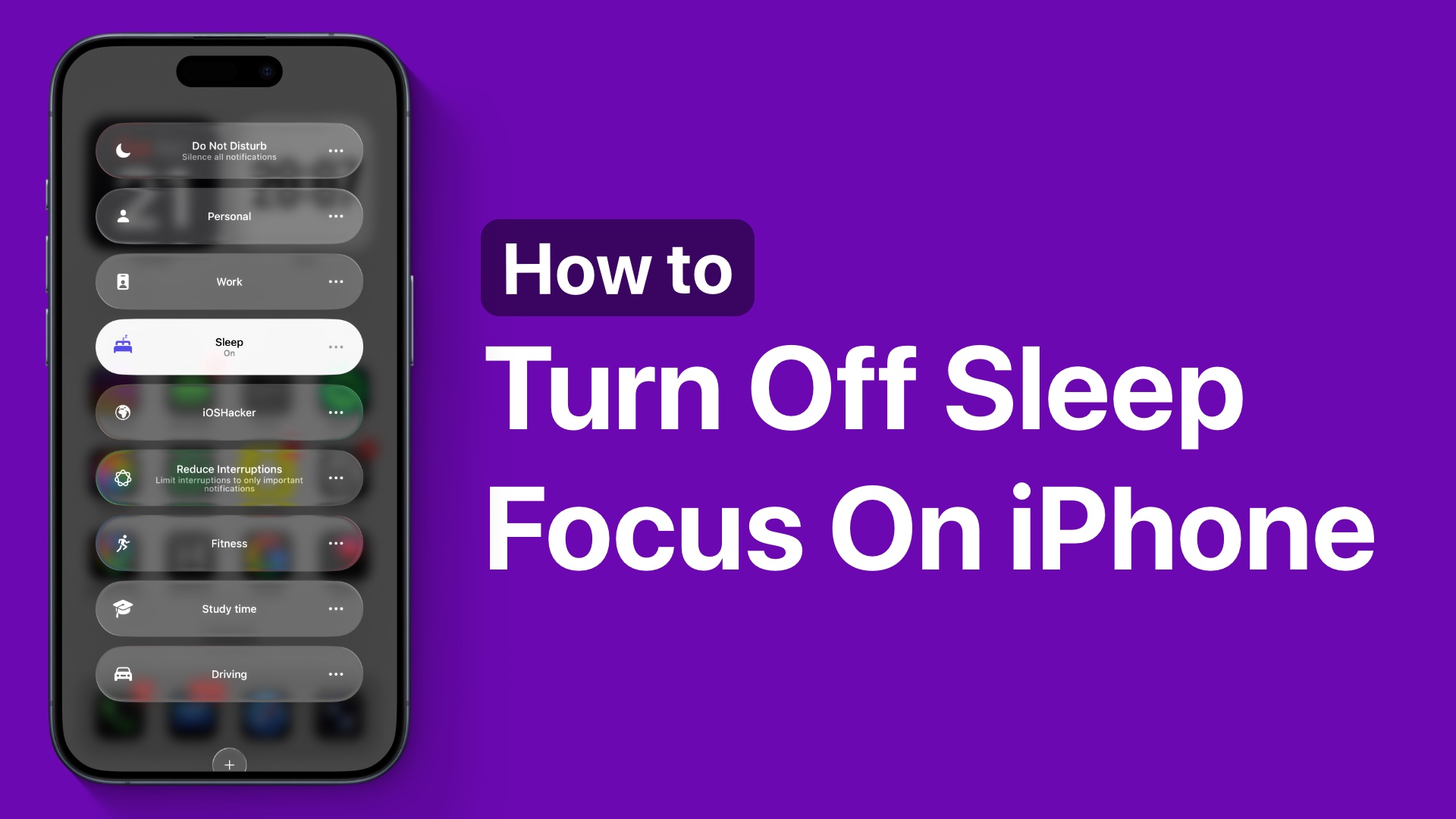
Does your iPhone automatically go into Sleep Focus mode and silence calls or notifications? In this guide, we will show you how to fix this issue and turn off Sleep Focus. We will also show you how you can stop the iPhone from activating Sleep Focus mode on its own.
Turn Off Sleep Focus
Turn off Sleep Mode (Control Center)
- Swipe down from the top right corner to access the Control Center.
- Tap on the Focus button (or Sleep button).
- Tap on the Sleep focus to turn it off.
Turn off Sleep Focus Schedule
- Unlock your iPhone and open the Settings app.
- Now go to the Focus section.
- Here, tap on the Sleep mode option.
- Scroll down and tap on where it says Schedule or Next Schedule.
- Turn off the toggle for Schedule on the next page.
You can also delete the Sleep Focus mode entirely by going to the Sleep page inside the Focus settings and tapping on the Delete Focus option.
That’s it, now Sleep Focus has been disabled on your device, and the Sleep Focus Schedule has been turned off, and it will no longer put your iPhone in Sleep Focus automatically.
Disclosure: iOSHacker may receive a commission if you purchase products through our affiliate links. For more visit our privacy policy page.


