


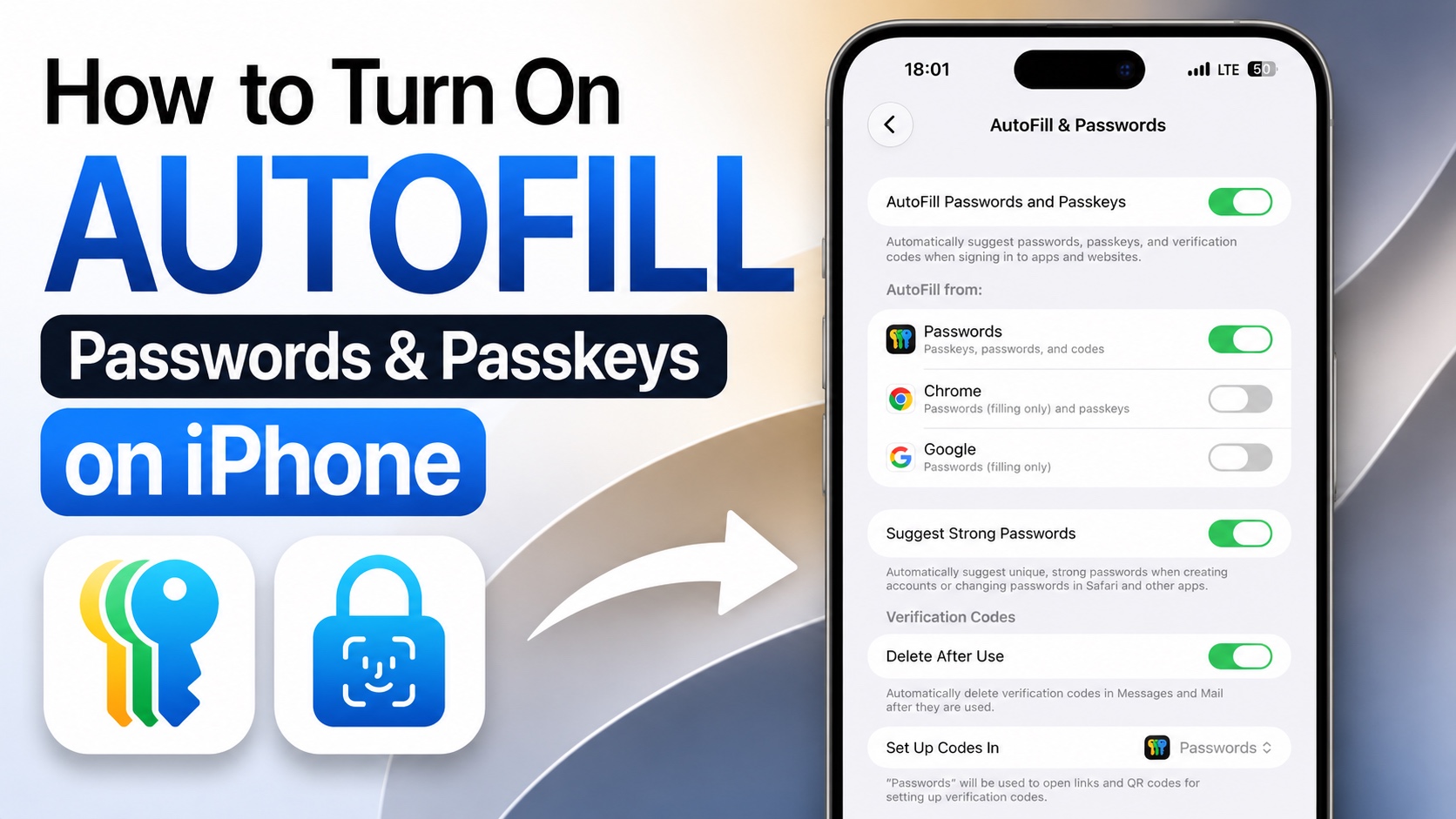
In this tutorial, we show you how you can enable the AutoFill Passwords and Passkeys feature on your iPhone and use it to automatically insert your login credentials on different websites and apps.
The AutoFill feature for passwords and passkeys is super useful. It allows users to quickly login to online services faster and more securely, without having to remember each and every password.
You can turn this feature on by following a few simple steps as shown below.
You can follow these steps on iOS 27, iOS 26, iOS 18, or older versions of iOS.
Turn on AutoFill & Passwords
Step 1. Open the Settings app.
Step 2. Go to General.
Step 3. Tap on AutoFill & Passwords.
Step 4. From the top turn on the toggle for AutoFill Passwords & Passkeys.
Step 5. Under AutoFill From section enable the toggles next to password managers that you would like to use including Passwords (built-in password manager), 1Password, Dashlane, Google Chrome etc.

Note: If you don’t see your favorite password manager, then make sure you have installed it from the App Store.
If Passwords feature is not available or it is not working, then make sure iCloud Passwords & Keychain feature is enabled by going to Settings -> Tap on your name -> iCloud -> Passwords -> Turn on Sync this iPhone.
Using AutoFill Passwords & Passkeys
Once you have enable the AutoFill feature for passwords and passkeys, you can start using it right away. Simply open any website or app. Tap on the Username and Password field.
If you have previously saved your login information or created a passkey, your iPhone will display it above the keyboard.
You can authenticate with Face ID, Touch ID or your iPhone passcode to login. Once you authenticate iPhone will add your login credentials automatically.
If you are signing in to a website or app for the first time, your iPhone may ask if you would like to save the password or create a passkey for future use.


