


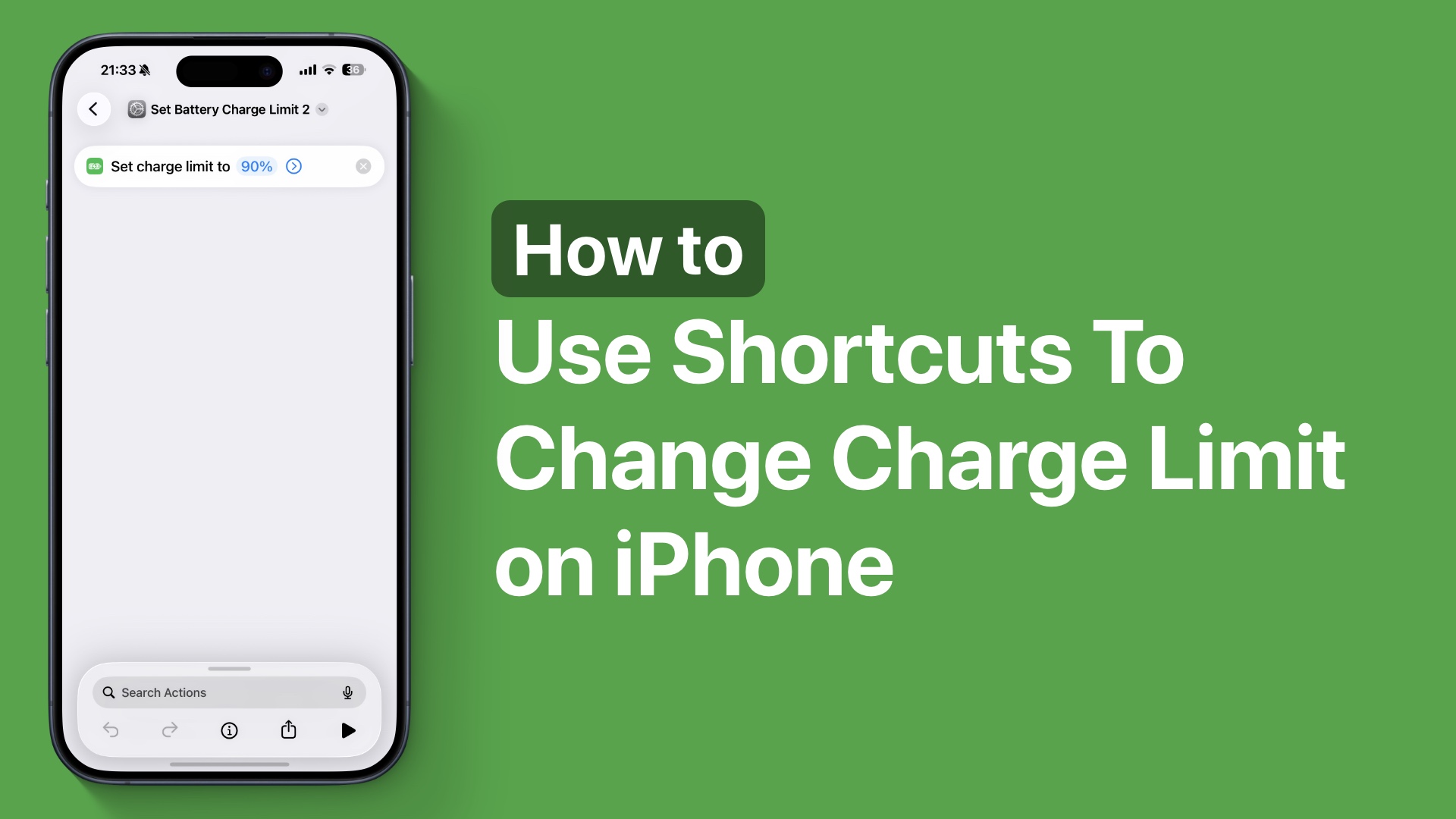
iPhones have a useful Charge Limit feature that lets you set the maximum charge limit from 80 percent up to 100 percent. The idea behind this feature is that by not charging your iPhone to a full 100 percent, you can improve the battery’s lifespan.
However, there are instances when you have to change your iPhone up to 100%. For example, when you are heading out for a long day, or you have a busy day ahead.
In these situations, users could head over to the Battery Section and increase the charge limit up to 100%.
Starting iOS 26.4 or later, Apple has also allowed users to increase their device’s charge limit more easily using a shortcut or an automation. Here’s how you can use it.
Change iPhone Charge Limit with Shortcut
Step 1. To create a new shortcut for changing your iPhone’s Charge Limit, simply open the Shortcuts app.
Step 2. Tap on the Library tab from the bottom and create a new shortcut.
Step 3. Search for ‘Battery’ and tap on the Set Battery Charge Limit action.
Step 4. Once it is added to your new shortcut, tap on where it says 80% and select the exact amount of charge limit you want this shortcut to set.
Step 5. After you have made your selection, tap on the arrow button and enable the toggle for Set Until tomorrow if you want your change to take place for 1 day only. Leave the toggle off if you want the change to be permanent.

Return to the main page, and your shortcut should appear in your Shortcuts library.
You can also use the same action to create an automation. This is also very useful as you can make your iPhone increase the charge limit when you leave home and charge on the way.
Similarly, you can increase your iPhone’s charge limit when you are connected to Wi-Fi or 5G, when you are charging at home or away, and more.


