


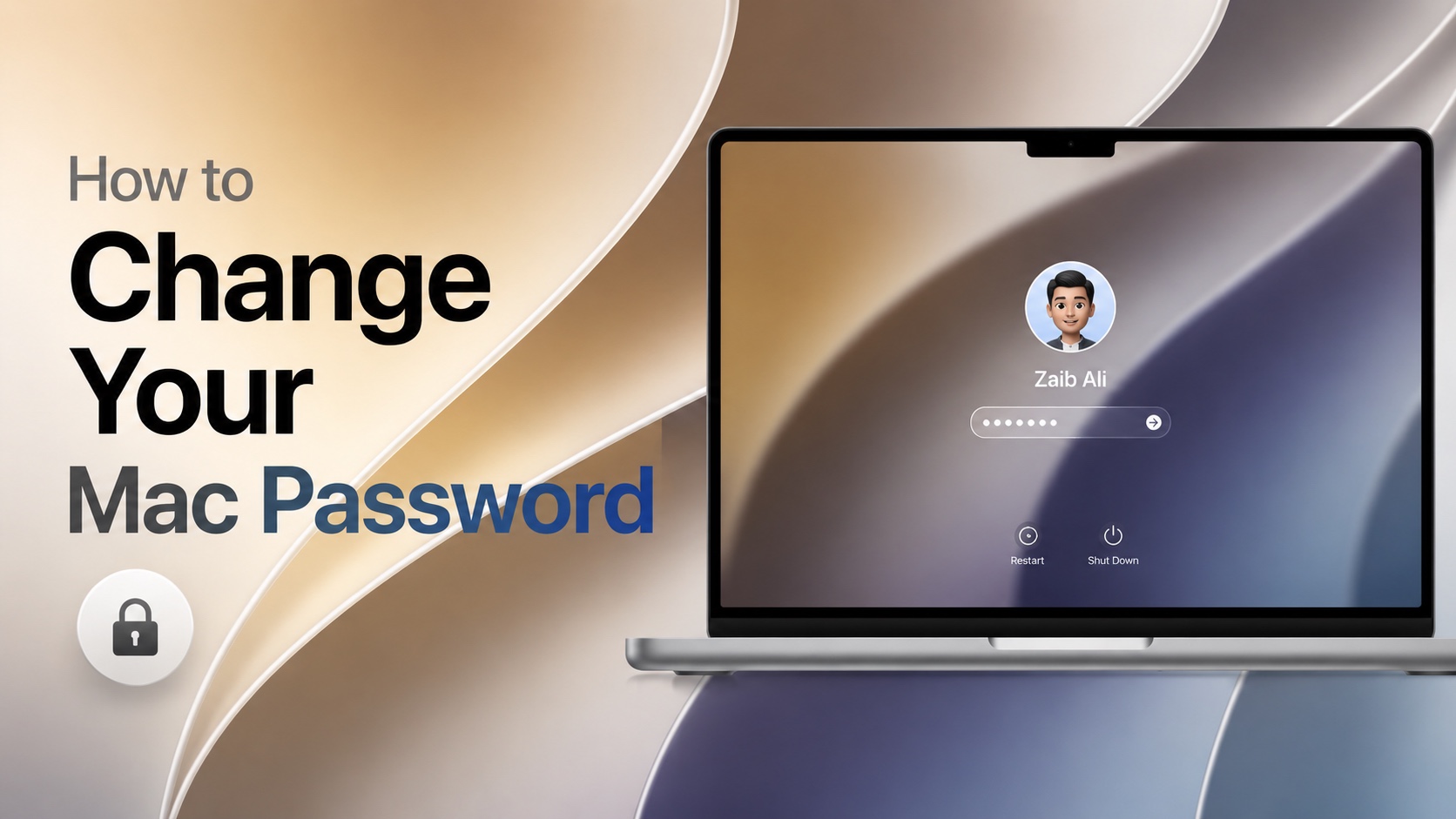
If you have had the same login password on your Mac for a long time, or you simply want to update it for security reasons, then this guide is for you. Thankfully, it is quite easy to change your Mac’s login password, and you can do this in a few clicks.
Before we begin, it is important to know that a Mac login password is not the same as your Apple account password. The login password is the one you use to unlock your Mac when you restart it or log out of your account, while the Apple account password is the one you use to log in to your Apple ID.
Here’s how you can change your Mac’s login password.
- Click on the Apple logo in the top-left corner.
- From the drop-down menu, click on System Settings.
- In the System Settings window, scroll through the side pane and click on Users & Groups.
- Now look for the user account you want to change the password for and click on the Info button next to your username.
- Next, click on Change Password.
- A window will appear. Enter your current password and then enter and reenter your new password. You can also add a hint for your new password so it’s easier to remember. Don’t make the hint too obvious.
- Once everything looks good, click on the Change Password button.
That’s it, your Mac login password has now changed. The next time you restart your Mac or try to log in without Touch ID, you will have to enter this new password.
Note: This guide is for changing the Mac login password. If you have forgotten your old password, then you will need to set a new password using macOS Recovery or the Mac login screen.


