


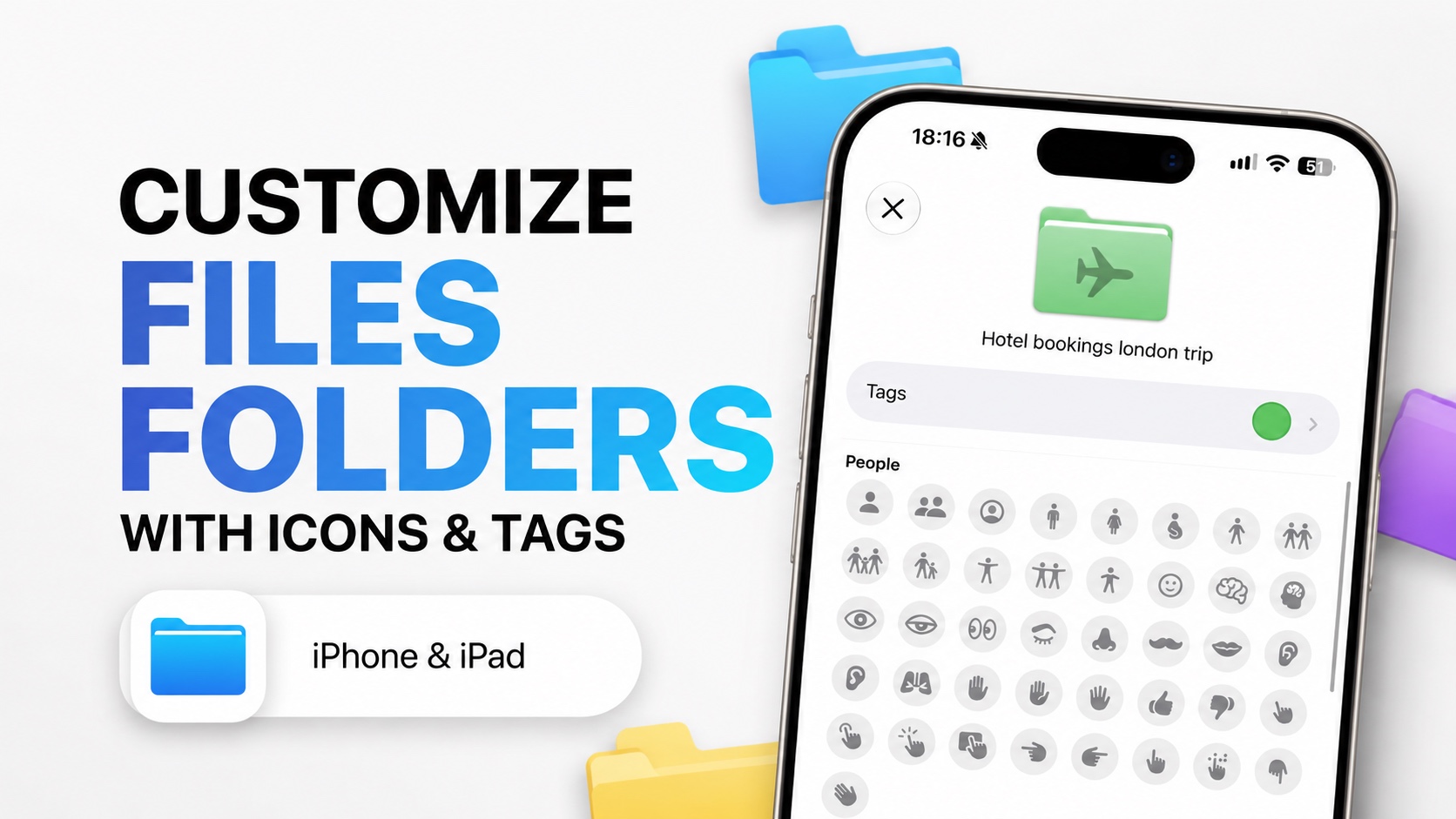
If you use the Files app often and are tired of trying to find the right folder every time you open the app, then you are going to love this tip.
Files app has a cool feature that lets you customize the look of its folders. This means you can change the folder icon’s color and add a custom symbol or emoji on it to make it more distinguishable.
Changing the look of the Files app folder is very easy. Here’s how you can do it in just a few simple taps.
Customize Folder Icons in the Files App
Step 1: Open the Files App
Launch the Files app on your iPhone or iPad. Then locate the folder that you want to customize.
Step 2: Long-Press the Folder
After finding it, long-press on its icon. This will reveal a menu for that folder.
Step 3: Tap Customize Folder & Tags
From this menu, find and tap on the Customize Folder & Tags option.
This will give you access to the Folder customization screen.
Step 4: Choose a Symbol
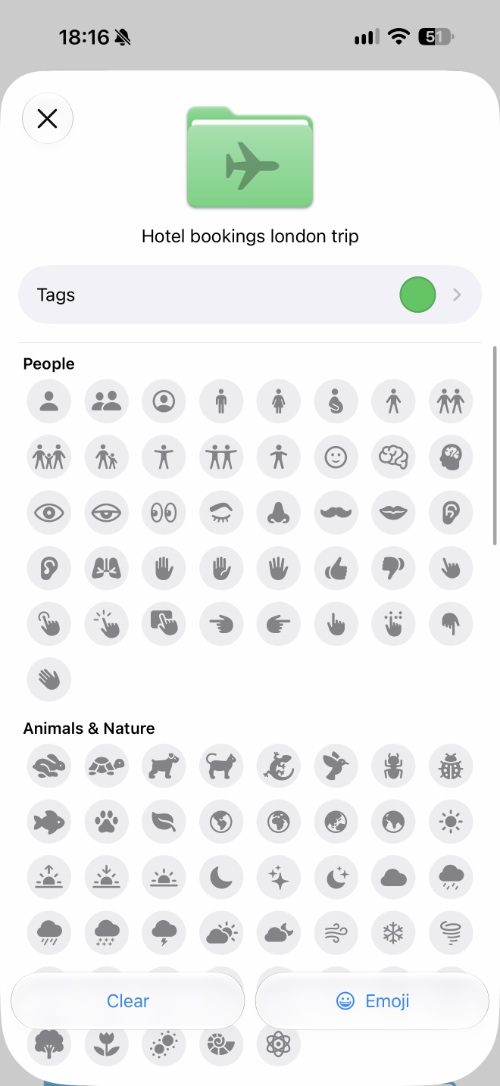
Here you can select the symbol of your choice. Choose a symbol that is relevant to the folder’s content so it is easier to find later.
You can also tap on the Emoji button and select your desired emoji from the keyboard.
Step 5: Change the Folder’s Color
Now, to change the folder’s icon color, tap on the Tags button.
Here, select the tag for your folder. You can choose from the available options or add a new tag.
Step 6: Apply the Changes
After selecting a tag, tap on the back button at the top.
As you can see, the color of the folder has changed, and our chosen symbol is shown on it as well, making it much easier to find.
This process not only customizes the folder icon with a color and symbol but also attaches it to a tag. From now on, you can access the Browse screen and tap on its connected tag to quickly find this and other folders belonging to this particular tag.
That’s it, this is how you can customize folder icons and make them easier to find with tags.


