


If you want to learn how to enable or disable Cellular Data or Mobile Data on your iPhone 17, then you are in the right place. Here we will show you how you can toggle Cellular Data on or off, save battery, avoid extra charges, and fix Internet issues.
There are two easy methods that allow you to turn on or turn off cellular data. We will show you both in this tutorial.
Using the Settings app to toggle Cellular Data on or off
- Unlock your iPhone and launch the Settings app.
- Tap on Cellular Data (or Mobile Data, depending on your region).
- On the next page, tap on Cellular Data (or Mobile Data).
- Here, select Off to turn mobile data off.
- To turn on cellular data, select the SIM you want to use for cellular data.
Using Control Center to toggle Cellular Data
- Unlock your iPhone and swipe down from the top right corner.
- Long-press on the Communications widget (the one with buttons for Airplane mode, Wi-Fi, etc.).
- Here, tap on the Cellular Data or Mobile Data button.
- If it is green, then it means Cellular Data is on. If it’s grey, then it means it’s off.
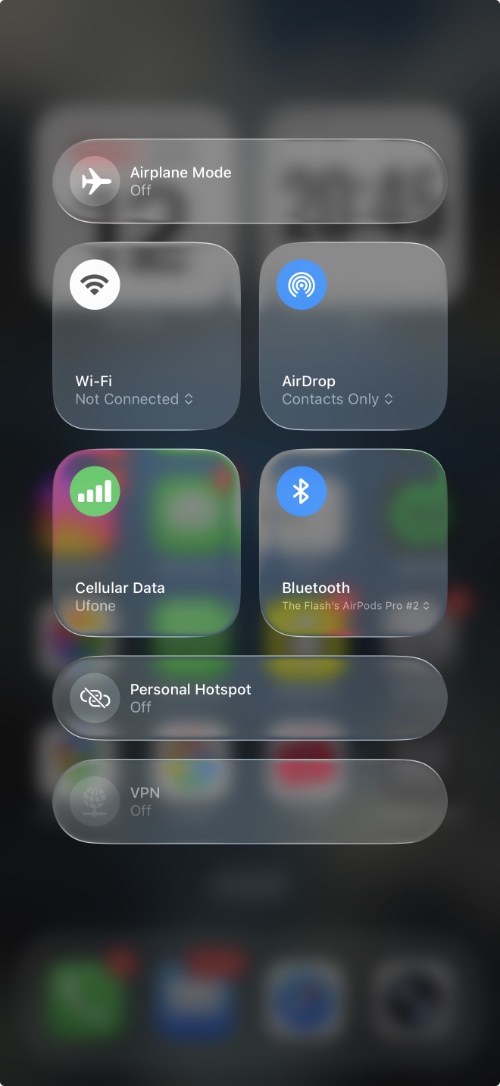
When you have cellular coverage, you will see 5G, 4G, or LTE in the status bar and at the top of the Control Center screen. This indicates that cellular data is enabled and available to use.
That’s it, this is how you can turn on or turn off Cellular Data on your iPhone 17 or iPhone 17 Pro. By toggling this feature on and off, you can save battery life, prevent extra charges from your carrier, and fix connectivity issues.


