


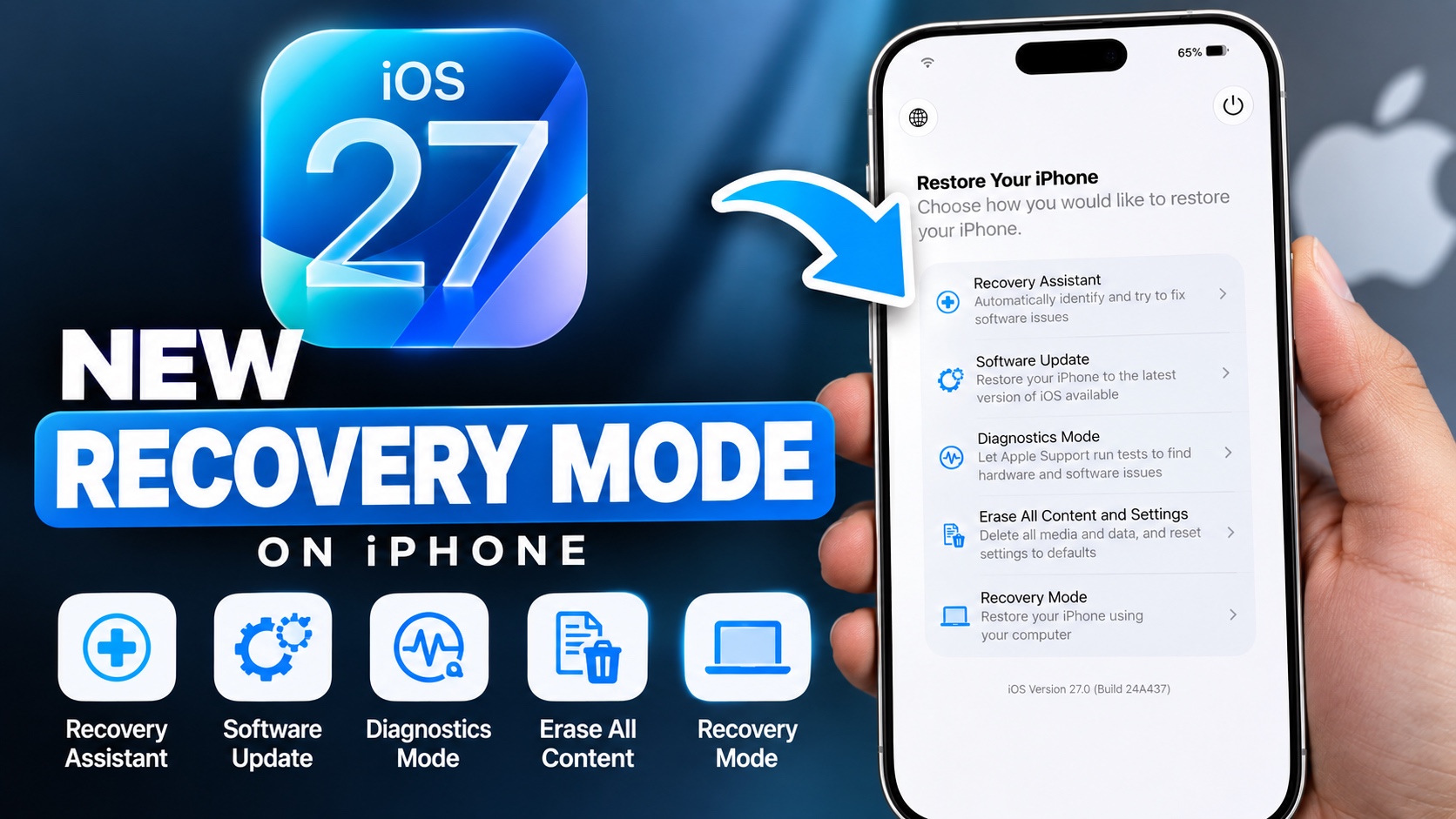
Apple has added a new Recovery experience for iPhone users. Now you get a streamlined Recovery Options screen that offers different ways to resolve software-related problems on your device.
The best thing about this new method is that it does not require a computer. However, you can still put your device in Recovery mode and restore it using your computer if you really want to.
On the Recovery Option screen, you can solve software issues, perform a software update, erase all content and settings or put your iPhone in Recovery Mode.
Enter new Recovery Options Screen on iOS 27
Entering the new Recovery Mode in iOS 27 powered device is easy.
- Start by turning off your iPhone. Just press Volume Up or Down button and Side button together and slide to power off.
- After your iPhone turns off, press and quickly release the Volume Up button, then quickly press and release the Volume Down button and then press and hold the Side button.
- Keep the Side button pressed even when you see the Apple logo on the screen.
- At this point your iPhone will say loading recovery options, and show a loading screen. You can let go of the Side button.
After this the new Recovery Options screen will appear.
On the Recovery Options screen you will have multiple options including:
- Recovery Assistant
- Software Update
- Diagnostic Mode
- Erase All Content and Settings
- Recovery Mode
Choose the option you want the use or press the Power button to reboot your device and then hit Restart.
Thats how you can use Recovery option on devices running iOS 27 or later.


