


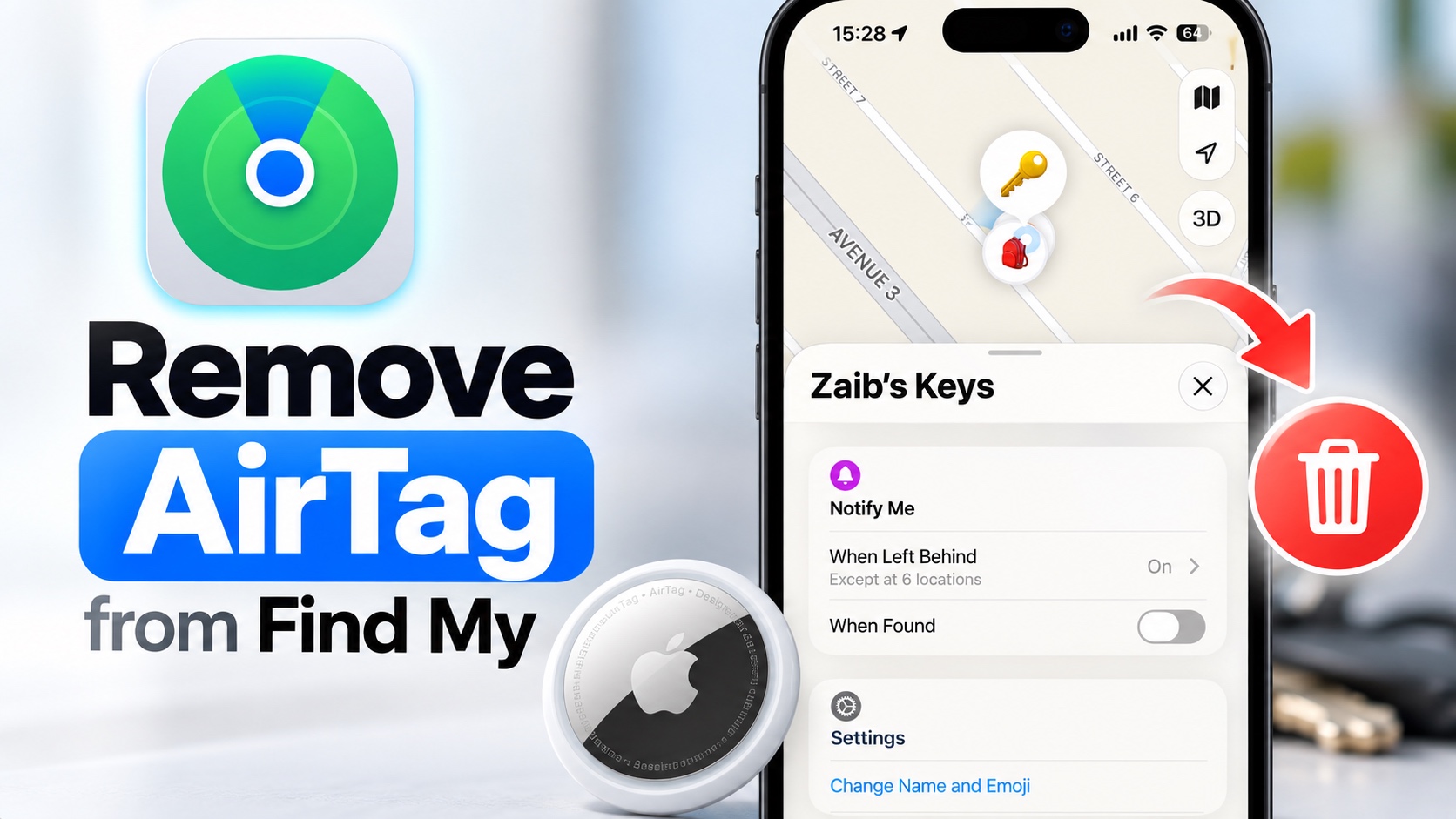
If you want to remove an AirTag or Tracker from your Find My account before giving it away, or when you are no longer using it, then this guide is for you.
Removing an AirTag or a Find My compatible tracker is very easy, and you can do it right from your iPhone using the built-in Find My app. Just follow the steps shared below.
- Launch the Find My app.
- Tap on the Items tab from the bottom bar.
- From the list of Items, tap on the AirTag or tracker you wish to remove.
- Tap on the menu (…) button located on the right side.
- Now scroll down and tap on Remove.
- Confirm by tapping on the Remove option again.

Once you remove an AirTag or Tracker from your iPhone, it will automatically be removed and unpaired from your Apple account. Apple will also remove it from other devices that are signed into your account.
After an AirTag has been removed successfully, it can be used by another person.
Disclosure: iOSHacker may receive a commission if you purchase products through our affiliate links. For more visit our privacy policy page.


