


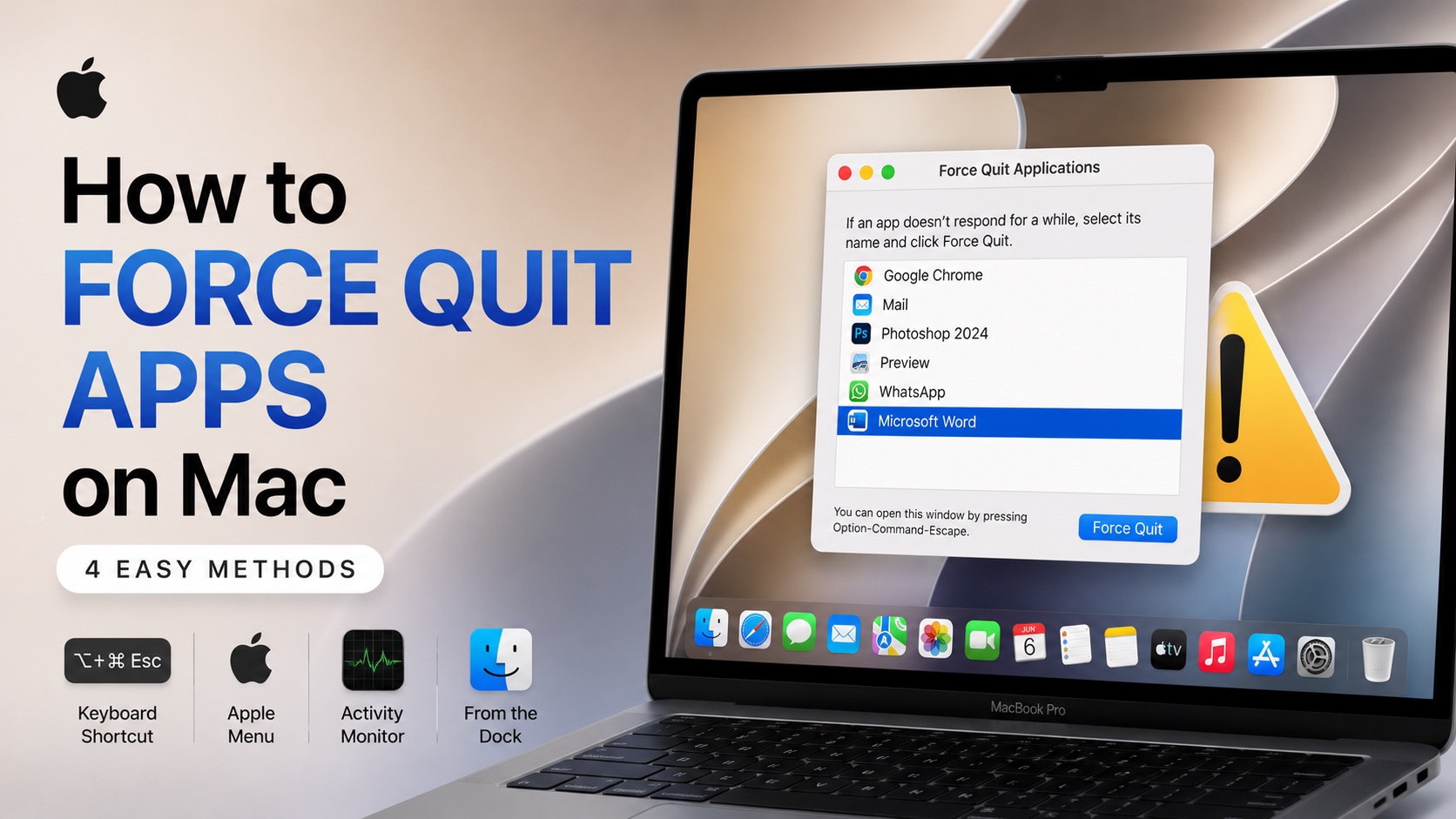
Is an app frozen or not responding on your Mac? Then force quitting might be the solution. macOS comes with a powerful Force Quit Applications tool, that allows users to quit apps with just one click. No matter if that app is working fine, not responding, or completely stuck.
You can easily access the Force Quit Applications tool with multiple methods. We have shared four easy ways you can use to force quit Mac apps. Read on to learn about them.
Force Quit Apps
Use Force Quit Window

The quickest way to force quit apps it through the Force Quit Applications window. To access it simply press the following key combination from your Mac’s keyboard.
Option + Command + Escape
A window listing all currently running apps will appear. Click on the app that is not responding and then click on the Force Quit button.
That app will immediately close after confirmation.
Use Apple Menu
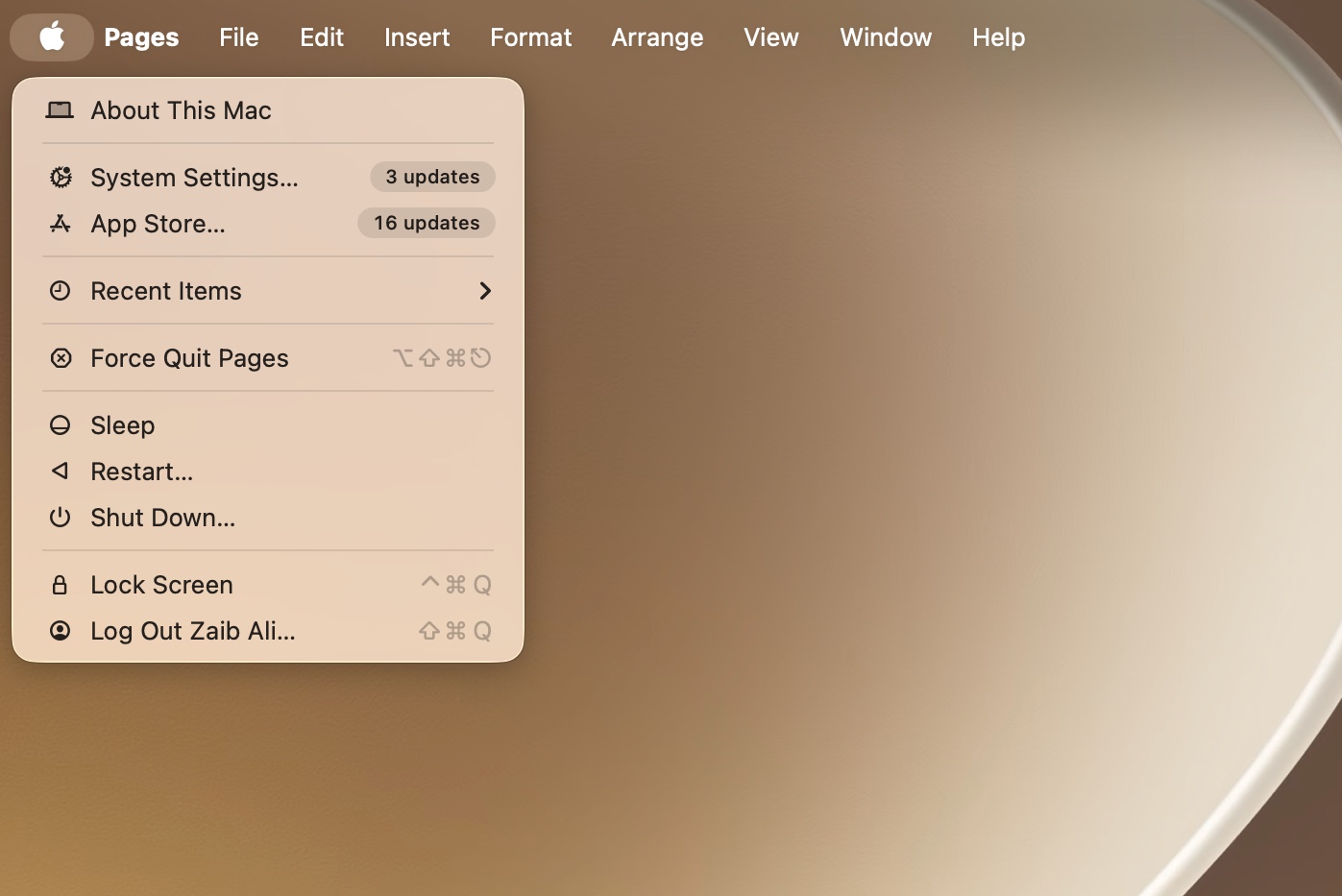
You can also access the Force Quit Applications tool from the Apple Menu Bar, and force quit apps. Here’s how.
Click on the Apple logo from the top left corner of the screen. From the drop down menu click on Force Quit…
A window listing all currently running apps will appear. Click on the app that is not responding and then click on the Force Quit button.
That app will immediately close after confirmation.
Force Quit Apps using Activity Monitor

Activity Monitor also lets users quickly quit unresponsive apps. You can access the Activity Monitor by searching for it from Spotlight (Command + Space).
On the Spotlight search type Activity Monitor and press REturn.
Search for the app that is causing issues withing the Activity Monitor and click on it.
Then click on the Force Quit button from the top. This will immediately terminate the app’s processes.
Force Quit from Dock

You can also force quit apps directly from the Mac’s Icon Dock. This is super convenient and works great as long as the dock is still responding.
Simply hold the Option key from the keyboard. Then Right click on the app’s icon from the Dock.
Click on the Force Quit option. The app will immediately close.
If Force Quit Doesn’t Work…
If Force Quit method does not work and you are unable to quit unresponsive apps, then follow these tips.
- Restart your Mac.
- If you can’t restart, hold down the power button to turn off Mac and start again.
- Update the app.
- Update macOS.
That’s it, these are four different methods that you can use to force quit apps on your Mac. This is a great way of quickly quitting apps that are not responding or have become unresponsive.


