


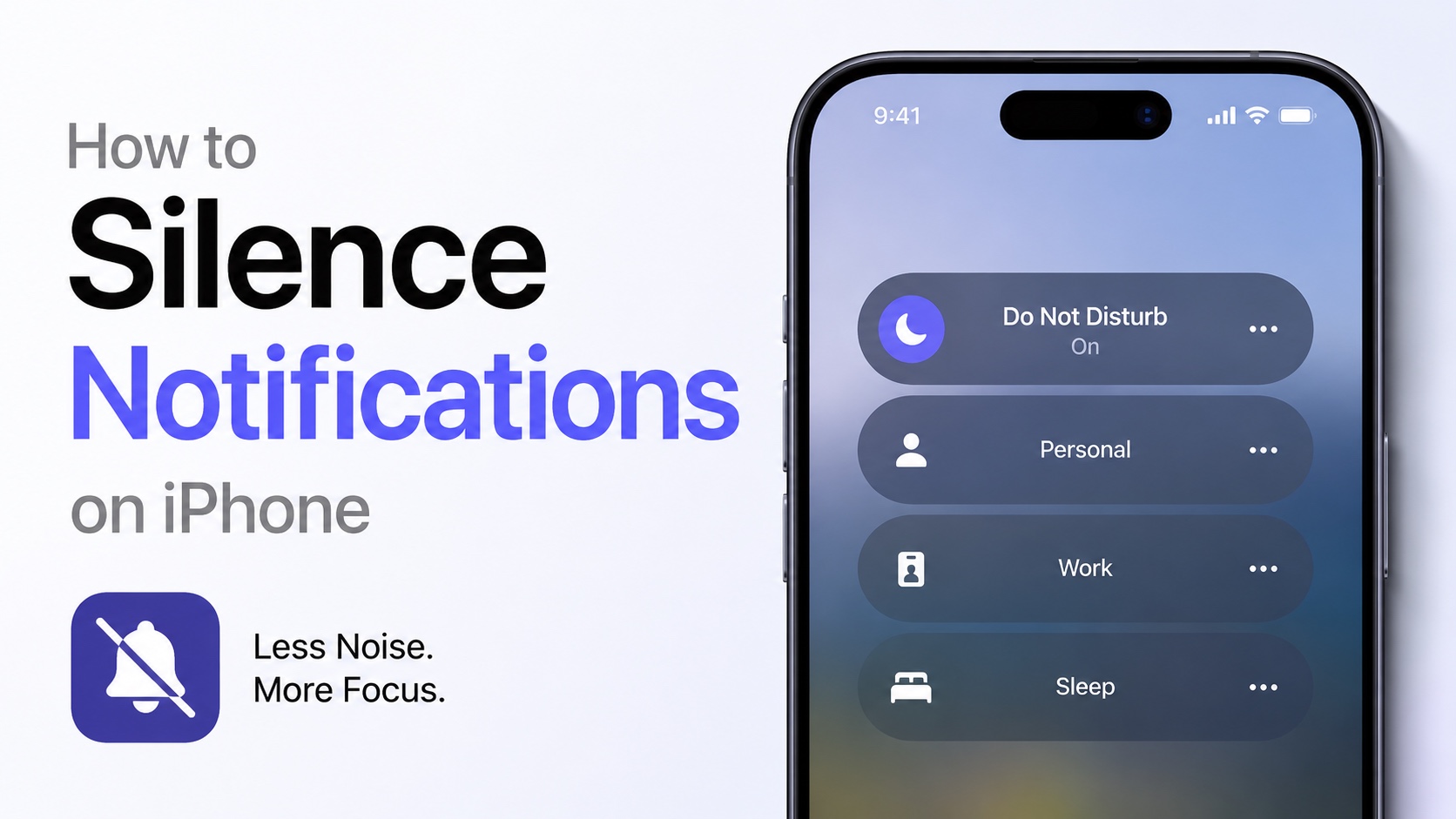
Do you find constant notifications on your iPhone distracting? In this tutorial, we have shared several ways to make iPhone silent and make alerts less annoying.
Whether you are in a meeting, studying, or simply need some peace and quiet, silencing notifications on iPhone can be a real game changer.
Method 1: Turn on Silent Mode
The simplest and most effective way to silence notifications on iPhone is through the Silent mode. Here are all the ways you can turn on Silent Mode on an iPhone.
- From Control Center: Swipe down from the top right corner and tap on the Silent button (with bell icon). If you don’t have the Silent button add it by tapping on the ‘+’ button from the top.
- From Action Button: You can press and hold the Action button to turn on Silent Mode. If Action Button is not set to Action button, then go to Settings -> Action Button and choose Silent Mode option.
- From Physical Silent Switch: If you have an older iPhone such as iPhone 14 Pro or older, then you would also have a silent switch. Simply flip it so that orange color is visible. This will turn on Silent Mode.
Method 2: Use Focus Mode

You can use the Focus Mode feature to silence notifications on iPhone. Here’s how to turn it on.
Swipe down from the top right corner to access Control Center. Then tap on Focus button and choose your desired Focus Mode like Do Not Disturb.
You can also go to Settings -> Focus and tap on a Focus Mode to configure it. You can also set up a schedule so that Focus Mode is automatically enabled at specific times of the day.
Method 3: Silence Notifications for a specific app

If you want to silence notifications from a specific app that is annoying you, then you can follow these steps.
- Open the Setting app.
- Tap on Notifications.
- Find and tap on the app you want to manage.
- Turn off Sounds to stop notification sounds while still receiving alerts.
- If you don’t want any notifications from that app, turn off Allow Notifications.
Method 4: Silence Notifications from Lock Screen
You can also temporarily silence notifications for specific apps right from the lock screen. This is great for when a particular app is botehring you too much. You can also use this method to silence notifications from specific contacts as well.
- Swipe left on a notification.
- Tap Options.
- Select Mute for 1 Hour or Mute for Today.
That’s it, this is how you can easily silence notifications on your iPhone. With these four easy methods you can silence your iPhone, silence alerts from a specific app, turn on silence mode for a particular time, and mute alerts from certain apps and contacts.
That’s it! You now know how to silence notifications on your iPhone.


