


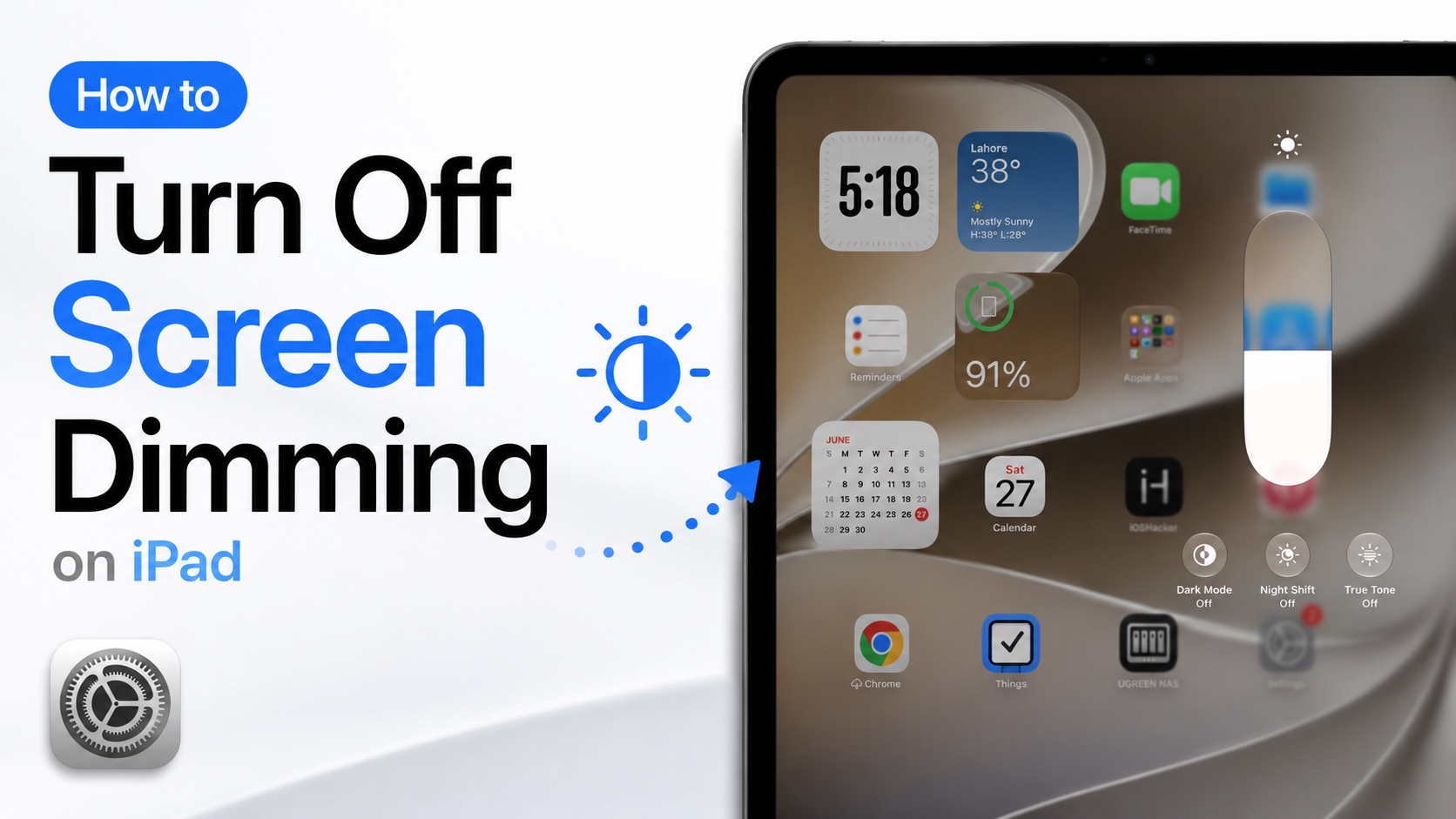
Does your iPad’s screen dims automatically even when you are using it? If yes, then this tutorial is for you. iPad screen dimming can be annoying especially when it happens when you are reading or looking at photos.
Thankfully there are multiple actions you can take to prevent your iPad’s screen from dimming. Read on to learn about all of the possible solutions.
Disable Auto-Brightness
The first and most important step that you can take to prevent your iPad from dimming its display is disabling Auto-Brightness. Follow the steps below.
- Open Settings.
- Go to Accessibility.
- Tap on Display & Text Size.
- Scroll down to the bottom and turn off Auto-Brightness.
Keep in mind that after disabling Auto-Brightness, you will have to manually change your device’s brightness every time when lighting conditions change.
Increase Auto-Lock Time
You can increase the auto-lock time on your iad to prevent it from turning off automatically.
- Open Settings.
- Tap on Display & Brightness.
- Tap on Auto-Lock.
- Choose a longer time such as 5 minutes, 10 minutes, or Never.
After changing this setting your iPad will take a longer time to turn off automatically.
Disable Attention-Aware features
On Face ID-equipped iPads, Attention-Aware features dim the display when your iPad detects you are no longer looking at the screen. If your iPad has Face ID, then you can disable Attention-Aware features by following these steps.
- Open Settings.
- Go to Face ID & Passcode.
- Scroll down and turn off Attention-Aware features.
After this, your iPad’s screen will no longer dim based on where you are looking.
Turn off Low Power Mode
Low Power Mode may reduce screen brightness to conserve battery. To turn it off, go to Settings -> Battery and turn off the Low Power Mode.
If your battery is running low, you may want to charge your iPad instead of leaving this feature disabled.
After following these tips, your iPad won’t dim its screen automatically. This will make reading and doing hands-free activities more convenient on your iPad.


