


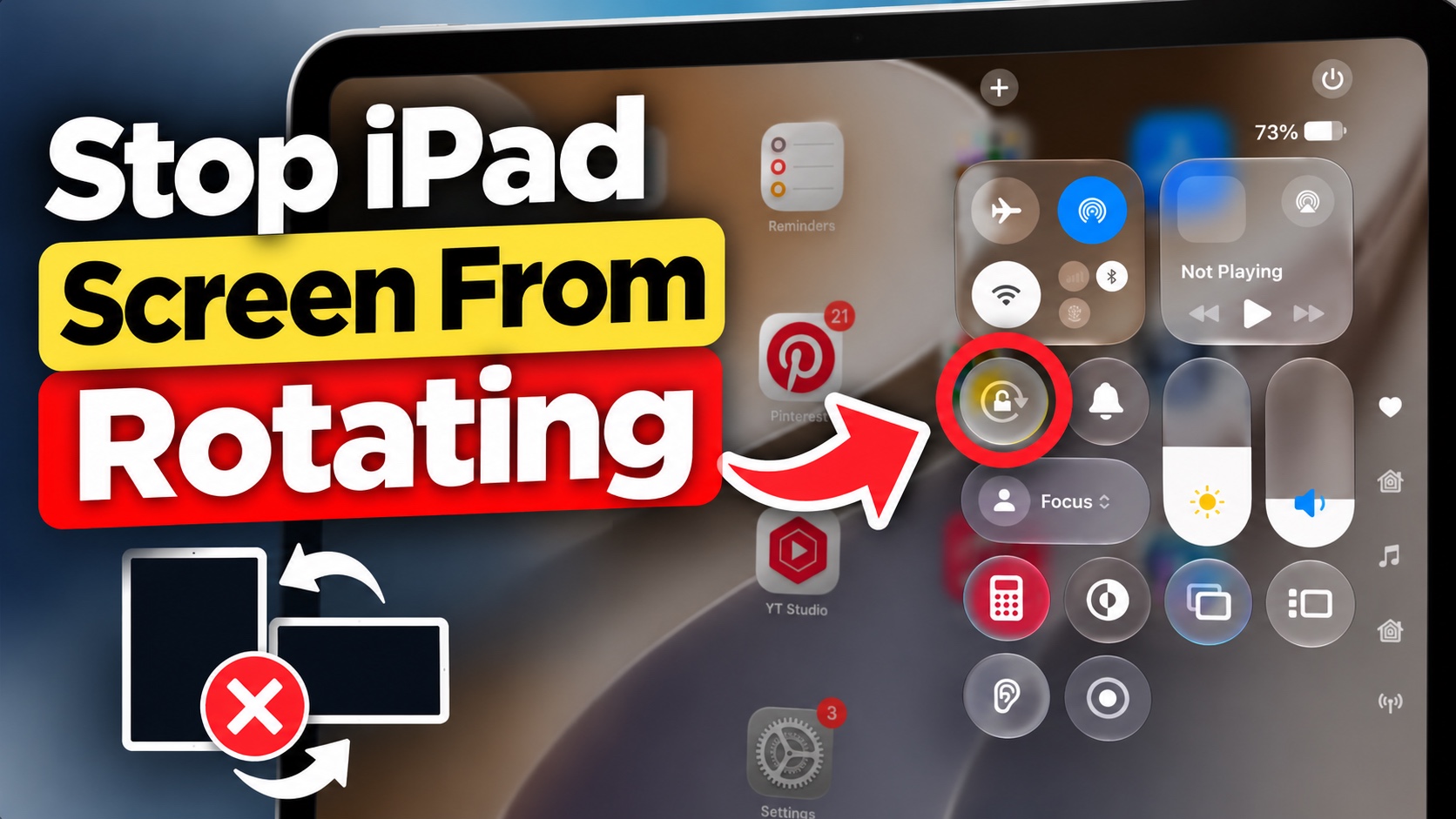
iPads have a useful feature that automatically rotates the screen based on their orientation. This feature ensures that, no matter how you hold the device, it always stays properly oriented and easy to view.
But there are times when you want to stop your iPad’s screen from rotating automatically. If your iPad screen keeps rotating every time you turn the device, there’s a simple way to lock it in place.
- Swipe down from the top left corner to open Control Center.
- Look for the Orientation Lock button (the one with a lock surrounded by a circular arrow).
- Tap on the Orientation Lock button so it gets highlighted.
When the button is highlighted and the orientation lock is enabled, your iPad’s screen will not rotate until you turn this lock off, which you can do by following the same steps.
If you don’t see the Rotation lock button in your iPad’s Control Center, you can quickly add it as well. Just access the Control Center. Then long-press on an empty area, and then tap on the Add a Control button.
That’s it, this is how you can stop your iPad screen from rotating on your iPad.


