


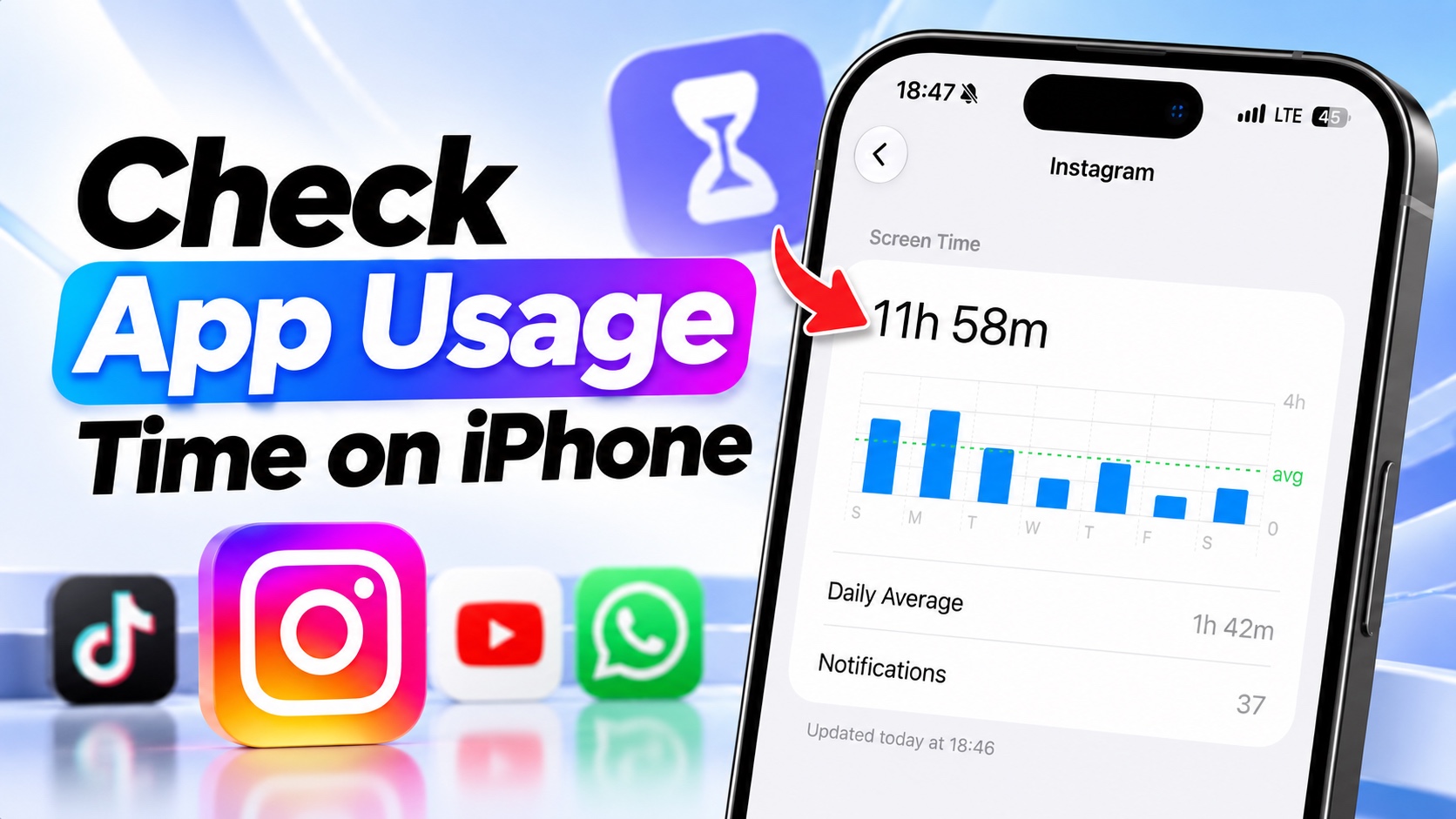
If you’re addicted to an app and want to know exactly how much time you spend using it on your iPhone, then this guide is for you. iOS’s built-in Screen Time tool lets you see how much time you have spent using any app on your device.
Read on to learn how you can access the app usage information for a specific app, along with the kind of information that is available to users.
Check App Usage Time on iPhone
- Open the Settings app.
- Tap on Screen Time.
- Here, tap on the See All App & Website Activity option.
- Scroll down to the Most Used section. You should see a list of apps. If you don’t see a list of Apps, tap on Show Apps & Websites, and it should appear.
- Next to each app’s name, you should see its usage data. You can also tap on the app and see more detailed usage information.
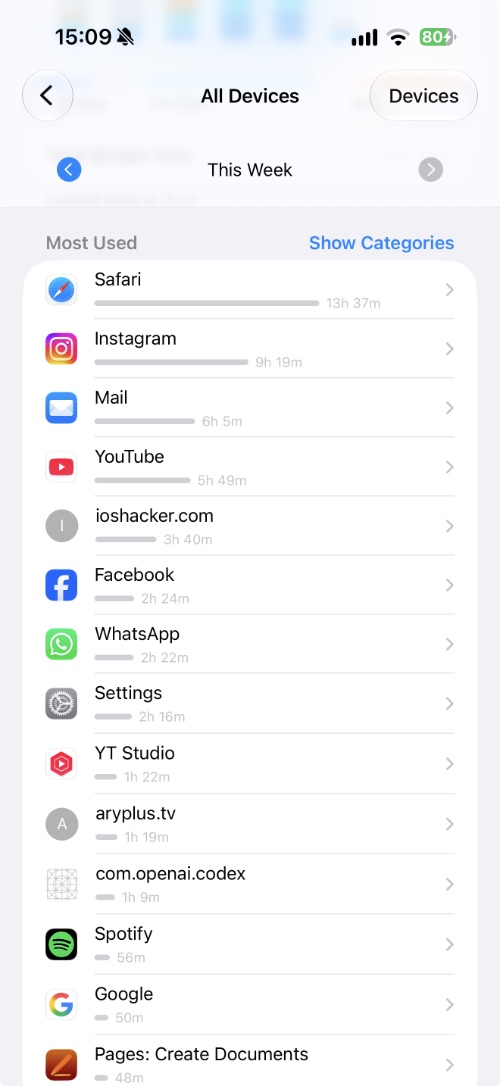
You can also switch between different days or view your weekly activity to see how your usage changes over time. Just scroll down a little and the date selection bar will appear at the top.
And that’s how you acn check exactly how much time you have spent using a particular app on your iPhone. Leave a comment below to tell us which app you are addicted to lately.
Disclosure: iOSHacker may receive a commission if you purchase products through our affiliate links. For more visit our privacy policy page.


