



The Apple Watch Series 12 and Ultra 4 both offer you a more accurate step count. These models not only show you your step count, but they also allow you to add your Daily Steps as a complication to your favorite watch face.
In this guide, we will show you how you can view Step Count on your Apple Watch Series 12 or Ultra 4 and add this information to a watch face for extra motivation.
View Steps on Apple Watch Series 12 & Ultra 4
You can quickly view your daily step count on your Apple Watch by following a few simple steps.
- Wake up your Apple Watch.
- Press the Digital Crown button to access the app screen.
- Swipe up and scroll on the home screen until you find the Activity app, and open it.
- Scroll past your Activity Rings, Move, Exercise, and Stand pages, and you should see your current step count.
In addition to Step Count, you should also see information like Distance walked and flights climbed throughout the day.
Add Step Count to complication
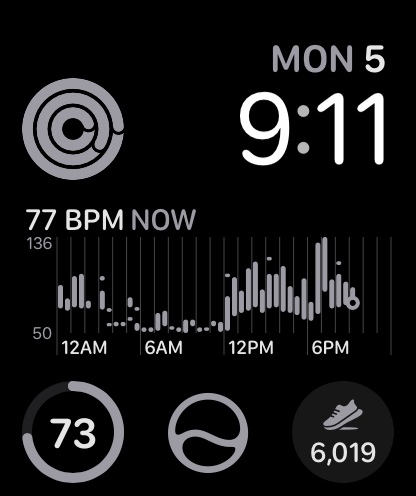
Now, let’s add the Step Count complication to your favorite watch face.
- Press and hold on the watch face. Swipe to the watch face you want to edit
- Tap on the Edit button.
- Swipe across until you reach the Complications section.
- Tap on the complication position where you want your step count to appear.
- From the list of complications, tap on the Activity option.
- Here, tap on the Daily Steps option.
- Once you have selected it, press the Digital Crown to return to your watch face.
You should now see your daily step count directly on your watch face.
So, whenever you want to check your steps, you can simply raise your wrist and look at your watch face without opening the Activity app.


