


Are you facing Battery Drain Issues on your iPad? In this guide, we have featured 11 proven fixes that help improve iPad battery performance and stop battery drain on iPads.
We have all been in situations where we charged the iPad to 100% at night, and when we picked it up in the morning and watched a couple of videos and browsed the web for a bit, the battery was already down to 40%.
Thankfully, this is easily fixable and requires you to take a few quick and simple steps.
Before you begin: Check Battery Usage and Battery Health
Before we start with the fixes, take a look at what is draining your iPad’s battery. You can check this by opening Settings and tapping on the Battery option from the side pane.
On the next page, you can see Battery Usage by Apps, Screen Activity, and Background Activity.
You can also pinpoint which apps are using the most battery and how much screen time they are getting.
You should also check your iPad’s Battery Health to make sure it does not need replacing. Apple does not allow users to check iPad Battery Health as it does on the iPhone, but you can follow a Shortcuts app workaround that lets you find this information. Here’s how to check iPad Battery Health.
11 Fixes to stop battery drain on iPad
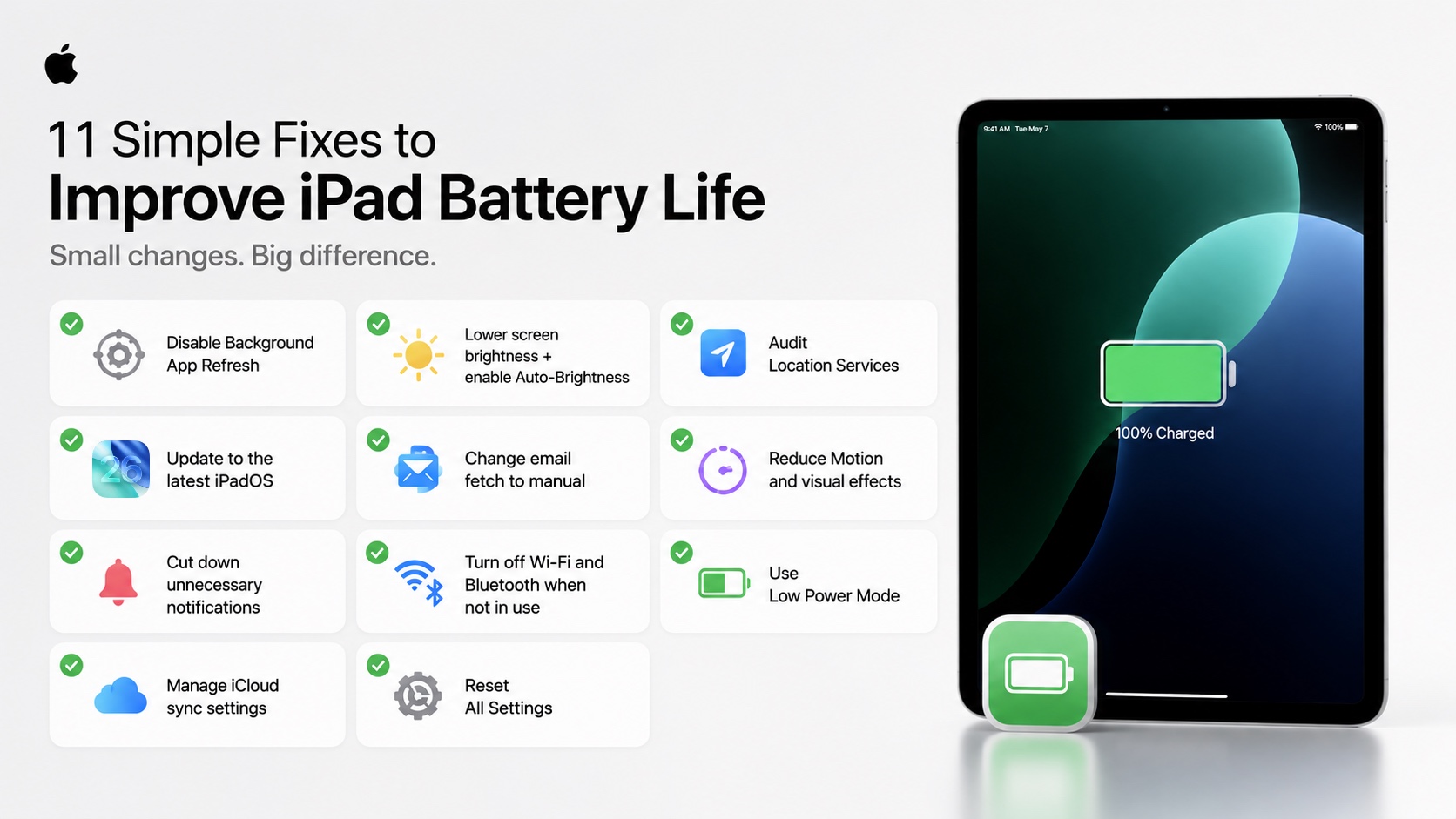
1. Disable Background App Refresh
The Background App Refresh feature lets apps refresh their content and data in the background. This affects battery life and can cause the battery to drain. You can turn it off by following the steps below.
- Open Settings and tap on General.
- Here, tap on Background App Refresh.
- Turn off the toggle for Background App Refresh.
You can also keep Background App Refresh On, and only turn it off for specific apps. Just scroll down and turn off the toggles in front of problematic apps.
2. Lower Screen Brightness
The display is one of the biggest battery consumers on an iPad. You can reduce its battery usage and stop battery drain by lowering the screen brightness.
Lower Screen Brightness: Swipe down from the top right corner to access Control Center. The drag and brightness slider is set to 40-50%.
Enable Auto-Brightness: Auto-Brightness automatically adjusts the brightness according to your environment. To enable it, follow these steps.
- Go to Settings
- Tap Accessibility
- Tap Display & Text Size
- Scroll down and toggle on Auto-Brightness
3. Check Location Services
Location Services can cause battery drain as apps constantly ping GPS in the background. You can stop apps from doing so by adjusting your device’s Location Services.
- Open Settings
- Go to Privacy & Security
- Tap on Location Services
- Tap on each app’s name and adjust permissions to While Using.
You can also turn off Location Services entirely for apps that don’t need to access your location. This includes apps like shopping apps, games, social media apps, etc.
4. Update iPadOS
Apple fixes bugs that cause battery drain. Update iPadOS to the latest version by following these steps.
- Open Settings
- Go to General
- Tap on Software Update
- Install any available updates
5. Change Fetch Settings for Mail
Mail app fetching for new emails can drain battery. To stop it from doing so, follow these steps.
- Go to Settings.
- Tap on Apps.
- Go to Mail.
- Tap Mail Accounts.
- Tap Fetch New Data and turn off Push.
- Also set Fetch to Manually or Every 30 Minutes.
6. Turn on Reduce Motion
iPadOS animations can drain battery. To reduce them, follow these steps.
- Open Settings
- Tap Accessibility
- Go to Motion
- Toggle Reduce Motion On
7. Manage Notifications
Notifications can cause battery drain on your device. Here’s how you can stop them from doing so.
- Open Settings
- Tap on Notifications
- Go through apps that send you the most notifications and turn off notifications for anything that isn’t important.
8. Turn off Wi-Fi and Bluetooth
Turning off Wi-Fi and Bluetooth when they are not in use can prevent battery drain on your iPad.
You can disable them from Settings -> Wi-Fi and Settings -> Bluetooth.
Both of these radios are constantly scanning for networks and devices to connect to. If you are on a long flight, using your iPad offline, or just reading a book, there’s no need to have them on.
9. Turn on Low Power Mode
Low Power Mode reduces background activity, lowers screen brightness, reduces performance, turns off ProMotion, and pauses automatic downloads. All this helps reduce battery drain.
To turn it on, go to Settings -> Battery -> Low Power Mode -> On.
10. Manage iCloud Syncing
Your device is constantly syncing its photos, data, contacts, photos etc to iCloud. While this is useful, it also eats battery. Here’s how to turn it off.
- Open Settings
- Tap on your name
- Tap on iCloud
- Tap on See All
- Next, turn off iCloud Sync for unnecessary apps and services
11. Reset All Settings
If nothing has worked so far, then a Settings Reset can help reduce battery drain on the iPad.
- Go to Settings
- Tap General
- Scroll down and tap Transfer or Reset iPad
- Tap Reset
- Choose Reset All Settings
If these 11 fixes have not helped fix the iPad battery Drain issue for you, then chances are your iPad needs a battery replacement. In that case, book an Apple Store appointment or visit an Apple authorized repair center and have your iPad inspected.


