


Are you looking to reset your Apple Watch before selling it, fixing a glitch, or starting completely fresh? In this guide, we will share easy-to-follow instructions on how to reset any model of Apple Watch step-by-step.
Before we begin, make sure to back up your Apple Watch. Your Apple Watch is backed up with your iPhone, so to back up your Apple Watch, simply back up your iPhone to iCloud or iTunes/Finder. This is essential if you want to preserve your watch data, including activity rings, health history, and settings. After you have backed up your Apple Watch, follow the steps below.
You can follow these steps to reset the following Apple Watch models.
- Apple Watch Ultra 3 or lower
- Apple Watch Series 11 or lower
- Apple Watch SE
These steps work on recent versions of watchOS, including watchOS 26.
Reset Apple Watch
Unpair Apple Watch using iPhone (Full Erase)
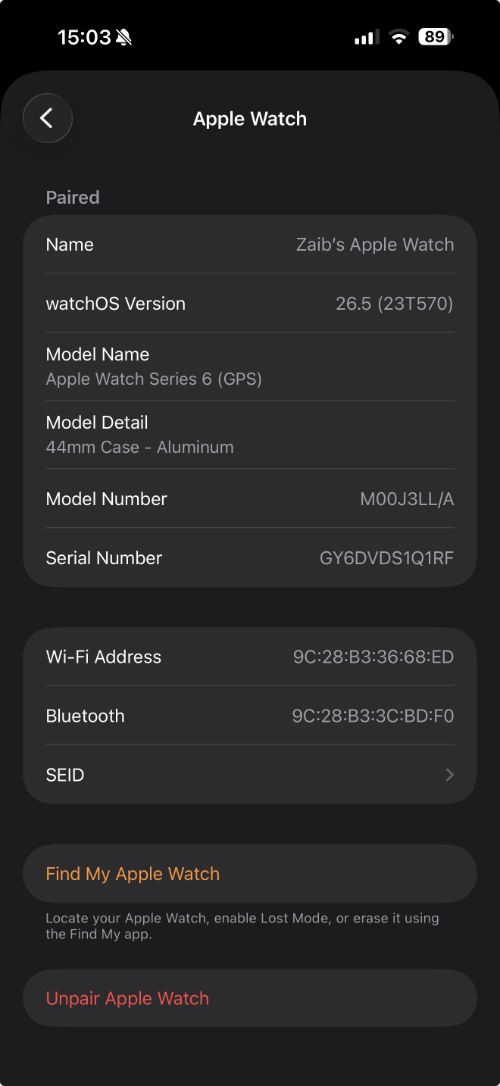
- Open the Watch app on your iPhone.
- Tap on the My Watch tab.
- Now tap on the My Watches button at the top.
- Tap on the ‘i ‘ button next to your watch’s name.
- Now tap on the ‘Unpair Apple Watch’ option.
- Enter your Apple ID password if asked.
Wait for your watch to finish the reset process. After it’s done, it will take you to the Start Pairing screen. At this point, you can pair it with your own iPhone, with any other device, or give it away.
Erase directly from Apple Watch
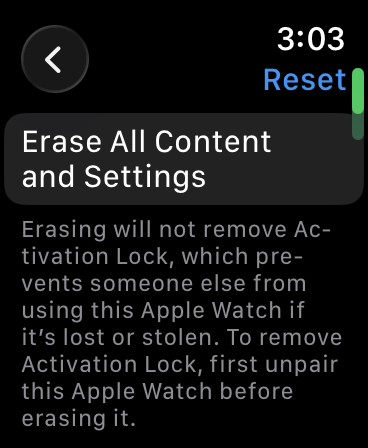
You can also erase your Apple Watch directly from the Watch itself. This is useful in situations where you don’t have access to your iPhone.
- Press the Digital Crown button to access the Home Screen.
- Open the Settings app on your iPhone.
- Go to General, scroll down, and tap on Reset.
- On the next page, tap on Erase All Content and Settings.
- Wait for the Apple Watch to restart.
After your Apple Watch restarts, you will be able to pair it again.
Force Restart Apple Watch
If your Apple Watch is stuck or non-responsive, you can fix it quickly without performing a complete reset or erase. A force restart is a better option in these situations. Here’s how to do it.
Press and hold the Digital Crown button and the Side buttons simultaneously until the screen goes black and the Apple logo appears. Let go of the screen when you see the Apple logo.


