


Are you getting errors while updating to iOS 26? If your iPhone won’t update to iOS 26, then fear not. In this guide, we will show you the steps that you can take to get your iPhone or iPad updated to iOS 26.
Table of Contents
The new iOS 26 update brings a wide range of new features to iPhones. This includes a brand new Liquid Glass design, redesigned apps, calling screen, Apple Intelligence features, improved Camera app design, and much more.
If you are excited about the update but cannot get your iPhone to download and install iOS 26.0, then follow these steps.
Fixing “iPhone Not Updating” Issue while installing iOS 26
iPhone update problems can be frustrating, but they are solvable. Start with the basics like making sure your Internet is working and fast, you have enough storage available, and work your way to more advanced solutions if necessary.
Let’s explore some common issues if your iPhone is not updating and simple fixes to get it back on track.
Make sure Internet is working fine
If you are facing an issue where the update is stuck on downloading or is not downloading at all, then the issue might be caused by a poor Internet connection.
Check your Wi-Fi’s Internet speed using an app like Speed Test or visit fast.com website in Safari browser.
If the issue is with your Wi-Fi network, then switch to another Wi-Fi network or download the update over cellular data. Turn on the Wi-Fi Assist feature so your iPhone can switch to Cellular whenever it faces poor Wi-Fi connectivity.
Also, make sure your iPhone has at least 50% battery or is connected to its charger.
Verify device compatibility
If you don’t see the iOS 26 update when visiting the Software Update section of the Settings app, then chances are your iPhone or iPad is not supported. Check if your iPhone is compatible with iOS 26 here. Some older models may not support the latest iOS versions, and thus your iPhone won’t update to iOS 26.
Check if your iPhone Storage is full

One of the most frequent roadblocks encountered during iPhone updates is insufficient storage space. This problem is particularly common on iPhones with limited memory, where every megabyte matters.
You can check your iPhone’s storage details by going to Settings -> General -> iPhone Storage. Remember, iOS updates can range from 2GB all the way up to 15GB. Check the download size of the update on the Software Update page and make sure your device has sufficient storage available.
If you’re navigating the iPhone storage full cannot upgrade error, deleting unnecessary apps and data can create ample room for updates.
Check your Messages app and remove old text messages, especially those with large attachments.
- Identify and uninstall apps you no longer use or need.
- Delete redundant photos, videos, and files that are consuming valuable space.
- Clear your Safari cache and browsing history.
Tackle Error Messages
Is your iPhone giving errors while updating? Sometimes, you may encounter error messages during updates, like “Unable to Check for Update” or “Unable to Verify Update.” These errors are usually related to connection issues or server problems.
Here’s what to do to fix the iPhone not updating issue:
- Ensure you have a stable Wi-Fi connection; look for the Wi-Fi signal icon.
- Tap Try Again and see if the update proceeds.
- If not, restart the update process from the beginning.
- If the problem persists, try on a different Wi-Fi network or use cellular data.
Reboot iPhone
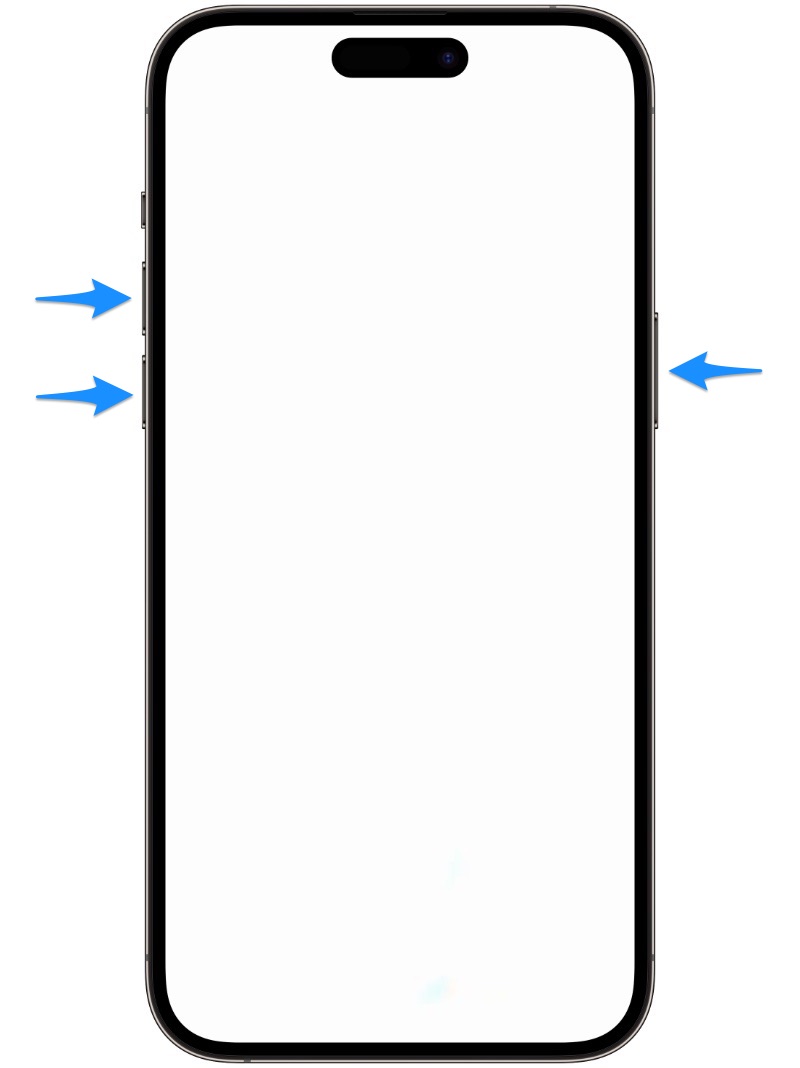
The simplest solution to the iPhone not updating issue is often the most effective. Want to know how to update your iPhone? Restart your iPhone by following these steps:
On newer iPhones without a Home button, simultaneously press and hold the side button and one of the volume buttons until the slider appears. Slide it to turn off the device.
On iPhones with a Home button, hold down the power button until you see ‘Slide to Power Off.’ Swipe to turn off your iPhone and wait for it to shut down.
Wait for 30–60 seconds, then power on your iPhone by holding down the power button or side button until you see the Apple logo.
Delete and Redownload Update
Sometimes, the culprit behind the iPhone not updating problem is not the update itself, but the downloaded update file. An occasional issue with this file can prevent your installation efforts. Here’s how to update your iPhone if this hiccup persists:
- Open Settings, tap on General, and then select iPhone Storage.
- Once inside iPhone Storage, look out for the iOS update file.
- Scroll through the list until you come across the iOS update. It should be evident by its file size.
- Simply tap on it. A new screen will appear, and at the bottom, you’ll find the option to Delete Update. Go ahead and tap it.
Now, you’re ready to embark on a fresh attempt to acquire the update. Head back to Settings -> General -> Software Update, and download the update once again. This time, it’s ready to install smoothly and bring your device up to speed.
Install the update on your computer

If installing the iOS 26 update through the Settings app is not working, then you can also install the update using your computer. Mac users can use Finder while Windows users can take advantage of iTunes for Windows software. Just follow the instructions below.
Before you begin: Make sure you create a fresh backup of your iOS device. You can back up your iPhone or iPad on your computer or create an iCloud backup.
- After the download has completed, connect your iPhone to your computer using a USB cable.
- Now launch iTunes on Windows or Finder on Mac and go to the Summary screen.
- Press and hold the Option key or Shift key (on Windows), and click on the ‘Restore iPhone’ button. This will do a clean install of iOS on your device. Remember, your data will be lost, so make sure you create a backup first.
- If you don’t want to Restore and simply want to Update your device, then press and hold the Option key or Shift key (on Windows) and then click on the Update button.
- Wait for iOS to complete installation. Your iPhone might restart a few times during this process. Do not unplug your device.
Monitor Server Status
Apple’s iOS updates attract a massive influx of users, all eager to download and install the latest features and enhancements. Thus, during major iOS updates, Apple’s servers may get overloaded due to high demand, causing iPhone update issues.
Be patient and check Apple’s server status on their website to confirm if this is the cause behind the iPhone not updating issue.
Fixing Slow Update Progress
If you’re wondering, “Why is my update taking so long, iOS 26?” fret not. Updating your iPhone can take some time, especially if the update file is large. Here are some considerations to keep in mind:
- Ensure your iPhone has sufficient battery life or plug it in to charge during the update.
- Don’t disconnect from Wi-Fi or leave the network range during the update.
- Avoid using bandwidth-intensive activities on other devices sharing the same network.
Reset Network Settings
Another fix for iPhone not updating to iOS 26 is resetting the Network Settings. To do this, go to Settings -> General-> Transfer or Reset iPhone -> Reset -> Reset Network Settings. After resetting the network settings, you will need to connect to your Wi-Fi network again by entering its password.
Remove the iOS 18 beta setting
If you’re not seeing iOS 26 on your device, then there’s a chance that your device is on the iOS 18 beta program. You can turn it off by going to Settings -> General -> Software Update -> Beta Updates and selecting the Off option. After doing this, force-quit the Settings app and check for an update again.


