


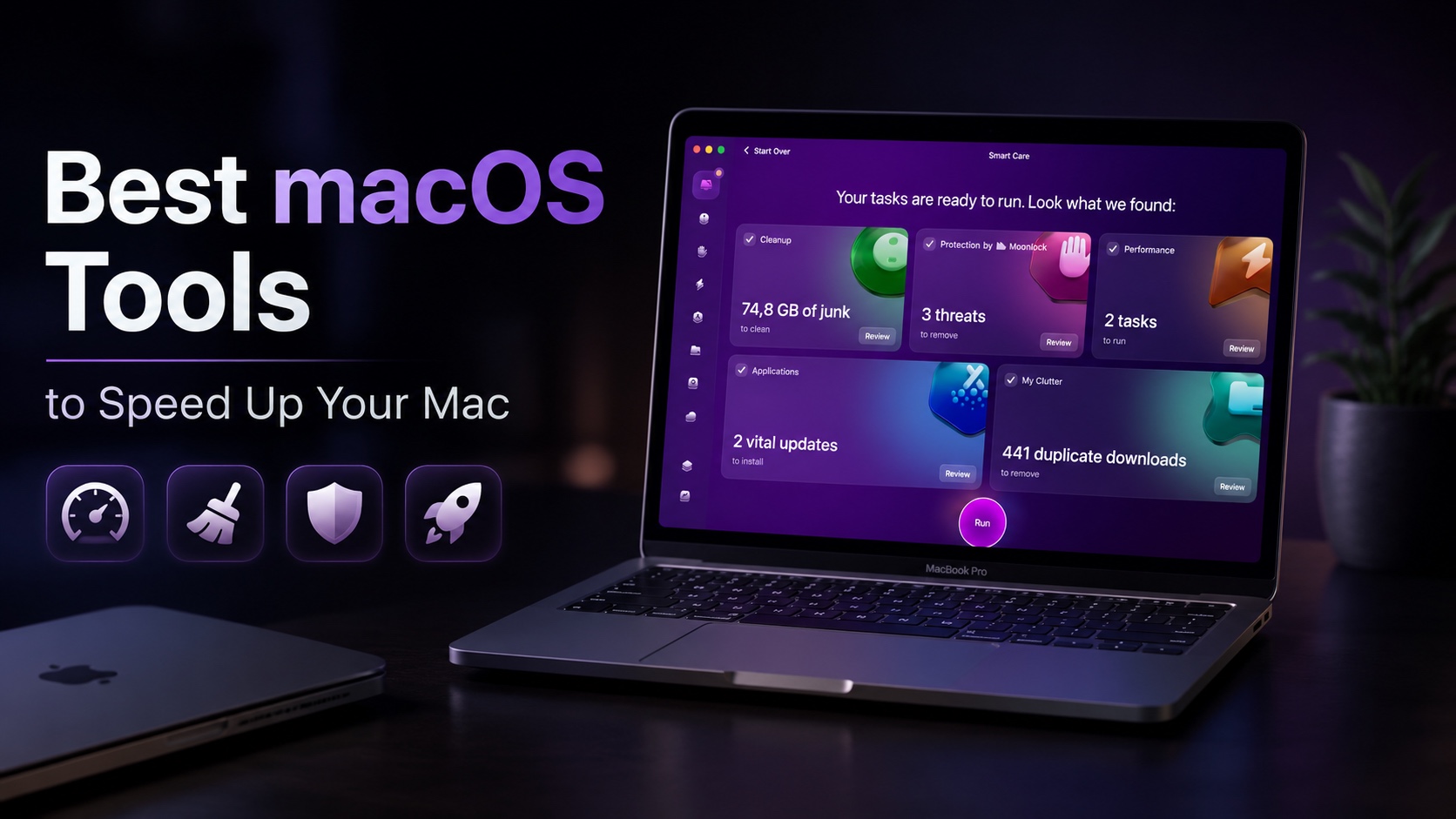
Mac performance tends to slip away quietly. One week your machine boots in seconds; a few months later you’re watching the progress bar crawl and wondering what happened. Most of the time, nothing dramatic did — it’s the slow accumulation of junk files, background processes that never got cleaned up, and a drive that filled up without you noticing.
Table of Contents
- 1. CleanMyMac – All-in-One System Cleaner
- 2. iStatMenus – Real-Time System Monitor
- 3. OnyX – macOS Maintenance Utility
- 4. Amphetamine – Keep Your Mac Awake When It Matters
- 5. DaisyDisk – Storage Visualization and Cleanup
- 6. Memory Cleaner – On-Demand RAM Recovery
- 7. App Tamer – Background CPU Control
- Final Thoughts
The good news is that hardware is rarely the problem. The right software can recover a surprising amount of performance, and you don’t need to be particularly technical to use any of the tools on this list. Whether your Mac has slowed to a frustrating crawl or you just want to keep it running at its best, these seven utilities are worth knowing about.
1. CleanMyMac – All-in-One System Cleaner
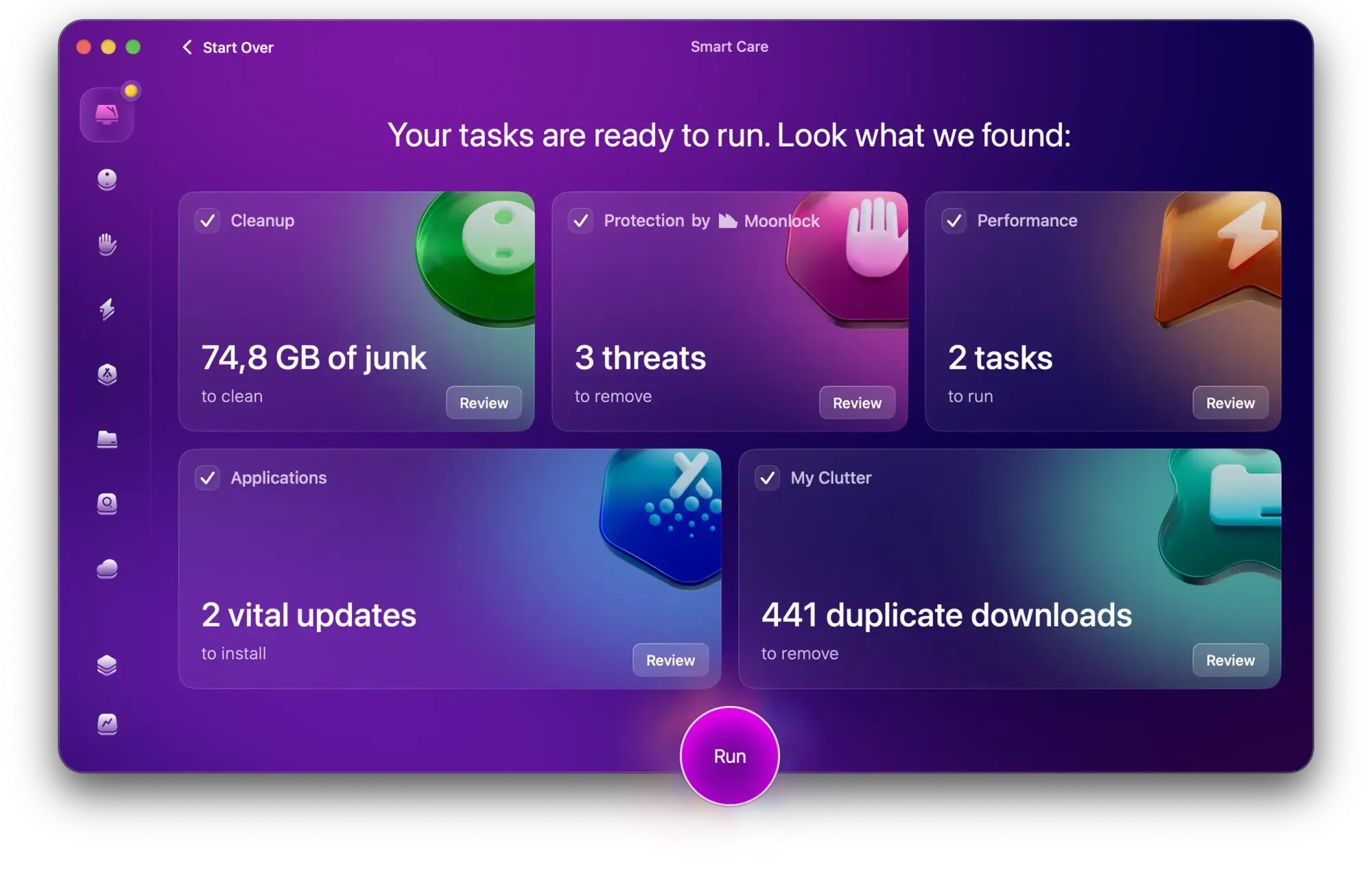
CleanMyMac is a system cleanup utility that scans for junk files, redundant caches, and background login items that build up over time and quietly affect how your Mac performs.
Run a Smart Scan, and it checks your system for junk files, old caches, and login items that have piled up over time, then lays out the results clearly before touching anything. You decide what gets removed. Beyond cleanup, Space Lens maps your storage visually so you can see at a glance where your gigabytes went, plus a proper app uninstaller that catches the files Finder leaves behind and a menu bar widget that monitors CPU, RAM, and disk usage in real time. If you’re only going to add one tool to your Mac, this is the one to start with.
2. iStatMenus – Real-Time System Monitor
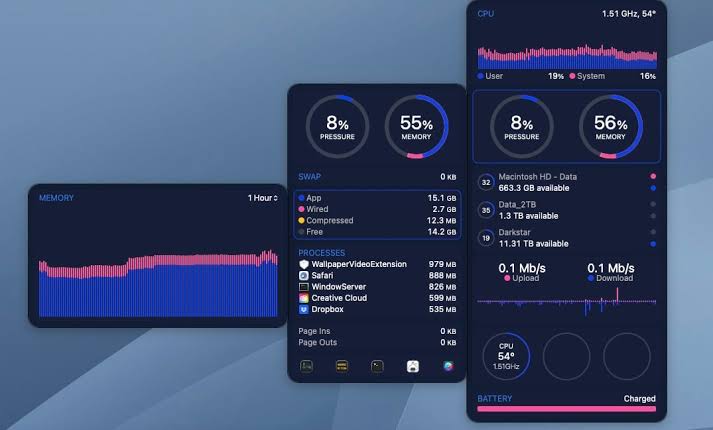
Before you start fixing things, it helps to know what’s actually wrong. iStatMenus sits in your menu bar and gives you a live read on everything happening under the hood—CPU load, RAM pressure, disk activity, network speeds, GPU usage, and hardware temperatures, all visible without opening a single window.
What makes it genuinely useful is the ability to spot patterns. Maybe one app is quietly maxing out your CPU every time it runs in the background. Maybe your RAM is nearly full before your main work even starts. As Apple notes in its developer documentation, memory pressure is one of the most telling signs of a system under strain — and iStatMenus keeps that information in plain sight. Knowing what’s causing the problem makes it much easier to fix than guessing.
3. OnyX – macOS Maintenance Utility
OnyX by Titanium Software won’t win any design awards, but it has been a dependable part of the Mac toolkit for over two decades — and it’s completely free. It gives you manual access to the maintenance scripts macOS is supposed to run automatically in the background: clearing system caches, rebuilding the Spotlight index, running Unix maintenance tasks, and more.
The catch is that macOS doesn’t always run these scripts when it should, particularly on machines that sleep regularly or go a long time between restarts. OnyX lets you take control of when they run. It also unlocks a handful of system settings that Apple doesn’t expose through System Settings.
4. Amphetamine – Keep Your Mac Awake When It Matters
Amphetamine does one thing: it stops your Mac from going to sleep when you need it to stay awake. That might sound minor, but anyone who has come back to find a long file transfer interrupted, or a video export paused halfway through because the display went dark, knows exactly how useful this is.
You can set it to keep your Mac active for a specific amount of time, until a particular app closes, or until you end the session manually. It’s free on the Mac App Store, takes about thirty seconds to configure, and sits quietly in the menu bar until you need it. Simple, but worth having.
5. DaisyDisk – Storage Visualization and Cleanup
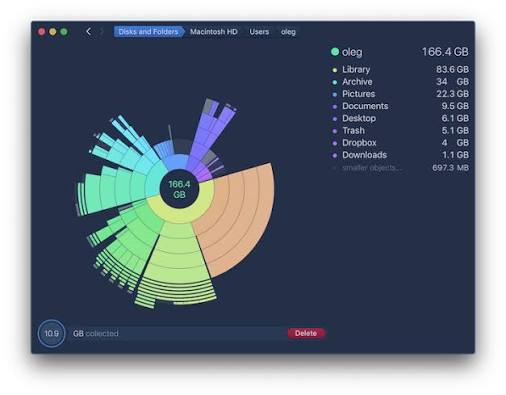
A drive that’s running low on space is one of the most common, easy-to-fix causes of a sluggish Mac. macOS needs room to breathe — for virtual memory, temporary files, and general system operations — and when that room disappears, performance takes a noticeable hit. DaisyDisk helps you find out where your storage actually went.
It scans your drive and presents everything as an interactive sunburst map, with each segment sized in proportion to how much space that folder or file group uses. Click into any section to see what’s inside, then drag whatever you want to remove into a deletion queue. Nothing gets deleted until you confirm it. It’s a much cleaner way to audit your storage than hunting through folders in Finder, and it regularly turns up forgotten downloads, old project archives, and bloated caches that are easy to miss otherwise.
6. Memory Cleaner – On-Demand RAM Recovery
Here’s something macOS doesn’t always handle well: releasing memory after you close a heavy app. Quit Final Cut Pro or shut down a virtual machine, and your system might hold onto a chunk of that RAM longer than necessary — leaving less headroom for whatever you open next. Memory Cleaner, available on the Mac App Store, gives you a quick way to flush that inactive memory and hand it back to the system.
It lives in the menu bar, shows your current RAM usage at a glance, and clears inactive memory with a single click. It won’t conjure more RAM than your Mac actually has, but for those mid-session moments when things start dragging and a restart isn’t practical, it’s exactly the kind of targeted fix you need.
7. App Tamer – Background CPU Control
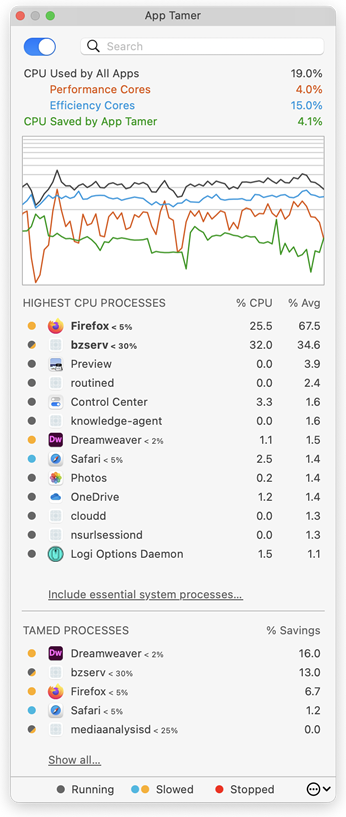
If your Mac runs hotter than it should or your battery drains faster than expected, a background app burning through CPU is a likely cause. Browsers are the usual suspects — leave enough tabs open and even Safari can spike your processor while you’re doing something completely unrelated. Electron-based apps are notorious for the same behavior.
App Tamer by St. Clair Software puts you in control of this. You set a CPU limit for each app, and when that app exceeds the threshold in the background, App Tamer automatically throttles it until you bring it back to the foreground. You configure it once, and it runs silently from there. The result is a cooler, quieter Mac that’s less likely to reach for the fans every time you switch tabs.
Final Thoughts
No single tool fixes everything, and the right combination depends on what’s actually slowing your Mac down. For most people, starting with CleanMyMac handles the broadest range of issues in one go. Add iStatMenus for visibility into what’s still straining the system, then layer in the remaining tools based on the real bottleneck — storage, RAM, background CPU, or keeping long tasks from getting interrupted.
Used together, these tools cover most of what causes a Mac to slow down over time. Give them a try and let us know which made the biggest difference in the comments below.


