


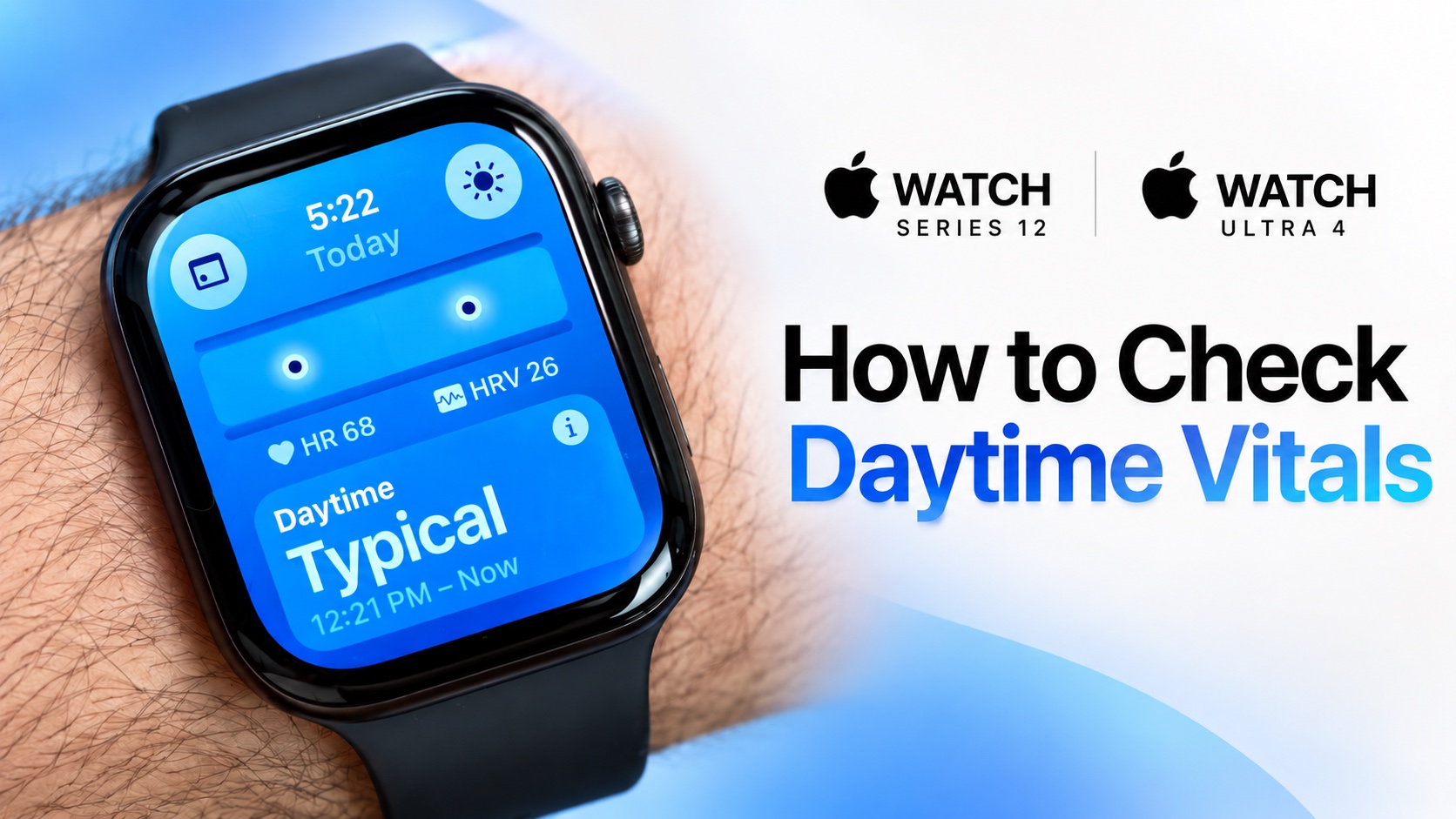
Apple Watch Series 12 and Ultra 4 feature a new Vitals app that provides Daytime Vitals in addition to the overnight health measurements available in previous models.
In this guide, we show you how you can access Daytime Vitals and view information like your resting heart rate and Heart Rate Variability (HRV) during the day.
- Wake up your Apple Watch and press the Digital Crown.
- From the App Screen, scroll up and tap on the Vitals app icon (it’s a purple icon with 4 dots).
- The Vitals app will show you the Overnight Vitals. Tap on the Overnight Vitals button in the top-right corner to switch to Daytime Vitals.
- Now you will see your Daytime vitals such as Heart Rate and HRV. You can tap on each data type to see more information about it.
- You can also tap on the Calendar button from the top left corner to view Daytime Vitals measurements for the past 7 days.
- Switch back to Overnight Vitals by tapping on the Daytime Vitals button from the top right.
If you don’t immediately see useful Daytime Vitals data, remember that your Apple Watch needs to collect enough health information to establish your typical ranges.
You must wear your Apple Watch while sleeping to build up your baseline data.
This is how you can check Daytime Vitals measurements on your Apple Watch Series 12 and Apple Watch Ultra 4. The Daytime Vitals feature is exclusively available on the new models.
Disclosure: iOSHacker may receive a commission if you purchase products through our affiliate links. For more visit our privacy policy page.


