


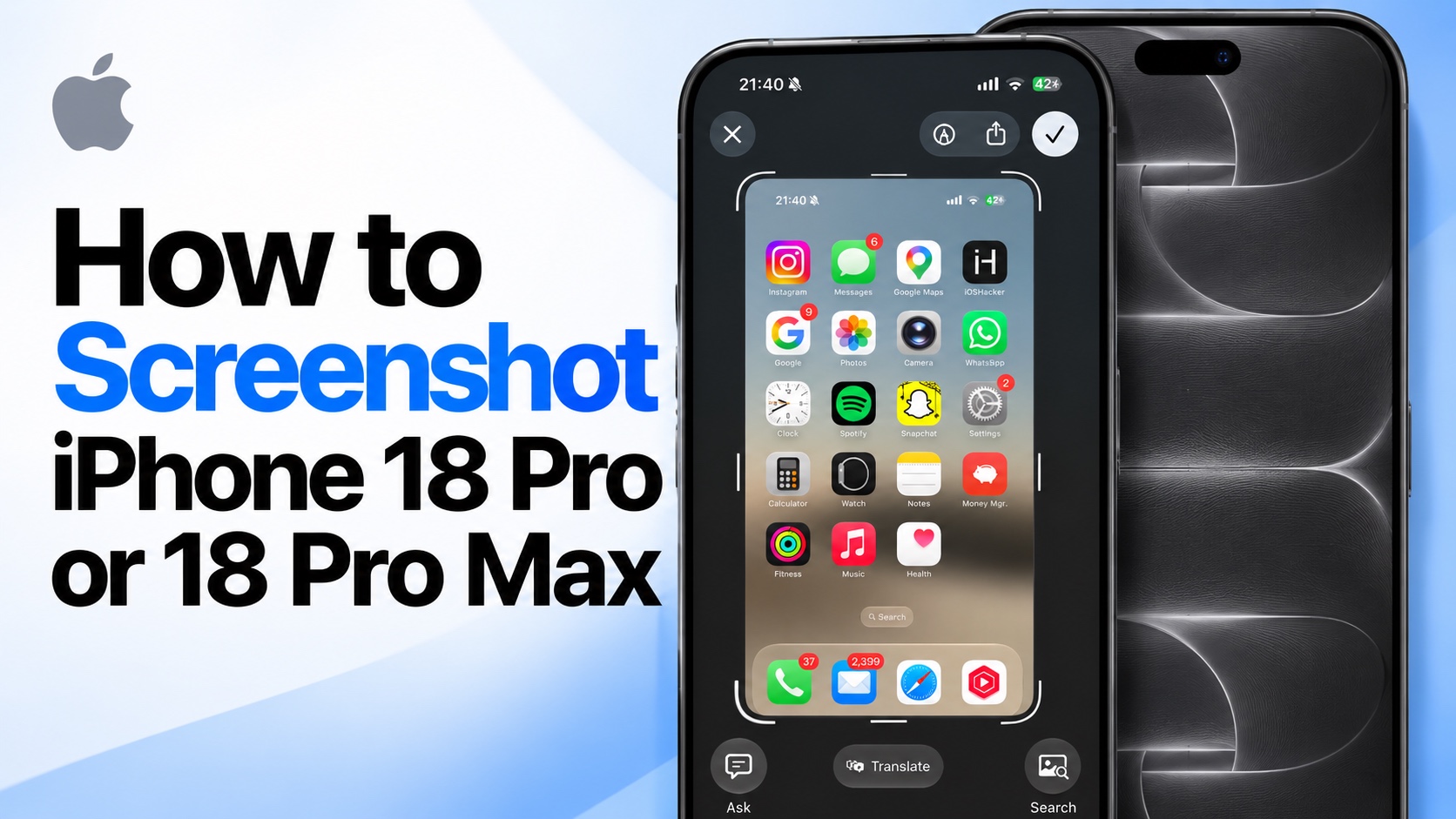
Want to learn how to screenshot an iPhone 18 Pro or iPhone 18 Pro Max’s screen? In this tutorial, we are going to show you exactly that. In fact, we will share 3 easy ways to screenshot on an iPhone 18 Pro.
There are multiple ways you can take screenshots on your iPhone 18 Pro running iOS 27 or later. You can use the physical buttons, use Siri, or use the Back Tap feature.
Let’s talk about each one of them one by one.
Screenshot iPhone 18 Pro with buttons
The most popular and perhaps the easiest way to take an iPhone 18 Pro screenshot is through the physical buttons. Here’s how to do it.
- Press the Volume Up button and Side/Power button at the same time.
As soon as you press these buttons simultaneously, your iPhone’s screen will flash and you will hear a shutter sound. After this you will enter the full screen previews screen, where you can edit or share the screenshot quickly.
Use Siri to take screenshots
You can also use Siri on your iPhone to take a screenshot by just using your voice.
Just say the phrase ‘Hey Siri, take a screenshot’. After hearing this Siri will take a screenshot of whatever is on your iPhone’ screen.
Take screenshot with Back Tap feature
Hidden deep inside the Accessibility Settings, the Back Tap feature lets you perform an action by physically tapping the back of your iPhoen two or three times. You can choose which function you want your iPhone to perform when you Back Tap including taking a screenshot.
Here’s how you can set this feature up.
- Open Settings and go to Accessibility.
- Here, tap on the Touch option.
- Scroll down and tap on Back Tap.
- From the next screen choose either Double Tap on Triple Tap option.
- Finally find and select the ‘Screenshot’ option from the next page.
That’s it, these are the three ways you can take screenshot on your iPhone 18 Pro or iPhone 18 Pro Max.
Knowing all three of these methods is useful as you can quickly perform the one that is most convenient for you in the moment you want to take a screenshot .


