


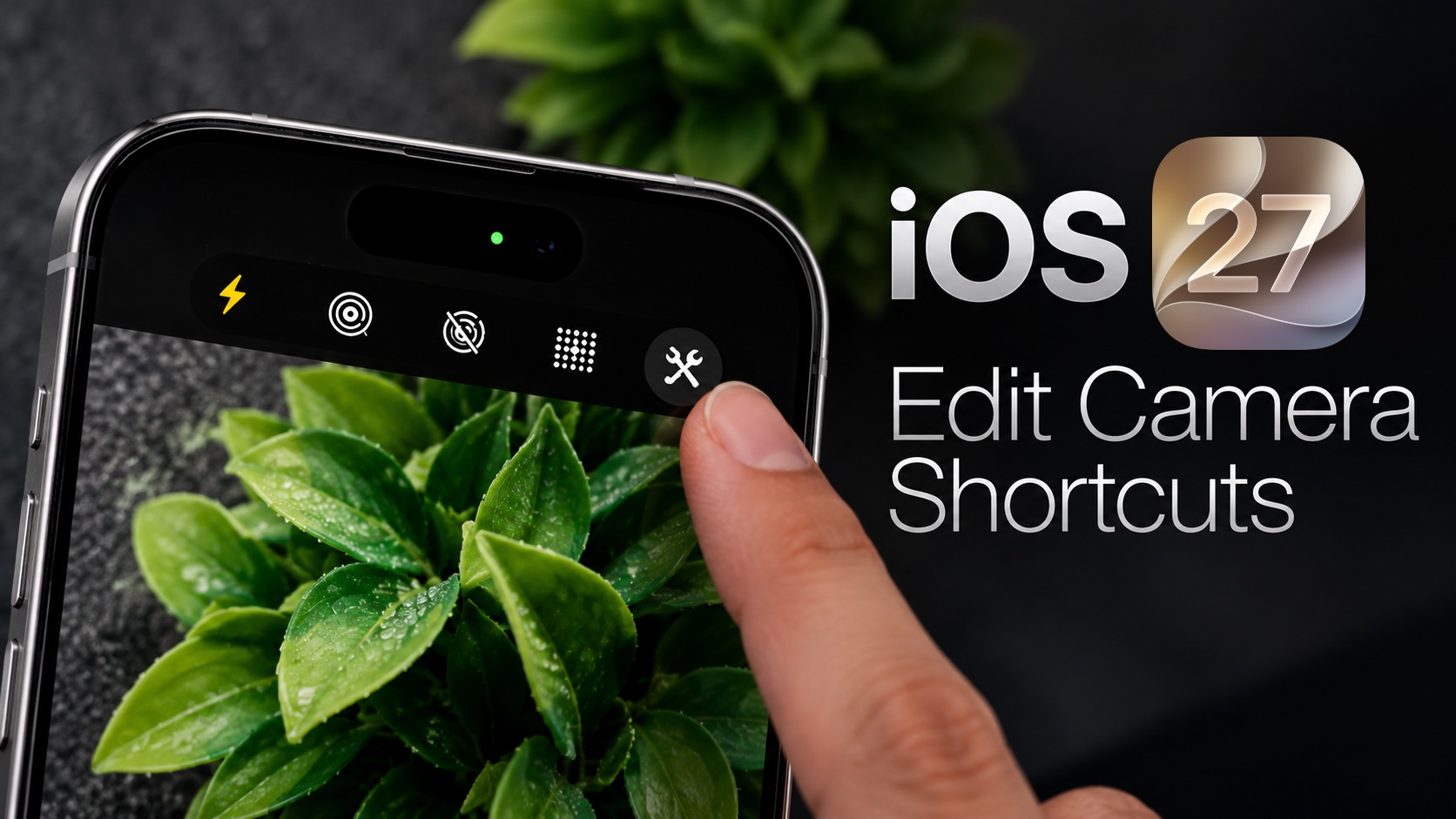
iOS 27 brings a redesigned camera app experience to the users. This includes a new Photo Controls Shortcut menu that gives you quick access to your most used controls including the flash button and the live photo toggle.
What you may not know is this quick access shortcut menu can be edited to include your most used controls. By making this small change, you can make accessing photo controls much faster and improve your photography.
Here’s how to edit the menu in any device running iOS 27 or later.
- Launch the Camera app
- Tap on the menu button located at the bottom right or top right depending on your iPhone’s orientation.
- As soon as the menu appears, tap on the Edit button located at the top left side, right next to the dynamic island.
- The Photo Controls editing should appear. Now tap on the Photo controls that you wish to add to your Photo Controls shortcut bar.
- You can also tap on the ‘-‘ button over each button to remove it.
- If at any point you want to reset the menu, you can tap on the Reset to Essentials button from the bottom to reset the menu to its original configuration.
- After you are done adding your photo controls tap on the Done button from the top.
Now that you have added your desired photo controls to the shortcuts menu, you can quickly access them whenever you are taking photos with your device.
Keep in mind that you need to add the video controls to the shortcut menu separately. To do that just switch to the video mode and perform the same steps.
That’s it, this is how you can modify the Photo Controls on your iPhone and make shooting photos and videos easier on your device.


