


Are you experiencing random flickering on your iPhone? If yes, then this guide is for you. In this tutorial, we will not only try to fix the flickering issue, but we will also look into fixing other issues, like screen brightness changing or the display looking unstable.
First of all, take a deep breath and relax, as screen flickering on an iPhone is a common issue and can be fixed in a few minutes.
So without any further ado, let’s get right into it.
Fix Screen Flickering on iPhone
Fix 1: Disable Auto-Brightness
The Auto-Brightness is a convenient feature that adjusts the brightness level of your iPhone’s screen according to your environment. Sometimes the ambient light sensor constantly adjusts screen brightness, which can make the screen appear to flicker.
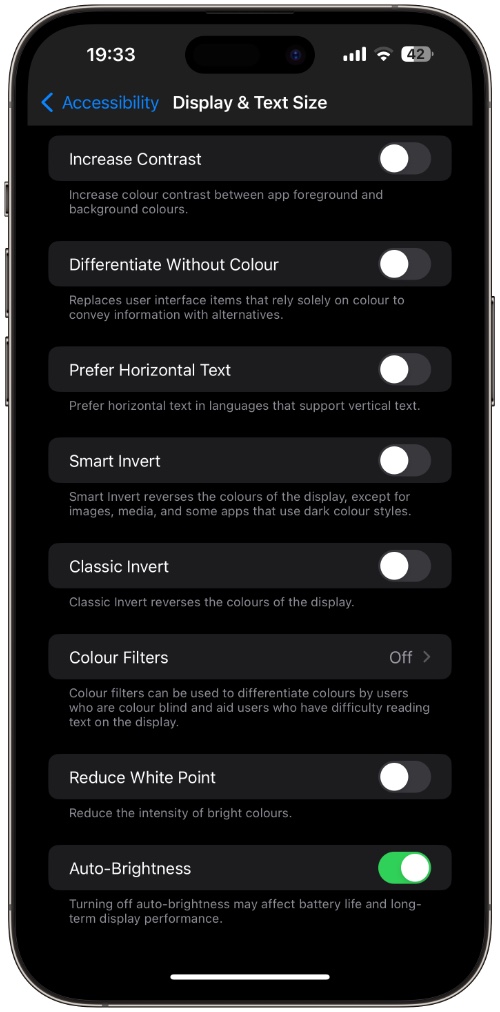
You can turn off Auto-Brightness on iPhone by following these steps.
- Open Settings and go to Accessibility.
- Tap on Display & Text Size.
- Turn off the toggle for Auto-Brightness.
Once disabled, your iPhone’s screen should stop flickering.
Fix 2: Turn off True Tone
The True Tone feature, which lets your iPhone adjust the color temperature of its display according to the surrounding light, can also cause small display fluctuations.
Here’s how you can turn this feature off.
- Open Settings and go to Display Brightness.
- Under Brightness, turn off the toggle for ‘True Tone’.
Fix 3: Disable Display Zoom
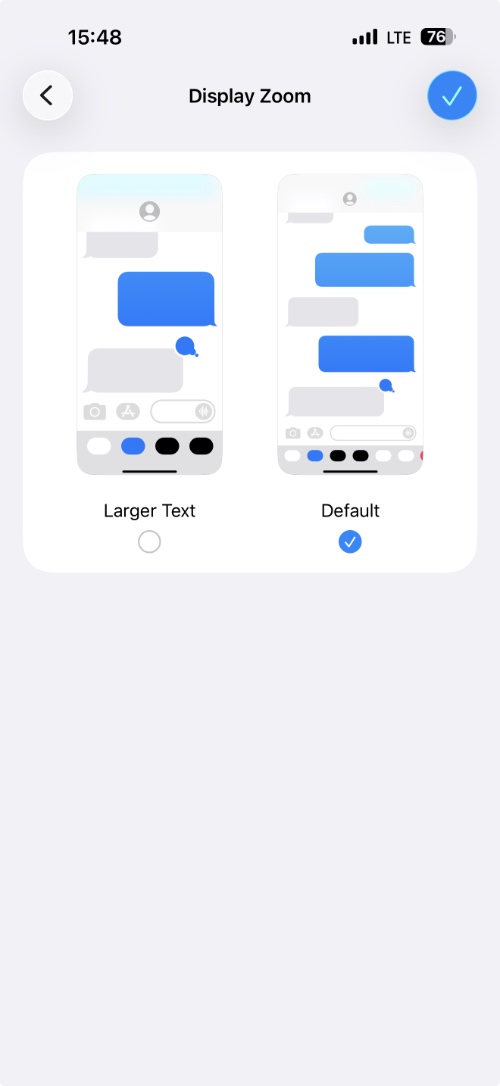
The Display Zoom feature can also cause your iPhone’s screen to flicker. You can turn it off by following these steps.
- Open Settings and go to Display & Brightness.
- Scroll down and tap on Display Zoom.
- On the next screen, select the ‘Default’ option instead of Larger Text.
Fix 4: Force Restart Your iPhone
An easy and effective solution that can help you fix the iPhone screen flickering issue is a force restart. Here’s how it’s done.
- Press and quickly release the Volume Up button.
- Press and quickly release the Volume Down button.
- Press and hold the Side button until the Apple logo appears.
Fix 5: Update iOS
Updating your iPhone to the latest version of iOS can solve screen flickering issues. New versions of iOS come with bug fixes that can resolve common issues like screen flickering.
- Launch Settings and tap on General.
- Here, tap on Software Update.
- Download and install any available updates.
Fix 6: Reset All Settings
You can resolve the screen flickering problem on your iPhone by resetting all settings on it. Here’s how it’s done.
- Open Settings and go to General.
- Scroll down and tap on Transfer or Reset iPhone.
- Tap on Reset.
- Now select the Reset All Settings option.
Fix 7: Check for hardware damage
If your iPhone’s screen is still flickering after following the solutions shared above, you might be facing a hardware issue.
Look at your iPhone’s display for:
- Cracks in the screen
- Lines across the screen (check on white and black background)
- Pressure marks on the screen
- Flickering only in certain parts of the screen
If you notice any of the signs above, then you should visit an Apple Store or an authorized repair center and have your device checked by a professional.
Conclusion
That’s it, these are some of the solutions that have proven effective in fixing the screen flickering issue on iPhone. With these solutions, you can hopefully fix this problem at home in a few minutes.
Let us know which solution worked for you in the comments below.


