


In this guide, we have shared instructions on how to reset Face ID on iPhone and set it up again. If you’re facing issues with Face ID or if you are not happy with its performance, then you can reset Face ID for better results.
Doing so will quickly fix any issues that you are facing while unlocking your device.
Reset Face ID on iPhone
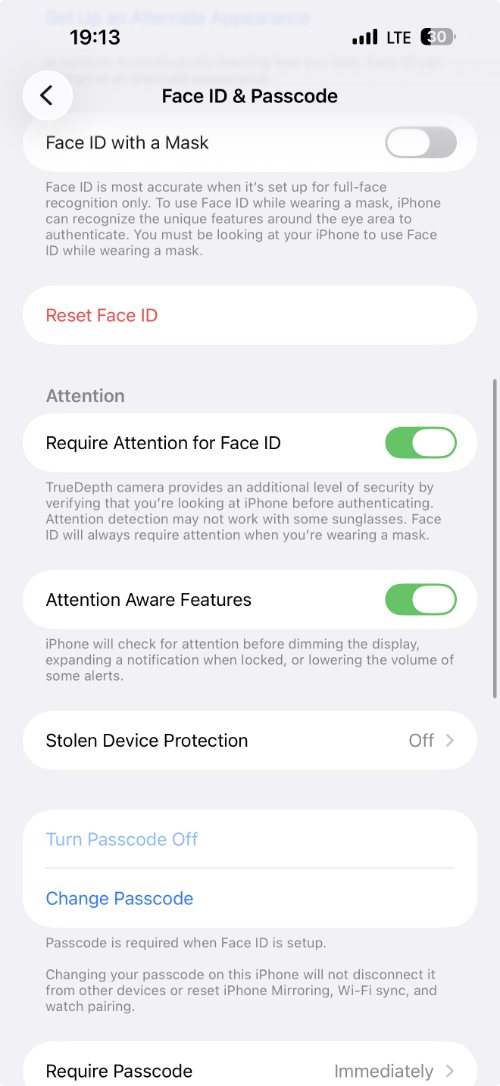
Here’s how you can quickly reset Face ID on your iPhone running iOS 26 or later.
- Unlock your iPhone and open Settings.
- Tap on Face ID & Passcode.
- Enter your device’s passcode when prompted.
- Now, find and tap on the Reset Face ID option.
Set Up Face ID on iPhone
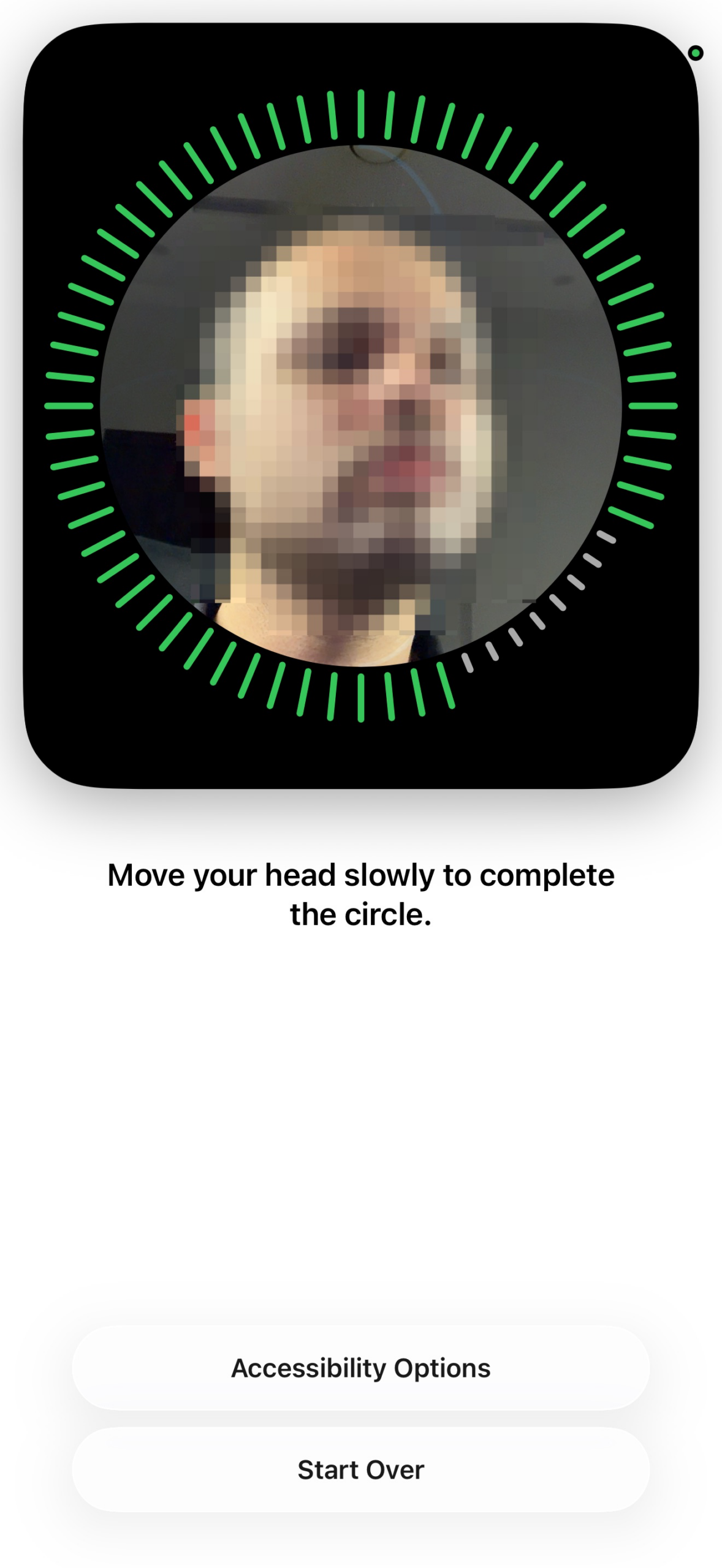
After resetting Face ID on your device, you can set it up again by following these steps.
- Open Settings.
- Go to the Face ID & Passcode option.
- Tap on the Set Up Face ID option.
- Make sure to position your face inside the frame and follow the on-screen instructions.
- After facial scanning is complete, tap Done to complete the process.
That’s it, this is how you can reset Face ID on your iPhone and set it up again.
If you are facing issues with Face ID, then follow our guide on how to fix Face ID not working on iPhone.
Disclosure: iOSHacker may receive a commission if you purchase products through our affiliate links. For more visit our privacy policy page.


